AI Tools
AI Tools connects an AI provider, such as OpenAI or DeepSeek, to ONLYOFFICE editors, enabling intelligent text generation, editing, summarization, and automatic macro creation.
Supported editors: documents, spreadsheets, presentations, PDF.
Installing
Where AI Tools is available depends on the product:
- Desktop Editors 10.0.0 and later include AI Tools out of the box. It is installed with the editors, so Plugin Manager does not list it, and the store does not update it.
- Desktop Editors Community does not include AI Tools.
- ONLYOFFICE Docs Community Edition does not include AI Tools.
- Commercial editions of ONLYOFFICE Docs include AI Tools. By default, each user connects their own AI provider, as described in Configuring. Administrators can instead configure AI providers for all users through the Admin Panel. In this case, users cannot add their own providers. See Configuring AI providers for all users.
Integrators can disable AI Tools with the editorConfig.customization.ai.disabled parameter. Server administrators can disable it by setting aiSettings.enable to false.
The AI Tools GUID is {9DC93CDB-B576-4F0C-B55E-FCC9C48DD007}.
Configuring
If your administrator has configured AI providers on the server, the Settings button is not shown and no setup is needed. See Configuring AI providers for all users.
To start using AI Tools, you need to set up an AI provider:
-
On the Plugins tab, click Background plugins and verify that the AI Tools switch is enabled (it is enabled by default).
-
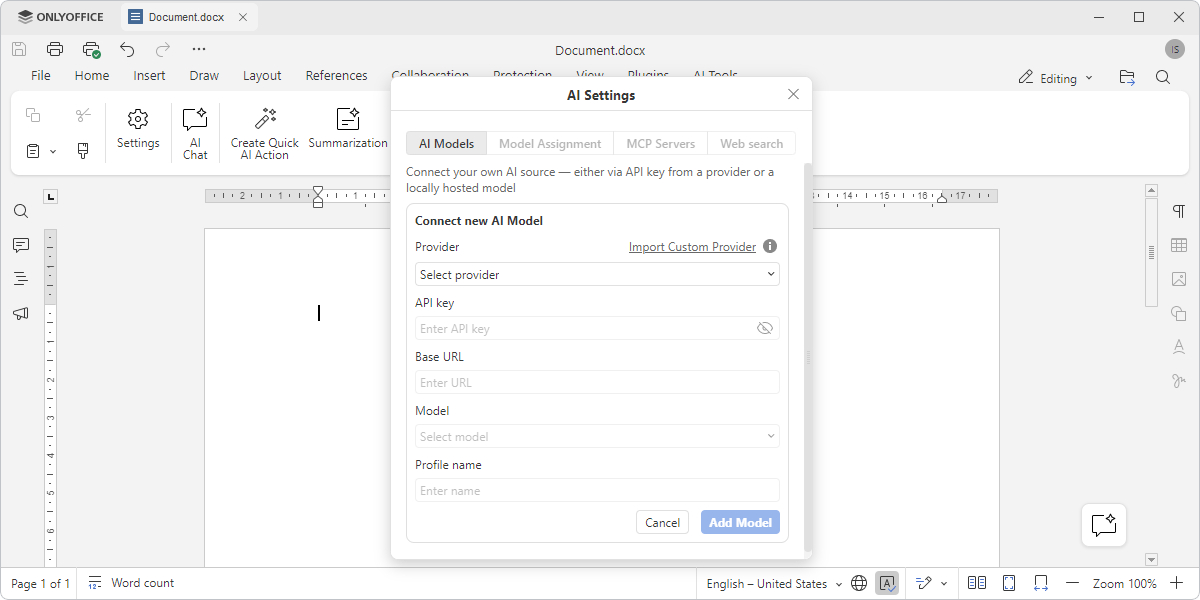
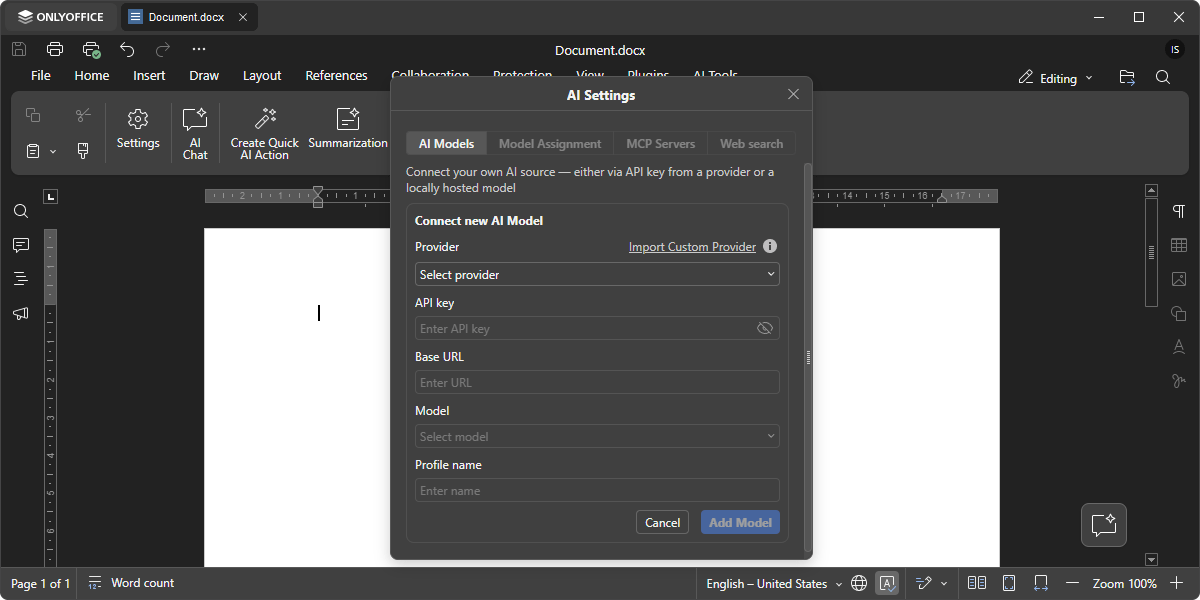
Open the AI Tools tab and click Settings. The AI Settings dialog opens.
-
On the AI Models tab, click Add Model.
-
In the Connect new AI Model form, select a Provider, enter the API key, specify a Base URL if necessary, select a Model, and enter a Profile name.
-
Click Add Model. The model appears in the list on the AI Models tab.
-
On the Model Assignment tab, select a Default model. Under Custom models per task, you can assign separate models to AI Chat, Code, Summarization, Translation, Text Analysis, Image generation, OCR, Vision, and Form analysis.
For details on adding a custom provider, refer to these instructions.
MCP Servers and Web search
AI Tools settings also include MCP Servers and Web search settings:
-
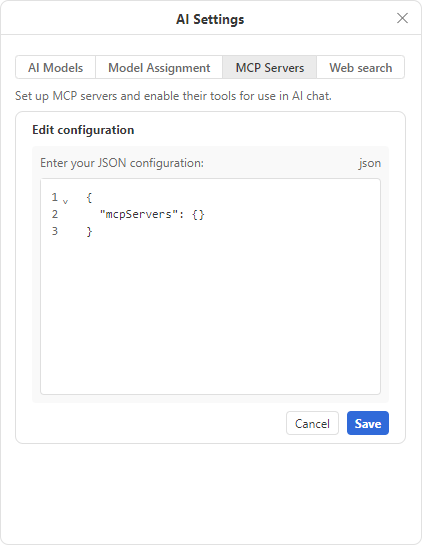
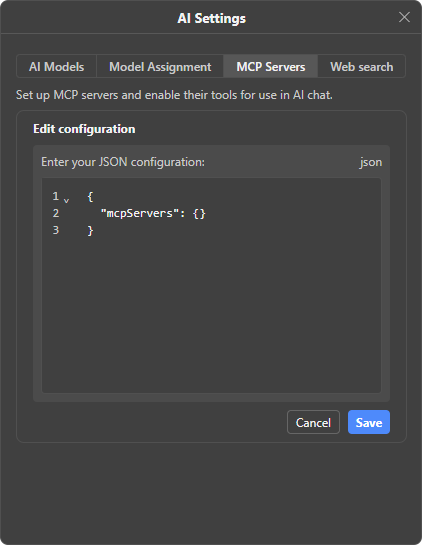
The MCP Servers tab allows you to add MCP servers through Edit configuration so AI Chat can call their tools.
In Desktop Editors, you can also launch the server on your computer with Docker, Node.js, or Python. See Connecting MCP servers.
In the web editors, connect a remote MCP server over HTTP. Add it in AI Settings, or let an administrator add it for every user from the Admin Panel. Docker, Node.js, and Python launches stay in Desktop Editors. For an HTTP example with the ONLYOFFICE Apps MCP server, see Configuring AI providers for all users.
-
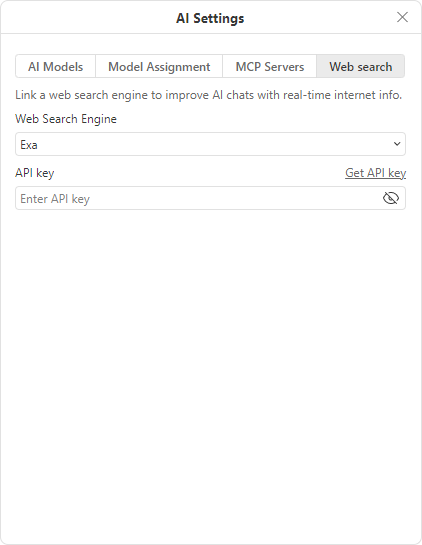
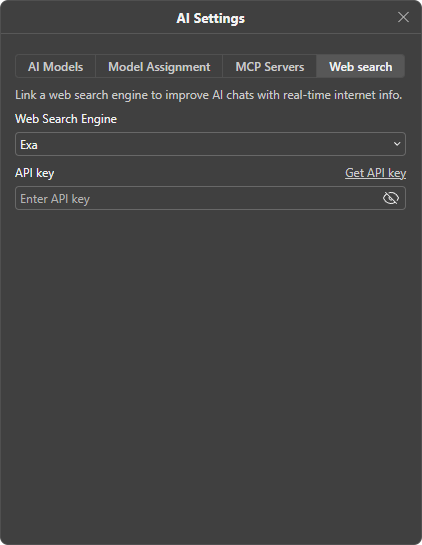
To let AI Chat look up the web during a conversation, open the Web search tab, select a search engine in the Web Search Engine list, for example Exa, and enter its API key.
Using
To start using AI Tools:
-
Open the AI Tools tab in the top toolbar of ONLYOFFICE editors.
-
Select text if the command needs it, and click a button on the tab:
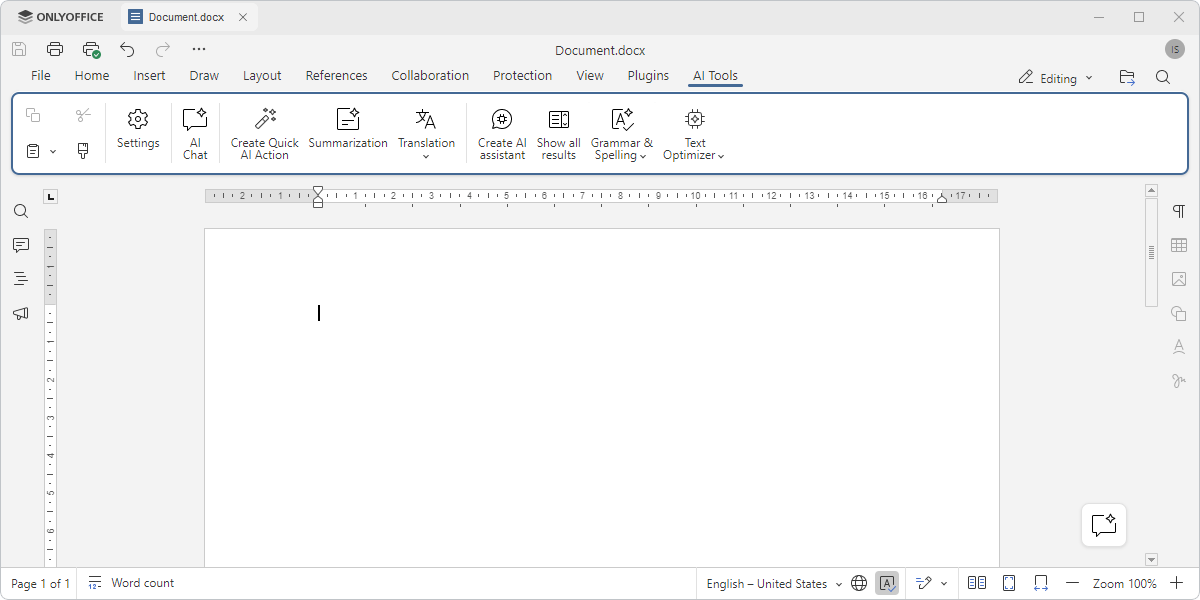
- Settings: opens the AI Settings dialog. The dialog has four tabs: AI Models, Model Assignment, MCP Servers, and Web search.
- AI Chat: start a conversation with the AI to ask questions, rewrite text, generate ideas, and more.
- Create Quick AI Action: create a custom command that runs once on the selected text. See How to create a Quick AI Action.
- Summarization: automatically summarize the entered text and choose ways to insert the result.
- Translation: translate selected text using the configured AI service.
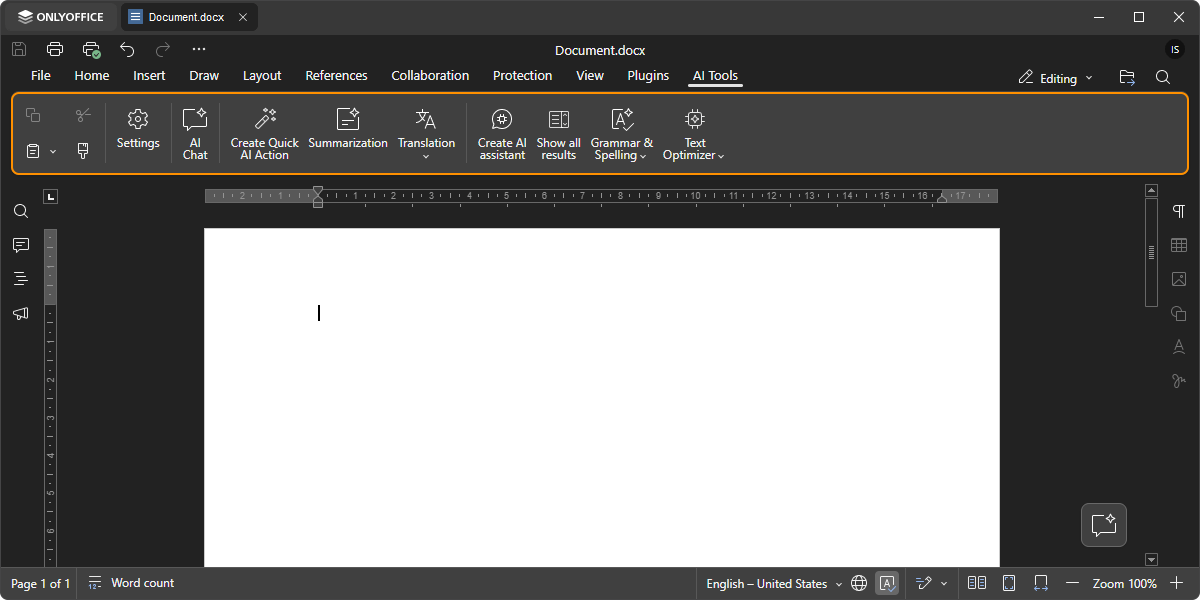
- Create AI assistant: create an assistant that works continuously and reacts to document changes. The assistant appears as a button at the end of the tab, such as Text Optimizer in the screenshot above. See How to create an AI assistant.
- Show all results: opens the AI assistant panel on the left, displaying the results produced by AI assistants.
- Grammar & Spelling: check the grammar and spelling of the selected text.
Quick AI Actions that you add to the toolbar appear on the tab after Translation:
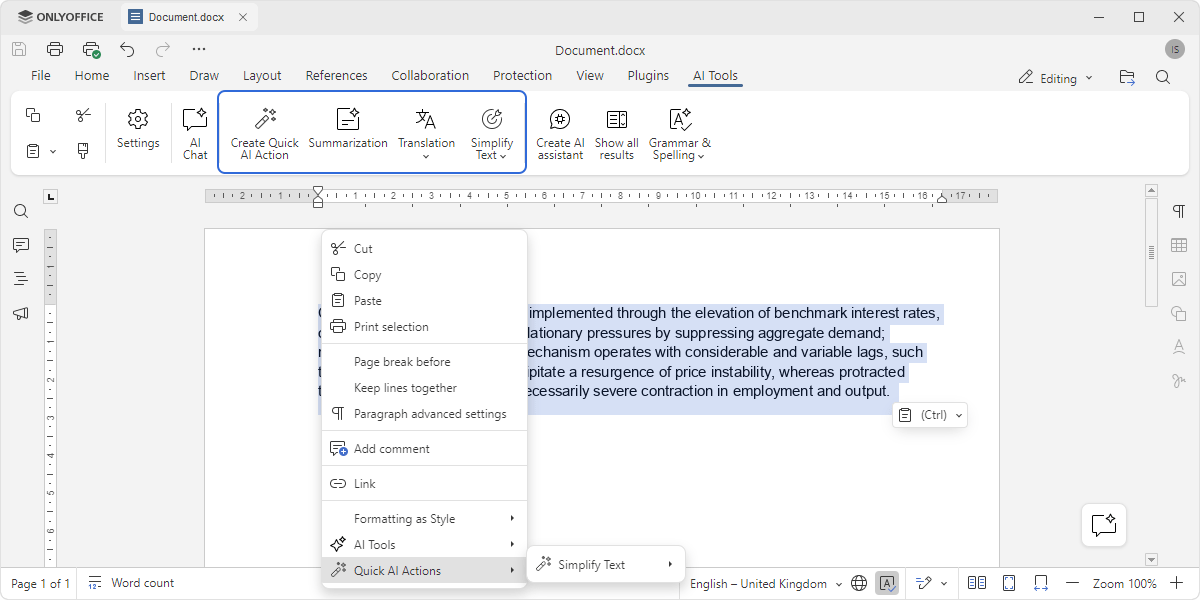
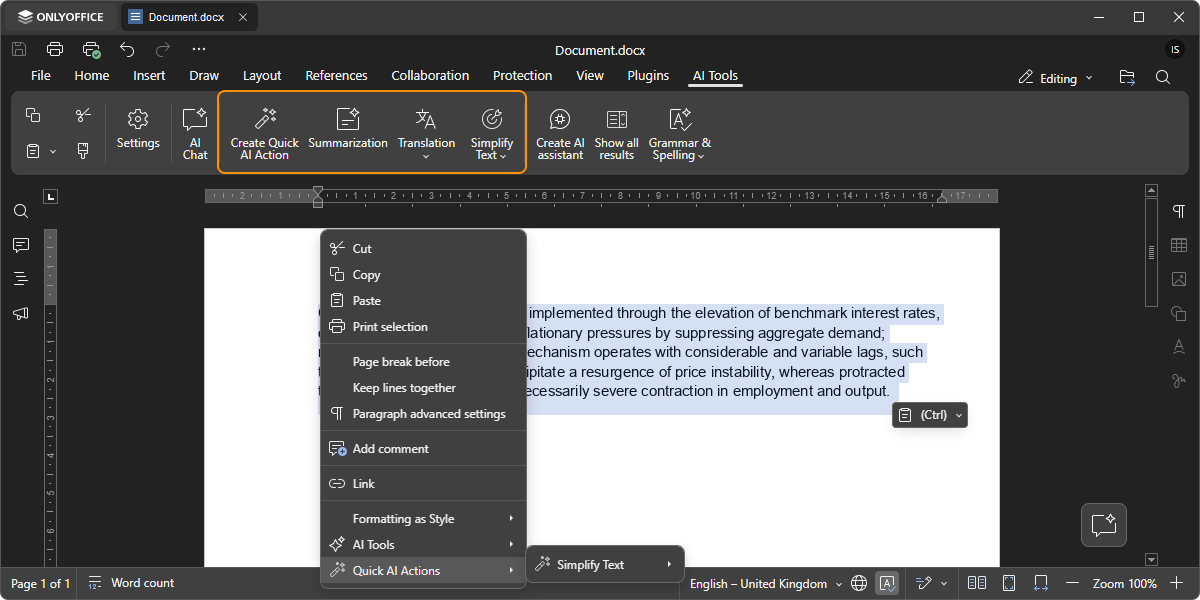
-
You can also use AI Tools from the context menu. Right-click in the document and open the AI Tools menu. With text selected, it offers Summarization, Text analysis, Translate, Image, Grammar & Spelling, and AI Chat. Without a selection, it offers only Grammar & Spelling, Text analysis, and AI Chat.
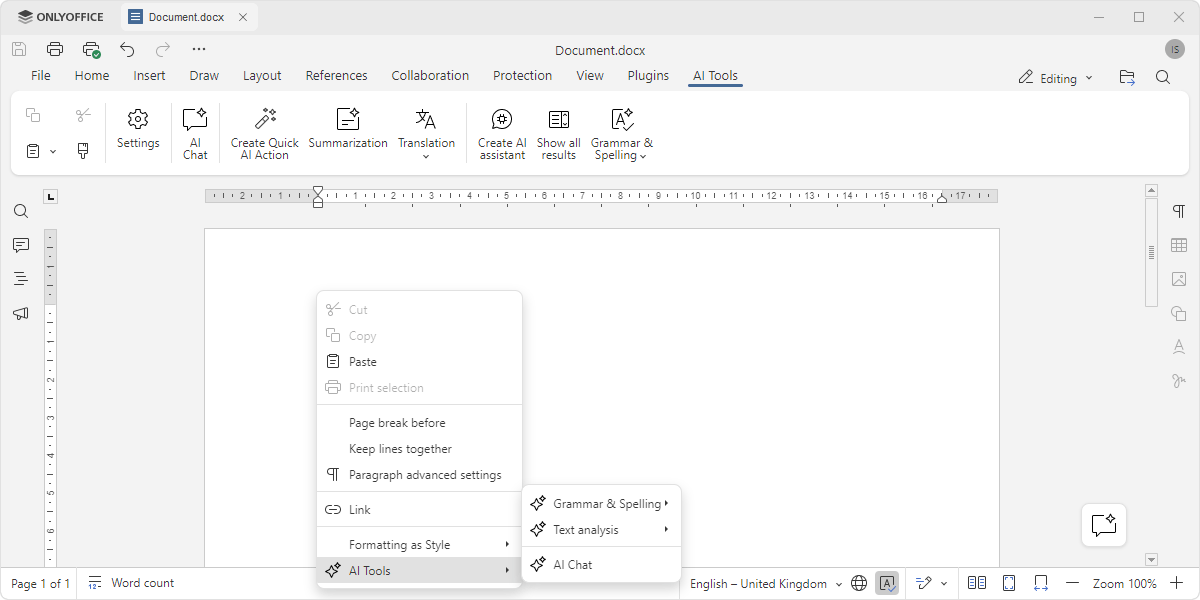
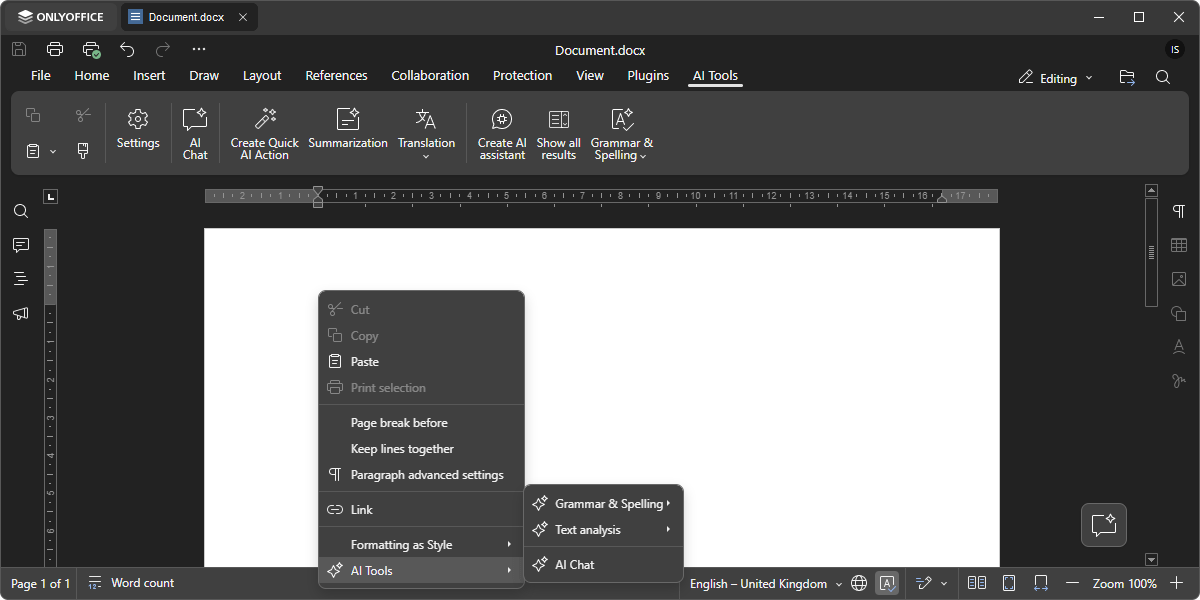
-
AI Tools responds based on the configured AI model. Insert the response into the document or use it for your needs.
Support
If you want to request a feature or report a bug regarding AI Tools, post on the ONLYOFFICE forum.