Anonymous users
The figure and steps below explain how an anonymous user’s name is set in ONLYOFFICE Docs.
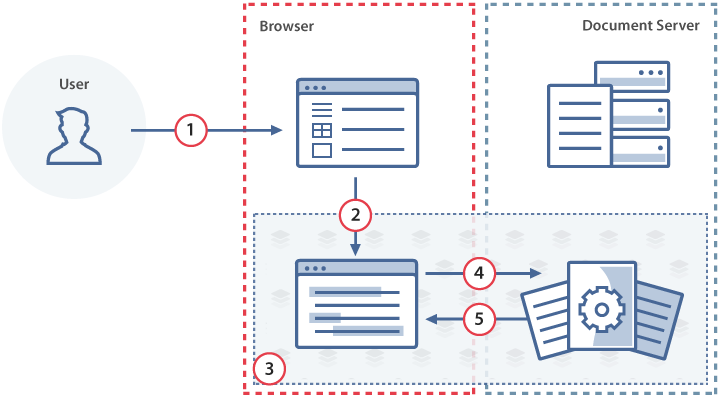
- An anonymous user opens a document for viewing or editing through the document manager.
- The document manager initializes the document editor with a
configthat has an emptyuser.idand no user name. - The document editor prompts the user for a name.
- The document editor sends the name to the document editing service.
- The document editing service relays the name to the document editors of all users who are co-editing the document.
How this can be done in practice
-
Create an
.htmlfile to open the document. -
To make a user anonymous, pass an empty
user.idin the editorconfig. TheeditorConfig.customization.anonymousparameter controls the name prompt and the guest label:request— whentrue(the default), the document editor prompts the user for a name on first open. Set tofalseto suppress the prompt.label— a suffix appended to the name to distinguish guests during co-editing. The default value is"Guest".
const config = {editorConfig: {user: {id: "",},customization: {anonymous: {request: true,label: "Guest",},},},};const docEditor = new DocsAPI.DocEditor("placeholder", config); -
When
requestistrueand no name is stored yet, the document editor shows a name prompt:

-
Once the name is set, the
labelsuffix is appended to it:

-
The entered name is saved to the browser’s local storage. On the next visit, the stored name is reused automatically — the user is not prompted again.
-
To change the name, the user clicks their name on the top toolbar and enters a new one in the dialog that opens.
-
All co-authors see the updated name immediately.
Restricting access to the editor or live viewer
To restrict anonymous user access to the editor or live viewer, set the services.CoAuthoring.server.isAnonymousSupport parameter in the server configuration file to false. When an anonymous user tries to open the editor, a warning is shown:


For the live viewer, no warning is shown — it falls back to the offline viewer silently.