Co-editing
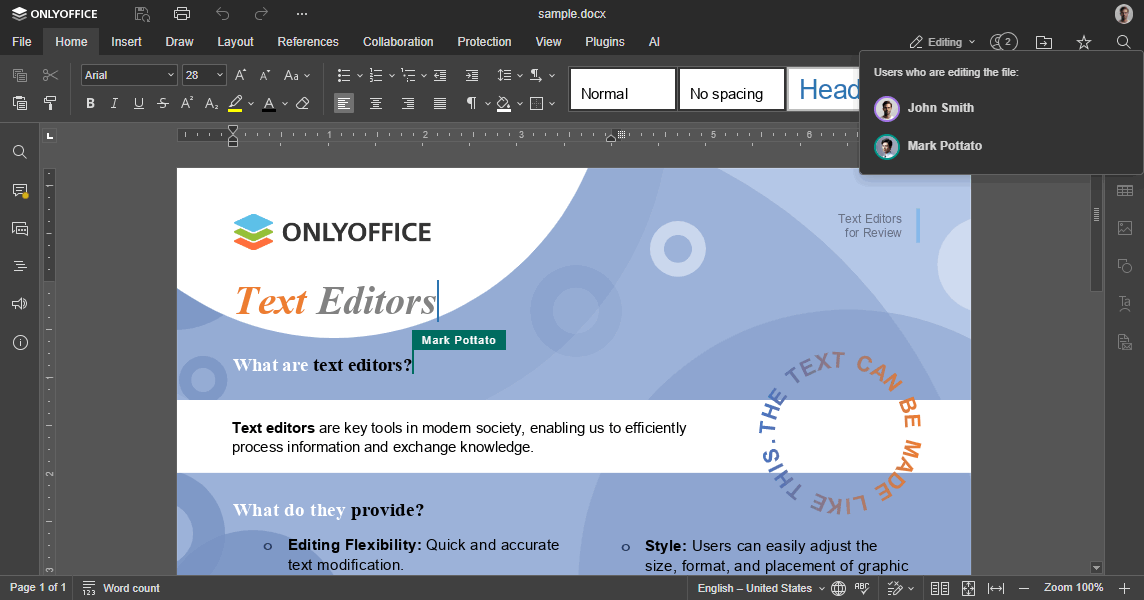
The figure and steps below explain how a document is co-edited in ONLYOFFICE Docs.
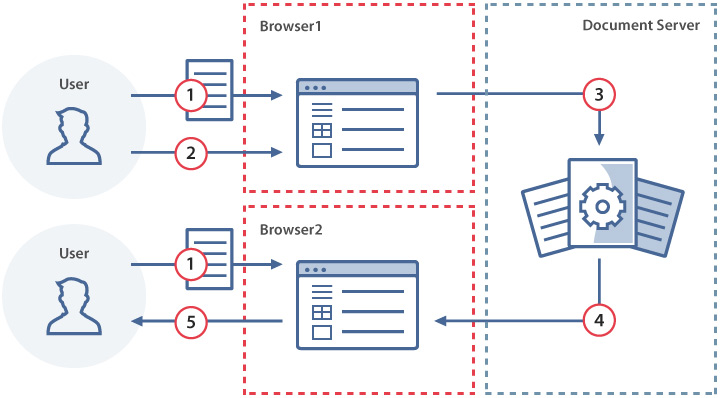
- user 1 and user 2 both open the same document in the document editor — that is, their configs contain the same
document.key. - user 1 makes changes to the opened document.
- The document editor sends changes made by user 1 to the document editing service.
- The document editing service sends the changes made by user 1 to the user 2 document editor.
- Now these changes become visible to user 2.
How this can be done in practice
-
Create an empty
.htmlfile. -
Add the
<div>element as shown below:<div id="placeholder"></div> -
Include the ONLYOFFICE Docs JavaScript API script on your page:
<script type="text/javascript" src="https://documentserver/web-apps/apps/api/documents/api.js"></script>Where
documentserveris the name of the server where ONLYOFFICE Docs is installed. Theapi.jsscript is served by the document editing service; it loads the document editor and connects it to that same service.tipDon't have a document server yet? Register for a free ONLYOFFICE Docs Cloud and use the public IP address or public DNS name of your instance as
documentserver. You can find them in the Instances section of the cloud console. -
Add the script that initializes the document editor for the
<div>element, using the configuration for the document you want to open:const config = {document: {fileType: "docx",key: "Khirz6zTPdfd7",title: "Example Document Title.docx",url: "https://example.com/url-to-example-document.docx",},documentType: "word",editorConfig: {user: {id: "78e1e841",name: "John Smith",},},token: "eyJhbGciOiJIUzI1NiIsInR5cCI6IkpXVCJ9.eyJkb2N1bWVudCI6eyJmaWxlVHlwZSI6ImRvY3giLCJrZXkiOiJLaGlyejZ6VFBkZmQ3IiwidGl0bGUiOiJFeGFtcGxlIERvY3VtZW50IFRpdGxlLmRvY3giLCJ1cmwiOiJodHRwczovL2V4YW1wbGUuY29tL3VybC10by1leGFtcGxlLWRvY3VtZW50LmRvY3gifSwiZG9jdW1lbnRUeXBlIjoid29yZCIsImVkaXRvckNvbmZpZyI6eyJ1c2VyIjp7ImlkIjoiNzhlMWU4NDEiLCJuYW1lIjoiSm9obiBTbWl0aCJ9fX0.6AcBUCbys9kQ7S982Qm4w1romVg86kZ4ECNsxDff5zU",};const docEditor = new DocsAPI.DocEditor("placeholder", config);Replace
example.comwith the host serving your document file — i.e., your document storage service. In this minimal example, the local.htmlfile plays the role of the document manager — in a real integration, the manager would build this config dynamically for each user and document. For a quick test, usehttps://static.onlyoffice.com/assets/docs/samples/demo.docxas theurl.warningWhen JWT validation is enabled on your document server (the default configuration), the
configmust be signed with a matchingtoken. Thetokenabove matches this exact config but is signed with a throwaway secret — it will not validate on your server, and it must be regenerated whenever the config changes (for example, if you switchurlto the demo document). Sign with your document server's JWT secret. A token does not bypass network restrictions: ifurlpoints to a local or private address, the document server must still be able to reach it. -
Open your
.htmlfile in the browser. -
Open the same
.htmlfile in a second browser tab. Because both tabs use the same documentkey, the document editing service connects them into a single co-editing session — you are now co-editing with yourself.
Using a key in co-editing
To open a document for editing, the editor config requires the key parameter — a unique document identifier generated by the integrator. The document editing service uses this key to recognize the document. The key is a text field with a limited length.
The key can contain the characters 0-9, a-z, A-Z, -._=. The maximum key length is 128 characters.
For co-editing to work, all users must open the document with the same key. When a user (or another tab/editing session for inline editors) opens a document, the document editing service checks whether the key matches an existing editing session. If it matches, the user joins that session. If it does not, a new independent editing session starts — unrelated to other sessions or file versions.
Once the save request is sent (status equals 2) and the operation completes successfully (the response is {"error":0}), the key can no longer be used to open the document for editing — attempting to do so loads an error message. However, the key can still be used to view the document from the cache, provided the cached version has not expired.
If the user force-saves the document while editing is still in progress (status equals 6), the key must not be changed — otherwise co-editing stops. After a forcesave, the key also must not be changed for new users joining the current editing session.
Examples
In every example below, replace example.com with the host serving your document file — i.e., your document storage service. For a quick test, use https://static.onlyoffice.com/assets/docs/samples/demo.docx as the url.
-
Add the script initializing the document editor with key 1. The key is not yet cached by the service, so the URL is used to download the file.
Close the document editor.
warningWhen JWT validation is enabled (the default), the
configmust include a matchingtoken.const config = {document: {fileType: "docx",key: "Khirz6zTPdfd7",title: "Example Document.docx",url: "https://example.com/url-to-example-document.docx",},documentType: "word",token: "eyJhbGciOiJIUzI1NiIsInR5cCI6IkpXVCJ9.eyJkb2N1bWVudCI6eyJmaWxlVHlwZSI6ImRvY3giLCJrZXkiOiJLaGlyejZ6VFBkZmQ3IiwidGl0bGUiOiJFeGFtcGxlIERvY3VtZW50LmRvY3giLCJ1cmwiOiJodHRwczovL2V4YW1wbGUuY29tL3VybC10by1leGFtcGxlLWRvY3VtZW50LmRvY3gifX0.GcpcY8sLCUDqbgqCLvPs6Z0xfBtayOy-GHEXYiZCpfs",};const docEditor = new DocsAPI.DocEditor("placeholder", config); -
Add the script initializing the document editor with the same key 1. The key is already cached, so the new URL is ignored and the document is reopened from the cache.
const config = {document: {fileType: "docx",key: "Khirz6zTPdfd7",title: "Example Document 2.docx",url: "https://example.com/url-to-example-document2.docx",},documentType: "word",token: "eyJhbGciOiJIUzI1NiIsInR5cCI6IkpXVCJ9.eyJkb2N1bWVudCI6eyJmaWxlVHlwZSI6ImRvY3giLCJrZXkiOiJLaGlyejZ6VFBkZmQ3IiwidGl0bGUiOiJFeGFtcGxlIERvY3VtZW50IDIuZG9jeCIsInVybCI6Imh0dHBzOi8vZXhhbXBsZS5jb20vdXJsLXRvLWV4YW1wbGUtZG9jdW1lbnQyLmRvY3gifX0.aegFVaZpkqc5bEYmF-PQYf3MMFg7QvAfWeOnfDJeuTg",};const docEditor = new DocsAPI.DocEditor("placeholder", config); -
Add the script initializing another document editor with key 2. This key is not yet cached, so the URL is used to download the file. Even if this URL and the URL from example 1 are the same, the different key means two independent editing sessions.
Close the document editor.
const config = {document: {fileType: "docx",key: "Mgetl3dYUppf2",title: "Example Document.docx",url: "https://example.com/url-to-example-document.docx",},documentType: "word",token: "eyJhbGciOiJIUzI1NiIsInR5cCI6IkpXVCJ9.eyJkb2N1bWVudCI6eyJmaWxlVHlwZSI6ImRvY3giLCJrZXkiOiJNZ2V0bDNkWVVwcGYyIiwidGl0bGUiOiJFeGFtcGxlIERvY3VtZW50LmRvY3giLCJ1cmwiOiJodHRwczovL2V4YW1wbGUuY29tL3VybC10by1leGFtcGxlLWRvY3VtZW50LmRvY3gifSwiZG9jdW1lbnRUeXBlIjoid29yZCJ9.5YvlbNVbXFddzKBdz_qPpqgUX_JrUHBWCGRQ5YgVp_w",};const docEditor = new DocsAPI.DocEditor("placeholder", config); -
Add the script initializing another document editor with key 1. The key is already cached, so the document is reopened from the cache. Because this key matches example 2, the document opens in co-editing mode.
Get the current document state without closing the document. The forcesave parameter allows you to do it in the customization section of the editor initialization.
const config = {document: {fileType: "docx",key: "Khirz6zTPdfd7",title: "Example Document.docx",url: "https://example.com/url-to-example-document.docx",},documentType: "word",editorConfig: {customization: {forcesave: true,},},token: "eyJhbGciOiJIUzI1NiIsInR5cCI6IkpXVCJ9.eyJkb2N1bWVudCI6eyJmaWxlVHlwZSI6ImRvY3giLCJrZXkiOiJLaGlyejZ6VFBkZmQ3IiwidGl0bGUiOiJFeGFtcGxlIERvY3VtZW50LmRvY3giLCJ1cmwiOiJodHRwczovL2V4YW1wbGUuY29tL3VybC10by1leGFtcGxlLWRvY3VtZW50LmRvY3gifSwiZG9jdW1lbnRUeXBlIjoid29yZCIsImVkaXRvckNvbmZpZyI6eyJjdXN0b21pemF0aW9uIjp7ImZvcmNlc2F2ZSI6dHJ1ZX19fQ.dlIJqq6tH9ncQmXQV-gCi4Zc7sqYhGS5RwvpiIZGZXA",};const docEditor = new DocsAPI.DocEditor("placeholder", config); -
Add the script initializing another document editor. After a successful forcesave, the key does not change for new users joining the current editing session. Therefore, key 1 must be used to join the same co-editing session as the users from examples 2 and 4.
Close all three editing sessions with key 1. All changes are saved successfully. Because the document is now saved, the integrator must generate a new key.
const config = {document: {fileType: "docx",key: "Khirz6zTPdfd7",title: "Example Document.docx",url: "https://example.com/url-to-example-document.docx",},documentType: "word",editorConfig: {callbackUrl: "https://example.com/url-to-callback",},token: "eyJhbGciOiJIUzI1NiIsInR5cCI6IkpXVCJ9.eyJkb2N1bWVudCI6eyJmaWxlVHlwZSI6ImRvY3giLCJrZXkiOiJLaGlyejZ6VFBkZmQ3IiwidGl0bGUiOiJFeGFtcGxlIERvY3VtZW50LmRvY3giLCJ1cmwiOiJodHRwczovL2V4YW1wbGUuY29tL3VybC10by1leGFtcGxlLWRvY3VtZW50LmRvY3gifSwiZG9jdW1lbnRUeXBlIjoid29yZCIsImVkaXRvckNvbmZpZyI6eyJjYWxsYmFja1VybCI6Imh0dHBzOi8vZXhhbXBsZS5jb20vdXJsLXRvLWNhbGxiYWNrLmFzaHgifX0.L53bCRlJyvIf-C7bcKYM2WMfmk4FeZIoeDaEpc5IxXA",};const docEditor = new DocsAPI.DocEditor("placeholder", config); -
Add the script initializing the document editor for viewing the saved document. The old key 1 can still be used for viewing.
const config = {document: {fileType: "docx",key: "Khirz6zTPdfd7",title: "Example Document.docx",url: "https://example.com/url-to-example-document.docx",},documentType: "word",editorConfig: {mode: "view",},token: "eyJhbGciOiJIUzI1NiIsInR5cCI6IkpXVCJ9.eyJkb2N1bWVudCI6eyJmaWxlVHlwZSI6ImRvY3giLCJrZXkiOiJLaGlyejZ6VFBkZmQ3IiwidGl0bGUiOiJFeGFtcGxlIERvY3VtZW50LmRvY3giLCJ1cmwiOiJodHRwczovL2V4YW1wbGUuY29tL3VybC10by1leGFtcGxlLWRvY3VtZW50LmRvY3gifSwiZG9jdW1lbnRUeXBlIjoid29yZCIsImVkaXRvckNvbmZpZyI6eyJtb2RlIjoidmlldyJ9fQ.wpEk-zrrGq5hKHCm6sAhl_tb51n56th-q-K52Oeq1a4",};const docEditor = new DocsAPI.DocEditor("placeholder", config); -
Add the script initializing the document editor for editing the saved document. Key 1 can no longer be used for editing — the service rejects it with an error because the document was already saved with that key.
Close the document editor.
const config = {document: {fileType: "docx",key: "Khirz6zTPdfd7",title: "Example Document.docx",url: "https://example.com/url-to-example-document.docx",},documentType: "word",editorConfig: {mode: "edit",},token: "eyJhbGciOiJIUzI1NiIsInR5cCI6IkpXVCJ9.eyJkb2N1bWVudCI6eyJmaWxlVHlwZSI6ImRvY3giLCJrZXkiOiJLaGlyejZ6VFBkZmQ3IiwidGl0bGUiOiJFeGFtcGxlIERvY3VtZW50LmRvY3giLCJ1cmwiOiJodHRwczovL2V4YW1wbGUuY29tL3VybC10by1leGFtcGxlLWRvY3VtZW50LmRvY3gifSwiZG9jdW1lbnRUeXBlIjoid29yZCIsImVkaXRvckNvbmZpZyI6eyJtb2RlIjoiZWRpdCJ9fQ.rSc0yYe3_2u7N_uaxZcDQ6vC_d5ZWU5LFkkGSow5UDY",};const docEditor = new DocsAPI.DocEditor("placeholder", config);
Co-editing modes
There are two modes to collaborate on documents in real time — Fast and Strict.
You can change the co-editing mode using the editorConfig.coEditing parameter:
const config = {
  editorConfig: {
    coEditing: {
      mode: "fast",
      change: true,
    },
  },
};

const docEditor = new DocsAPI.DocEditor("placeholder", config);
Fast mode
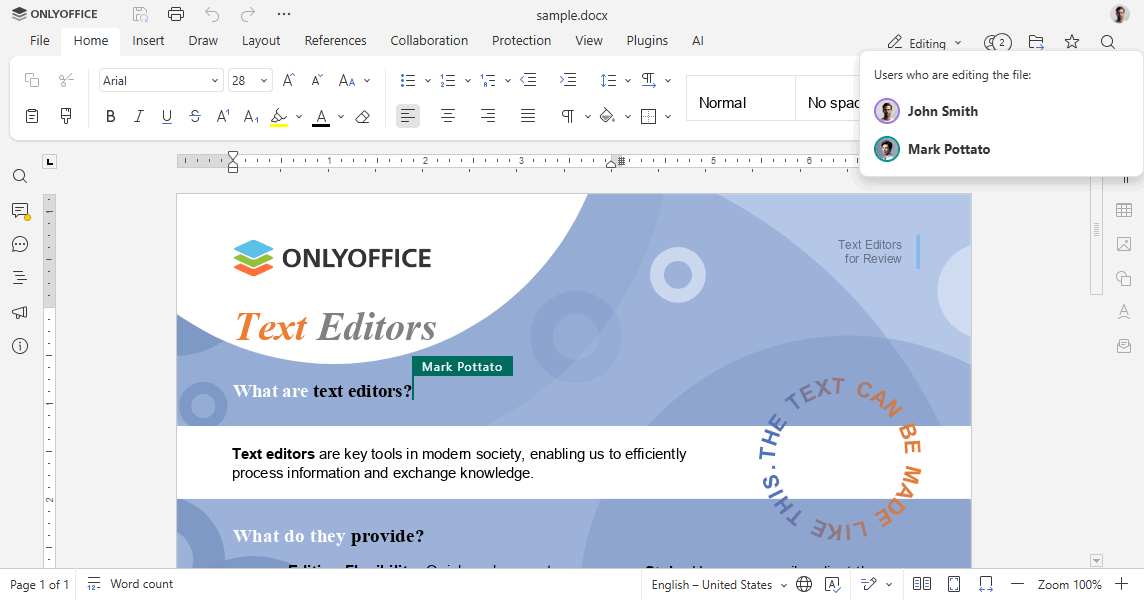
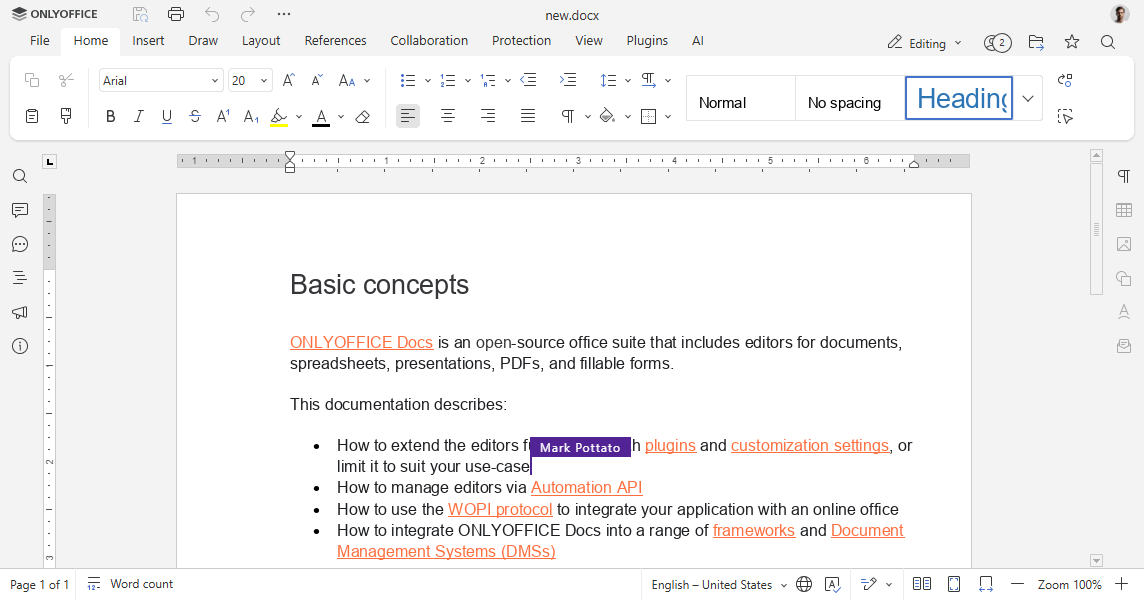
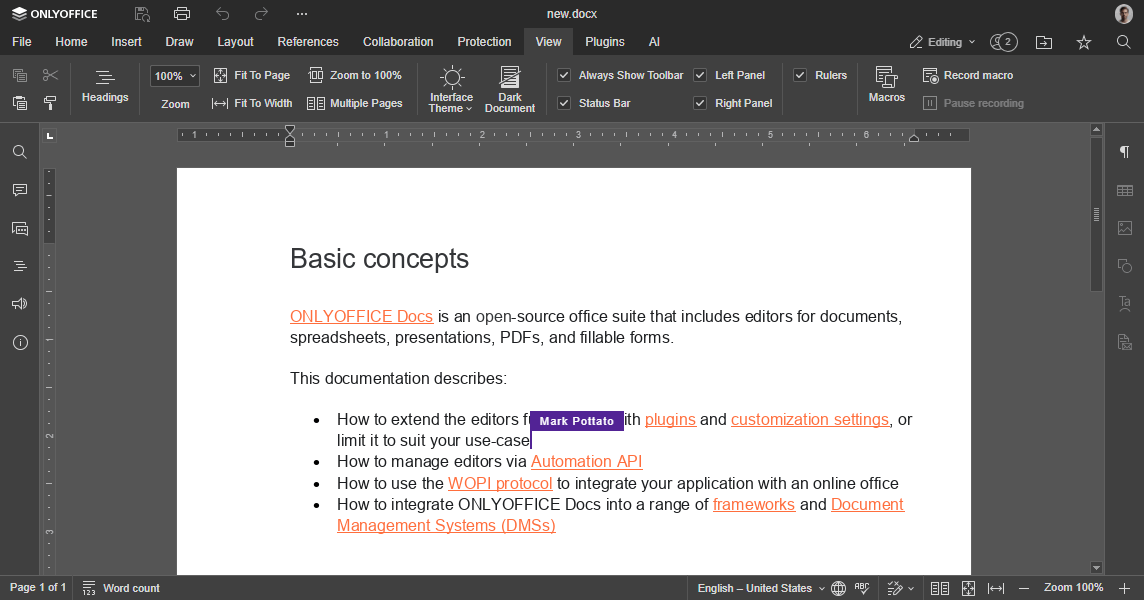
Fast mode is the default. All changes are sent to other users in real time — you see their cursors and name tooltips as they edit the document. Changes are saved automatically, and redo is not available.
Strict mode
In Strict mode, each user works in an isolated session. Changes made by others stay hidden until you click Save. While several users are editing simultaneously, their regions are marked with dashed lines of different colors.
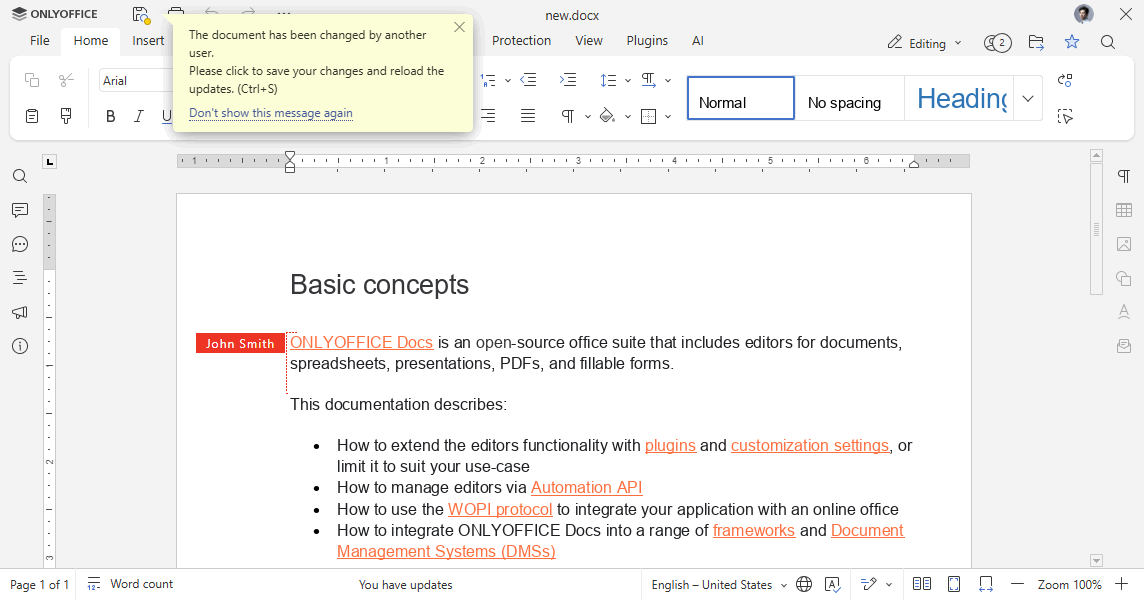
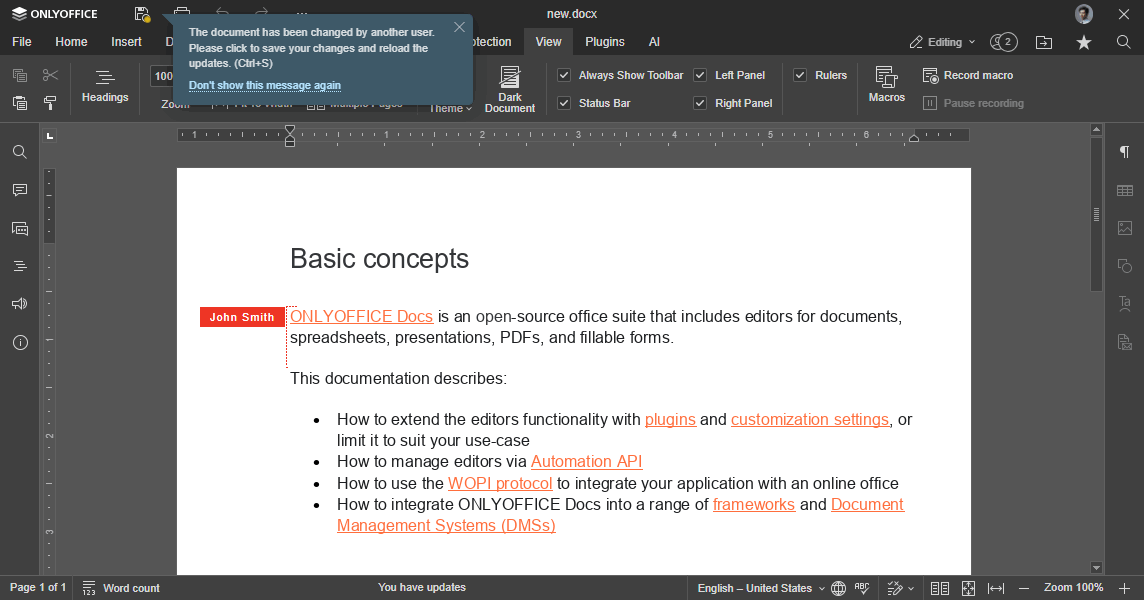
After you click Save, the other users receive a notification about updates. To accept them and send your own changes, click the  button in the top-left corner of the toolbar. The accepted updates are highlighted.