Comparing documents
Document comparison highlights the differences between two documents as tracked changes — the user can then accept or reject each one.
The figure and steps below explain the comparison flow.
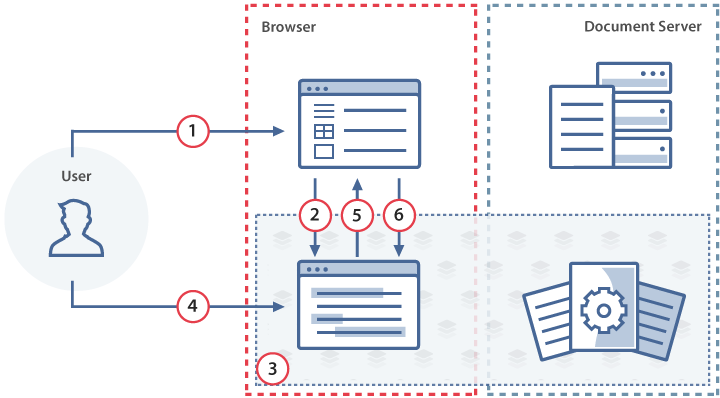
- Using the document manager in the browser, the user opens a document to view or edit it.
- The document manager initializes the document editor with a
configthat includes theonRequestSelectDocumentevent handler. - The file is opened for editing.
- The user clicks Document from Storage in the Compare menu. The document editor fires the
onRequestSelectDocumentevent withdata.cset to"compare". - The document manager lets the user select a comparison document from storage.
- The document manager calls
setRequestedDocumentwith the selected document's URL andc: "compare"to pass it to the document editor for comparison.
How this can be done in practice
-
Create an
.htmlfile to open the document. -
Add the
onRequestSelectDocumentevent handler to the editor config. When the user clicks Document from Storage in the Compare menu, this event fires withdata.cset to"compare". The handler callssetRequestedDocumentwith the comparison document:
 const docEditor = new DocsAPI.DocEditor("placeholder", {events: {onRequestSelectDocument(event) {docEditor.setRequestedDocument({c: event.data.c,fileType: "docx",token: "eyJhbGciOiJIUzI1NiIsInR5cCI6IkpXVCJ9.eyJmaWxlVHlwZSI6ImRvY3giLCJ1cmwiOiJodHRwczovL2V4YW1wbGUuY29tL3VybC10by1leGFtcGxlLWRvY3VtZW50LmRvY3gifQ.t8660n_GmxJIppxcwkr_mUxmXYtE8cg-jF2cTLMtuk8",url: "https://example.com/url-to-example-document.docx",});},},});warning
The
tokenmust be signed with your document server's JWT secret — the example token above is signed with a throwaway secret and will not validate on your server. Regenerate it whenever the parameters change. See security for details. -
After the comparison loads, the user can accept or reject changes using the corresponding buttons on the top toolbar.
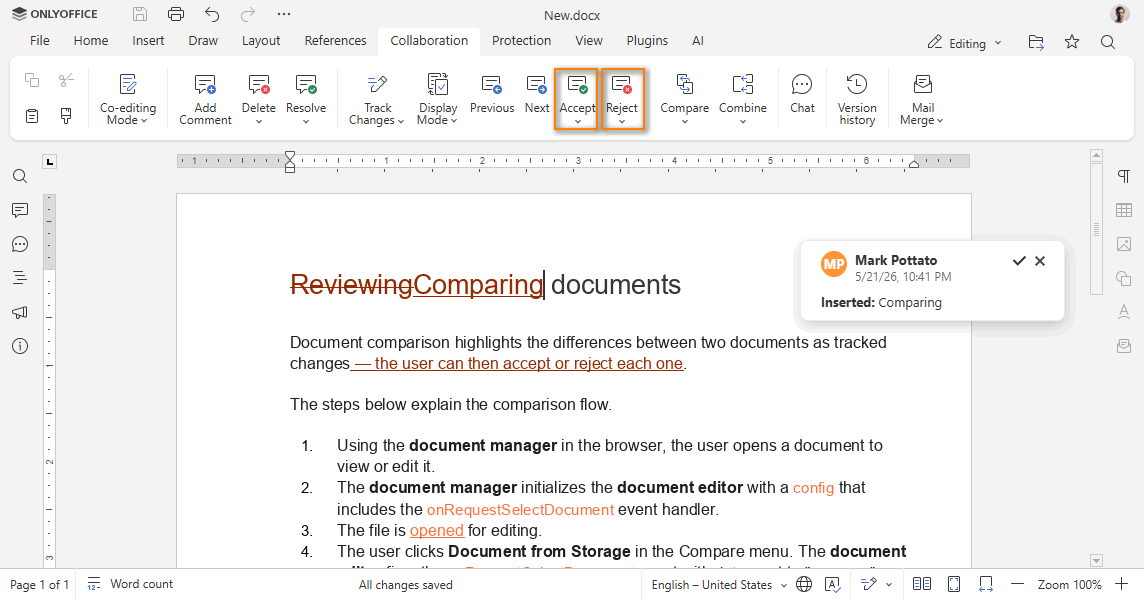
When the user is done reviewing, the document is saved with the accepted changes.