Inserting external data
The figure and steps below explain how data from one spreadsheet is inserted into another via an external link in ONLYOFFICE Docs.
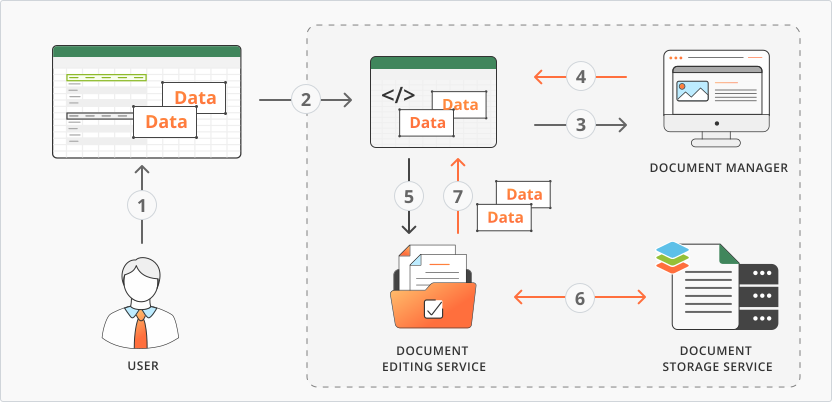
- The user copies a cell value to the clipboard from the document editor of the source spreadsheet. Along with the visible content, special metadata is also copied.
- The user pastes the copied data into the document editor of the destination spreadsheet.
- The document editor sends the metadata to the document manager to request a link to the source file.
- The document manager returns the source spreadsheet link to the document editor.
- The document editor sends a download request to the document editing service.
- The document editing service downloads the source spreadsheet from the document storage service.
- The document editing service sends the necessary data back to the document editor of the destination spreadsheet for display.
How this can be done in practice
-
Create the source spreadsheet from which data will be copied.
-
Specify the
document.referenceDataparameter in the initialization config of the source spreadsheet:const config = {document: {referenceData: {fileKey: "BCFA2CED",instanceId: "https://example.com",},},};const docEditor = new DocsAPI.DocEditor("placeholder", config); -
When the user copies data from the source spreadsheet, the clipboard receives:
- the sheet name and cell range — used later to refresh the copied data;
- the
document.referenceDataobject — used to verify that external-link insertion is available in the destination spreadsheet; - the file name — used to display the formula in the editor.
-
Create the destination spreadsheet where the external data will be inserted.
-
Specify the
onRequestReferenceDataevent handler in the initialization config of the destination spreadsheet. This enables the Paste link and Update values buttons:const config = {events: {onRequestReferenceData,},};const docEditor = new DocsAPI.DocEditor("placeholder", config); -
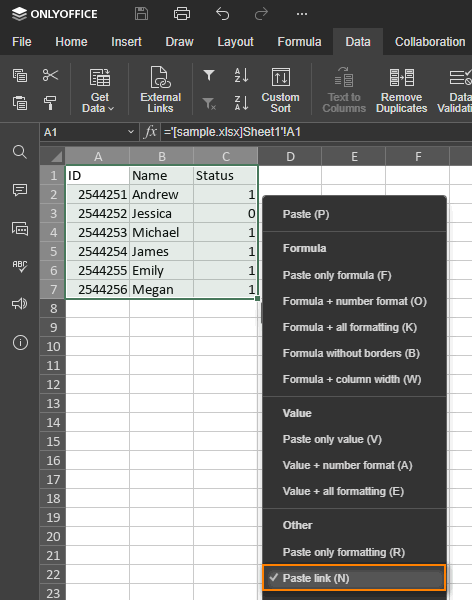
If the clipboard contains the source spreadsheet metadata from step 3, and the destination spreadsheet config includes the
onRequestReferenceDatahandler, the Paste link button appears in the paste dialog.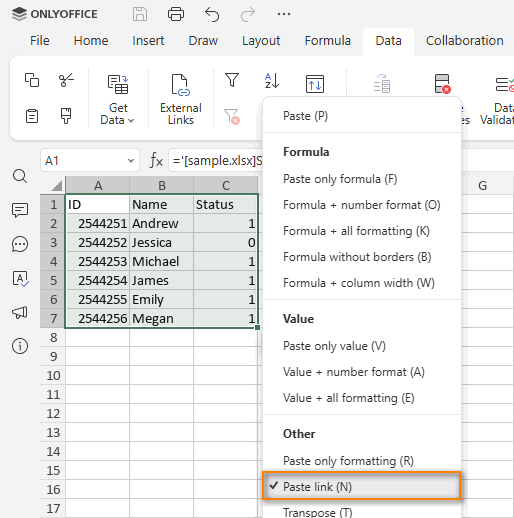
-
When the user clicks Paste link, a formula is inserted into the current cell and the
referenceDataobject is saved to the destination file. The formula has the following format:='[fileName]sheetName'!cellParameter Type Example Description cell string E5 The cell from which the data was copied. fileName string new.xlsx The file name from which the data was copied. sheetName string Sheet1 The sheet name from which the data was copied. The data update request is sent to the source file URL.
noteYou can also type a formula in this format manually — the external data will be inserted the same way. However, in that case the
onRequestReferenceDataevent fires with only thepathparameter. -
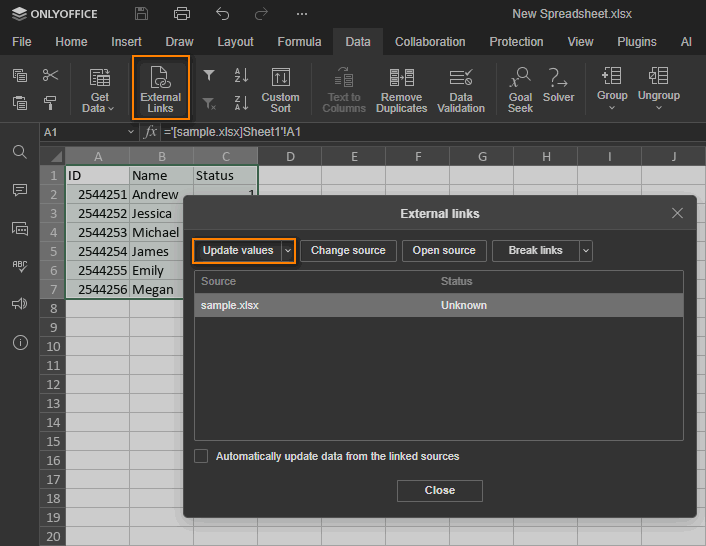
When the user clicks the Update values button in the External links dialog (on the Data tab) to refresh data from the source file, the
onRequestReferenceDataevent fires. Thedataparameter contains an object with the unique file data from the source file, the file path or name, and the file URL.noteTo send data to the
setReferenceDatamethod, search for the file byreferenceDatafirst. If that field is missing or the file cannot be found, fall back to thepathorlinkparameters.function onRequestReferenceData(event) {const link = event.data.link;const referenceData = event.data.referenceData;const path = event.data.path;}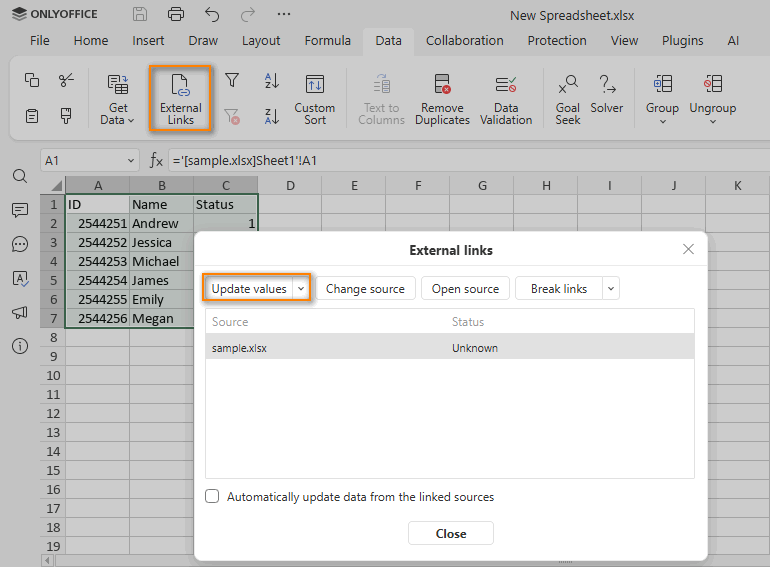
-
To refresh the data, call the
setReferenceDatamethod. The call must include atokento validate the parameters.noteThis method only executes when the user has permissions to the source file.
docEditor.setReferenceData({fileType: "xlsx",key: "Khirz6zTPdfd7",path: "sample.xlsx",referenceData: {fileKey: "BCFA2CED",instanceId: "https://example.com",},token: "eyJhbGciOiJIUzI1NiIsInR5cCI6IkpXVCJ9.eyJmaWxlVHlwZSI6Inhsc3giLCJwYXRoIjoic2FtcGxlLnhsc3giLCJyZWZlcmVuY2VEYXRhIjp7ImZpbGVLZXkiOiJCQ0ZBMkNFRCIsImluc3RhbmNlSWQiOiJodHRwczovL2V4YW1wbGUuY29tIn0sInVybCI6Imh0dHBzOi8vZXhhbXBsZS5jb20vdXJsLXRvLWV4YW1wbGUtZG9jdW1lbnQueGxzeCJ9.UXosmM-E_Cu9j9QGSlcj9FEoSu5m-zCS4b6FxO_2k7w",url: "https://example.com/url-to-example-document.xlsx",});
Working with external links
-
Specify the
onRequestOpenevent handler in the initialization config for the Open source button to appear. When the user clicks Open source to open an external link, this event fires.The
dataparameter contains an object with the unique file data, the file path, and a new browser tab name. To open the referenced external file in a new tab, callwindow.openwith the source URL andwindowName.

Example:
function onRequestOpen(event) {const path = event.data.path;const referenceData = event.data.referenceData;const windowName = event.data.windowName;window.open("https://example.com/external-url.docx", windowName);}const config = {events: {onRequestOpen,},};const docEditor = new DocsAPI.DocEditor("placeholder", config); -
Specify the
onRequestReferenceSourceevent handler in the initialization config for the Change source button to appear. When the user clicks Change source to change an external link, this event fires. If the event is not declared, the Change source button will not appear.The
dataparameter contains an object with the unique file data and the file path or name. When the button is clicked, call thesetReferenceSourcemethod to change the source of the external data. The call must include atokento validate the parameters.noteTo send data to the
setReferenceSourcemethod, search for the file byreferenceDatafirst. If that field is missing or the file cannot be found, fall back to thepathparameter.

Example:
function onRequestReferenceSource(event) {const referenceData = event.data.referenceData;const path = event.data.path;docEditor.setReferenceSource({fileType: "xlsx",key: "Khirz6zTPdfd7",path: "sample.xlsx",referenceData: {fileKey: "BCFA2CED",instanceId: "https://example.com",},token: "eyJhbGciOiJIUzI1NiIsInR5cCI6IkpXVCJ9.eyJmaWxlVHlwZSI6Inhsc3giLCJwYXRoIjoic2FtcGxlLnhsc3giLCJyZWZlcmVuY2VEYXRhIjp7ImZpbGVLZXkiOiJCQ0ZBMkNFRCIsImluc3RhbmNlSWQiOiJodHRwczovL2V4YW1wbGUuY29tIn0sInVybCI6Imh0dHBzOi8vZXhhbXBsZS5jb20vdXJsLXRvLWV4YW1wbGUtZG9jdW1lbnQueGxzeCJ9.UXosmM-E_Cu9j9QGSlcj9FEoSu5m-zCS4b6FxO_2k7w",url: "https://example.com/url-to-example-document.xlsx",});}const config = {events: {onRequestReferenceSource,},};const docEditor = new DocsAPI.DocEditor("placeholder", config);