Mobile integration on Android devices
The document editor can be embedded in an Android application using the WebView component. A complete demo project is available on GitHub.
Integration based on the ONLYOFFICE test sample
This example shows how to integrate ONLYOFFICE mobile web editors with the ONLYOFFICE test or DMS sample.
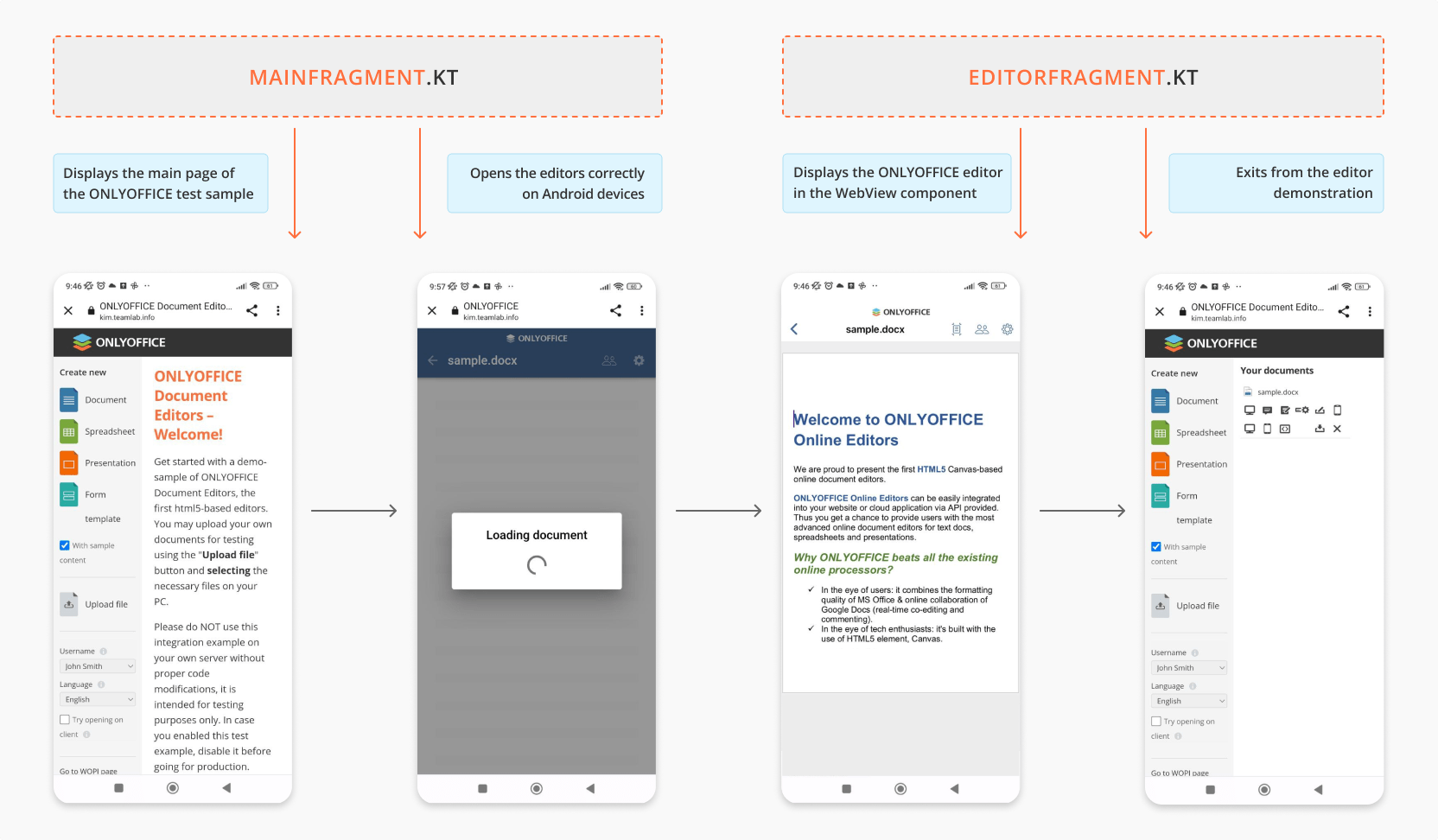
Opening ONLYOFFICE editors
-
Download and install ONLYOFFICE Docs Enterprise or Developer.
-
Download the mobile demo sample for Android from GitHub.
-
Open the project with Android Studio.
-
In the module-level
build.gradlefile, set theDOCUMENT_SERVER_URLproperty to the address of your ONLYOFFICE Docs instance:buildConfigField("String", "DOCUMENT_SERVER_URL", "https://documentserver/")Where
documentserveris the name of the server where ONLYOFFICE Docs is installed.tipDon't have a document server yet? Register for a free ONLYOFFICE Docs Cloud and use the public IP address or public DNS name of your instance as
documentserver. You can find them in the Instances section of the cloud console.If
DOCUMENT_SERVER_URLis empty, the app displays an error dialog instead of loading the document manager page:private fun showDialog() {AlertDialog.Builder(requireContext()).setMessage("Document server url is empty.\nYou must specify the address in build.gradle").setPositiveButton("Ok") { dialog, _ ->dialog.dismiss()requireActivity().finish()}.create().show()}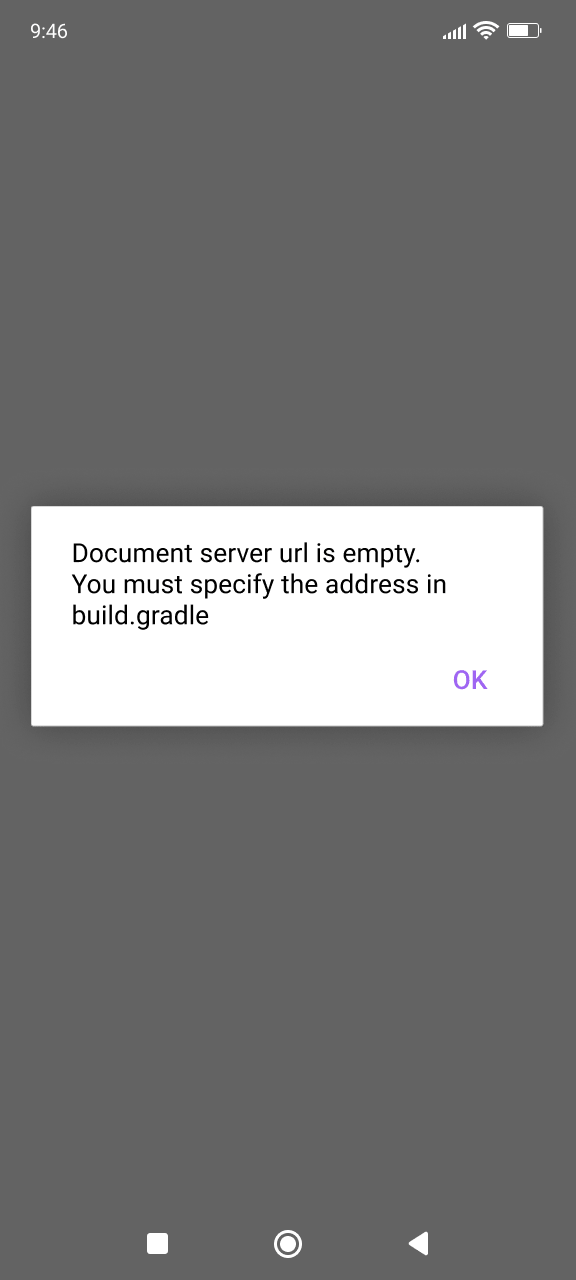
-
The
MainFragment.ktcontroller handles navigation from the document manager to the document editor. When the user taps a document, the controller intercepts the URL, checks whether it contains the"editor"string, and — if so — navigates to the editor fragment:private class MainWebViewClient(private val navController: NavController) : WebViewClient() {override fun shouldOverrideUrlLoading(view: WebView?, request: WebResourceRequest?): Boolean {val url = request?.urlif (url != null) {val path = url.pathif (path?.contains("editor") == true) {navController.navigate(R.id.action_mainFragment_to_editorFragment, Bundle(1).apply {putString("document_url", url.toString())})return true}return false}return super.shouldOverrideUrlLoading(view, request)}}The full code for
MainFragment.ktcan be found here. -
The
EditorFragment.ktcontroller displays the document editor via the WebView component. Configure WebView settings and layout as follows:@SuppressLint("SetJavaScriptEnabled")private fun setSettings() {webView?.settings?.apply {javaScriptEnabled = truejavaScriptCanOpenWindowsAutomatically = trueloadWithOverviewMode = truecacheMode = WebSettings.LOAD_NO_CACHEdomStorageEnabled = true}webView?.webViewClient = EditorWebViewClient(findNavController())}The
load()method sets thetypeparameter to"mobile"so the editor UI is optimized for touch screens:private fun load() {url?.let {val loadUrl = it.toString()if (it.query?.contains("docxf") == true) {webView?.loadUrl(loadUrl)} else {webView?.loadUrl(loadUrl.replace("type=desktop", "type=mobile"))}}} -
In the Android Studio toolbar, select your application and the target device, then click Run to build and launch the app.
-
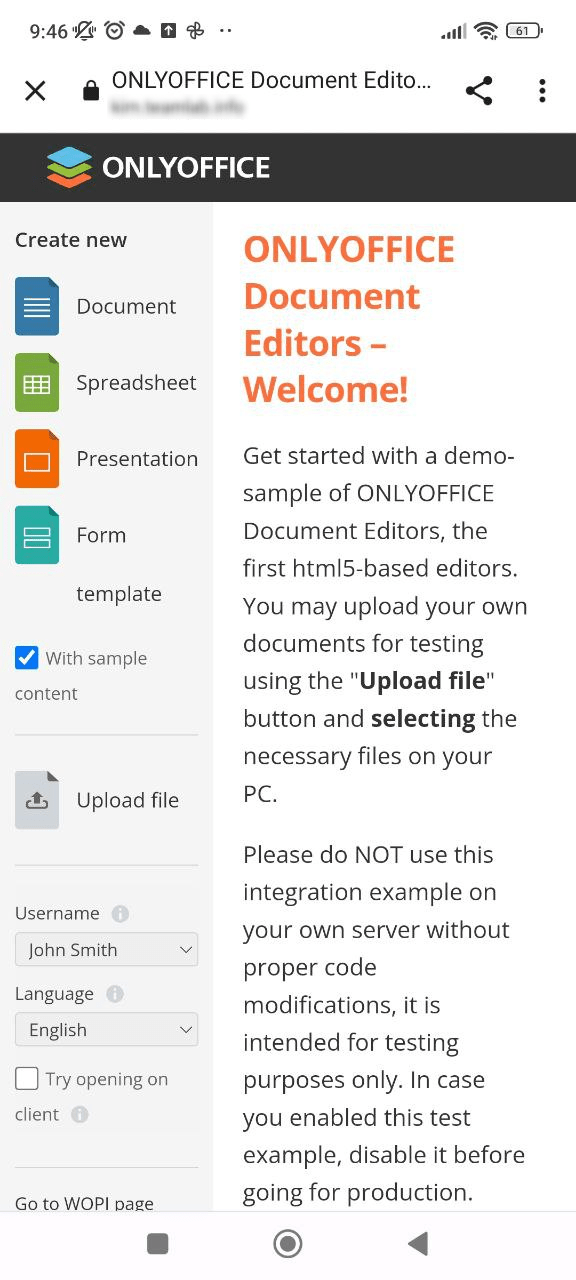
The app opens the document manager page. Select a document to open it in the document editor.
Closing ONLYOFFICE editors
The EditorFragment.kt controller also handles exiting the editor. When the user navigates away from the editor (the URL no longer contains "editor"), the controller pops back to the document manager:
private class EditorWebViewClient(private val navController: NavController) : WebViewClient() {

    override fun shouldOverrideUrlLoading(view: WebView?, request: WebResourceRequest?): Boolean {
        request?.url?.let { url ->
            if (!url.toString().contains("editor")) {
                navController.popBackStack()
                return true
            }
        }
        return super.shouldOverrideUrlLoading(view, request)
    }

}
The full code for EditorFragment.kt can be found here.