Protecting ranges
The figure and steps below explain how range protection works in ONLYOFFICE Docs spreadsheets.
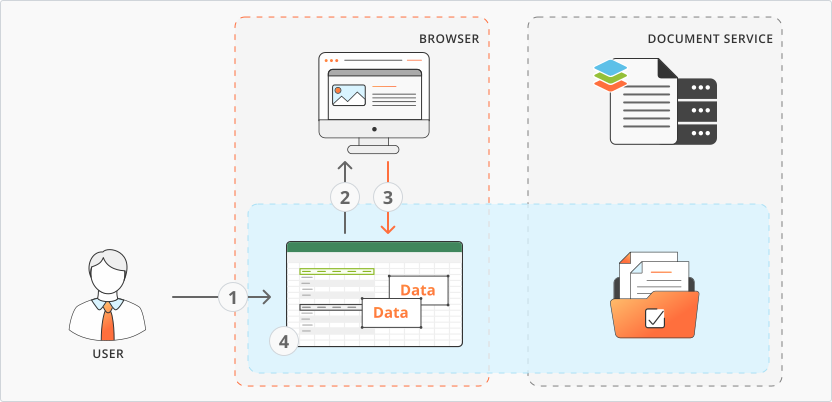
- The user opens Protection -> Protect Range in the document editor, clicks New, and starts typing in the Who can edit field.
- The document editor fires the onRequestUsers event with
data.cset toprotect, requesting a list of users who can be granted editing rights to the range. - The document manager handles the event and calls the setUsers method, passing the user list back to the document editor, which displays it under the Who can edit field.
- The user specifies the range title and address in the New Range window and clicks OK to add the protected range.
How this can be done in practice
-
Create an empty
.htmlfile to open the document. -
In the configuration script for document editor initialization, add an onRequestUsers event handler. When the user opens Protection -> Protect Range, clicks New, and starts typing in the Who can edit field, this event fires with
data.cset toprotect. The handler calls the setUsers method to supply the list of users who can be granted editing rights:
 function onRequestUsers(event) {docEditor.setUsers({c: event.data.c,users: [{email: "john@example.com",id: "78e1e841",name: "John Smith",},{email: "kate@example.com",id: "F89d8069ba2b",name: "Kate Cage",},],});}const config = {events: {onRequestUsers,},};const docEditor = new DocsAPI.DocEditor("placeholder", config);
 -
Open your
.htmlfile in the browser.