Saving file
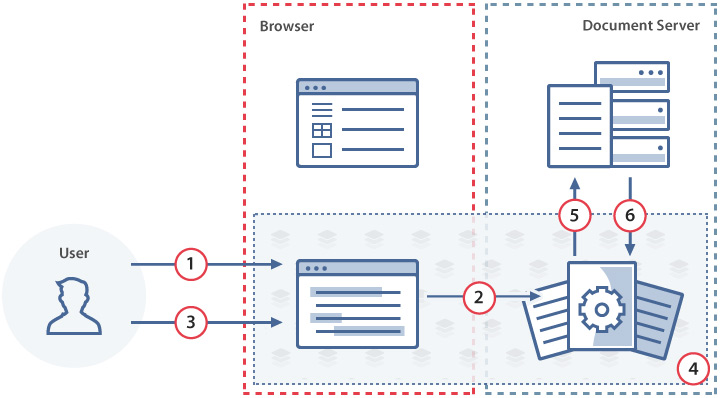
The figure and steps below explain how a document is saved in ONLYOFFICE Docs.
-
The user edits the document in the document editor.
-
The document editor sends the changes to the document editing service.
-
The user closes the document editor.
-
The document editing service detects that all users have finished editing and compiles the changes received from the document editor into the final document.
-
The document editing service informs the document storage service that editing is complete using the
callbackUrland returns the link to the modified document as theurlparameter.noteSince version 5.5,
callbackUrlis selected based on the status of the request. From version 4.4 to version 5.5, thecallbackUrlfrom the last user who joined the co-editing session is used. Prior to version 4.4, thecallbackUrlfrom the user who first opened the file for editing is used. -
The document storage service downloads the document file with all the saved changes from the document editing service and stores it.
How this can be done in practice
-
Create a callback handler to save the document from the document editing service.
-
Create an
.htmlfile to open the document. -
In the editor initialization config, add the URL of your callback handler as the
callbackUrlparameter. Be sure to add atoken— otherwise, the request will be rejected.const config = {document: {fileType: "docx",key: "Khirz6zTPdfd7",title: "Example Document Title.docx",url: "https://example.com/url-to-example-document.docx",},documentType: "word",editorConfig: {callbackUrl: "https://example.com/url-to-callback",},token: "eyJhbGciOiJIUzI1NiIsInR5cCI6IkpXVCJ9.eyJkb2N1bWVudCI6eyJmaWxlVHlwZSI6ImRvY3giLCJrZXkiOiJLaGlyejZ6VFBkZmQ3IiwidGl0bGUiOiJFeGFtcGxlIERvY3VtZW50IFRpdGxlLmRvY3giLCJ1cmwiOiJodHRwczovL2V4YW1wbGUuY29tL3VybC10by1leGFtcGxlLWRvY3VtZW50LmRvY3gifSwiZG9jdW1lbnRUeXBlIjoid29yZCIsImVkaXRvckNvbmZpZyI6eyJjYWxsYmFja1VybCI6Imh0dHBzOi8vZXhhbXBsZS5jb20vdXJsLXRvLWNhbGxiYWNrLmFzaHgifX0.vbezS2aM8Xf8qFzIAsO-jrIsi7VLxjRYkIkwh5jLTJU",};const docEditor = new DocsAPI.DocEditor("placeholder", config);Replace
example.comwith the host serving your document file — i.e., your document storage service. -
Open your
.htmlfile in the browser and edit the document. -
Close the document editor. After about 10 seconds, verify that the document contains your changes — if it does, the configuration is correct.
Save delay
Once editing is finished, the document editing service informs the document storage service. The total time before this happens depends on two factors:
- Conversion time — the edited file is converted into one of the editors' native formats (
.docx,.xlsx,.pptx, or.pdf). This varies with file size, complexity, and server performance. - Conversion start delay — 5 seconds by default. This delay allows the user to return to the editing session without triggering a save — for example, when reloading the browser page while the file is still open.
In most cases, the save completes about 10 seconds after editing ends. The default delay is defined by the savetimeoutdelay parameter in the ONLYOFFICE Docs server configuration.
Force saving
The document editing service allows you to get the current document state before editing is finished. This process is called forcesave in ONLYOFFICE Docs. When forcesave is initiated, the document editing service sends a request to the callback handler with the link to the document as the url parameter and the status parameter set to 6. The forcesave process can be initiated in the following ways:
-
By sending a request to the document command service with the forcesave value in the
cparameter. Theforcesavetypeparameter will be0in the callback handler request. -
By enabling the editorConfig.customization.forcesave mode (set it to
truein the editor initialization config). Each time the user clicks Save, a forcesave is triggered, and theforcesavetypeparameter will be1in the callback handler request. -
By enabling automatic repeating forcesave via the auto assembly server configuration. The
forcesavetypeparameter will be2in the callback handler request.infoThe auto assembly feature saves the current state of the file at that moment. If a user is in strict mode and has not clicked Save, their changes will not be included in the assembled file. In PDF format, strict mode is enabled by default.
Document versions created by forcesave do not appear in the document history. ONLYOFFICE Docs highlights changes made from the beginning of the current editing session, not from the beginning of each document version. Even if several document versions are created during one session, all changes from that session will be highlighted.
Saving in original format
Since version 7.0, the assemblyFormatAsOrigin server setting is enabled by default to save the assembled file in its original format. This is used to convert from OOXML to ODF or to preserve files with macros.
This parameter works as follows:
- The document editing service returns the file in one of the native formats:
.docx,.xlsx,.pptx, or.pdf. - If
assemblyFormatAsOriginistrue, the document editing service tries to convert the file back to the original format. - If the original format is legacy (for example,
.doc) and the conversion fails, the document editing service shows a rollback to save changes to ooxml warning and keeps the file in the native format. - If
assemblyFormatAsOriginisfalse, the document editing service does not convert the file and returns it in the native format.
This setting can break integrations that open documents without prior conversion (for example, the .doc format, which is not available for saving in ONLYOFFICE Docs). Disable this setting if necessary.