Setting avatars
The figure and steps below explain how user avatars are set in ONLYOFFICE Docs.
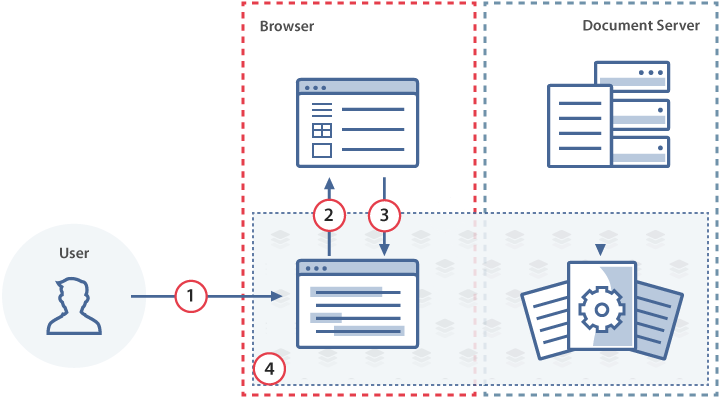
- The document editor is initialized with the current user's avatar URL in the
editorConfig.user.imagefield. - When the user opens comments or the co-editors list, the document editor fires the
onRequestUsersevent to request the other users' data. - The document manager retrieves the user data — including names and avatar URLs — and passes it back by calling the
setUsersmethod. - The document editor displays all users' avatars next to their names.
How this can be done in practice
-
Create an empty
.htmlfile to Open the document. -
To set the current user's avatar, use the editorConfig.user.image field of the initialization config:
const config = {editorConfig: {user: {group: "Group1",id: "78e1e841",image: "https://example.com/url-to-user-avatar.png",name: "John Smith",},},};const docEditor = new DocsAPI.DocEditor("placeholder", config); -
In the initialization script, specify the event handler for requesting users' avatars. When the user opens comments or the co-editors list, the
onRequestUsersevent is fired. The event'sdata.cparameter is set to"info", anddata.idcontains the IDs of the users whose avatars are needed.


 function onRequestUsers(event) {const c = event.data.c;const id = event.data.id;}const config = {events: {onRequestUsers,},};const docEditor = new DocsAPI.DocEditor("placeholder", config);
 -
Inside the event handler, call the
setUsersmethod to pass the users' data back to the editor:docEditor.setUsers({c: "info",users: [{email: "john@example.com",id: "78e1e841",image: "https://example.com/url-to-user-avatar1.png",name: "John Smith",},{email: "kate@example.com",id: "F89d8069ba2b",image: "https://example.com/url-to-user-avatar2.png",name: "Kate Cage",},],});
Replace example.com with the host serving your avatar images — i.e., your document storage service or another server accessible to the document editing service. See How it works for more on ONLYOFFICE Docs client-server interactions.