Mattermost integration
This app enables users to edit office documents from Mattermost using ONLYOFFICE Docs.
Features
- Currently, the following document formats can be opened and edited with this app: DOCM, DOCX, DOTM, DOTX, PDF, POTM, POTX, PPSM, PPSX, PPTM, PPTX, XLSB, XLSM, XLSX, XLTM, XLTX.
- The following formats are available for viewing only: CSV, DJVU, DOC, DOT, DPS, DPT, EPUB, ET, ETT, FB2, FODP, FODS, FODT, HTM, HTML, HWP, HWPX, KEY, MD, MHT, MHTML, NUMBERS, ODG, ODP, ODS, ODT, OTP, OTS, OTT, OXPS, PAGES, POT, PPS, PPT, RTF, STW, SXC, SXI, SXW, TXT, VSDM, VSDX, VSSM, VSSX, VSTM, VSTX, WPS, WPT, XLS, XLT, XML, XPS.
- The app will create a new Open in ONLYOFFICE menu option within the document library for office documents. This allows multiple users to collaborate in real time and save back those changes to Mattermost.
Installing ONLYOFFICE Docs
You will need an instance of ONLYOFFICE Docs (Document Server) that is resolvable and connectable both from Mattermost and any end clients. If that is not the case, use the official ONLYOFFICE Docs documentation page. ONLYOFFICE Docs must also be able to POST to Mattermost directly.
ONLYOFFICE Docs and Mattermost can be installed either on different computers, or on the same machine. If you use one machine, set up a custom port for ONLYOFFICE Docs.
The easiest way to start an instance of ONLYOFFICE Docs is to use Docker.
Installing ONLYOFFICE app for Mattermost
To start using ONLYOFFICE Docs with Mattermost, follow these steps:
-
Install Node.js. Check instructions
-
Install Go. Check instructions
-
Install make:
sudo apt install make -
Clone the app branch:
git clone https://github.com/ONLYOFFICE/onlyoffice-mattermost.git -
Go to the project root and start the build:
cd onlyoffice-mattermost/make
Configuring ONLYOFFICE app for Mattermost
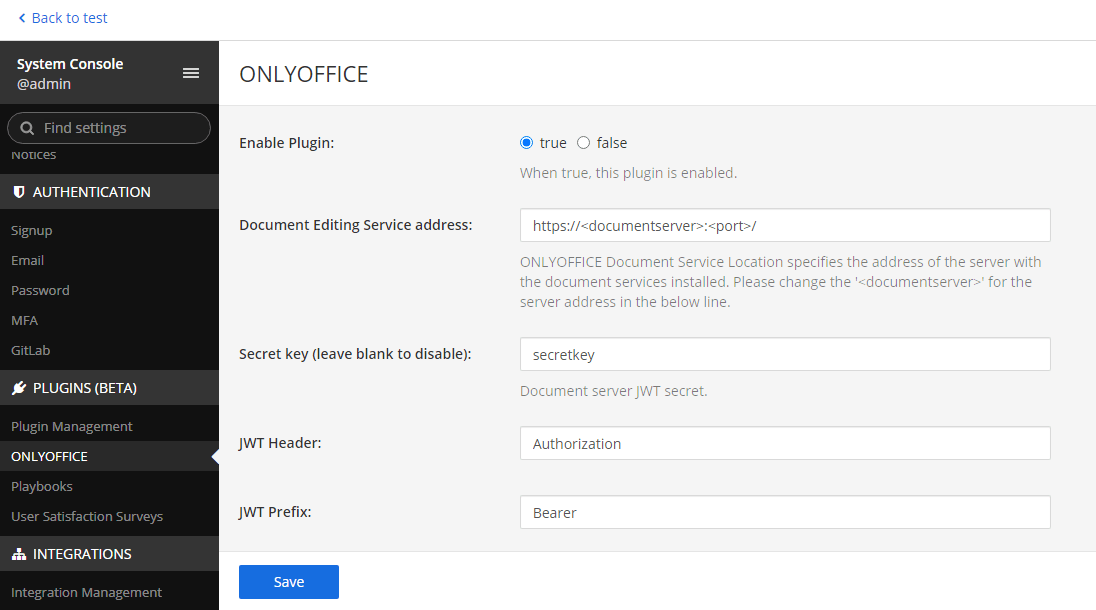
As a Mattermost administrator, configure the app via the System Console. Go to App Marketplace, find the ONLYOFFICE app, and click Configure.
-
ONLYOFFICE Docs address. To connect ONLYOFFICE Docs, enter the following address:
https://<documentserver>:<port>/where documentserver is the name of the server and port is the port number with ONLYOFFICE Docs installed. The address must be accessible from both the user's browser and the Mattermost server. The Mattermost server address must also be accessible from ONLYOFFICE Docs for correct work. You can register a free ONLYOFFICE Cloud and use its public IP address or public DNS that can be found in the Instances section of the cloud console.
-
Document Server JWT Secret. Starting from version 7.2, JWT is enabled by default and the secret key is generated automatically to restrict access to ONLYOFFICE Docs and for security reasons and data integrity. Specify your own secret key in the app configuration. In the ONLYOFFICE Docs config file, specify the same secret key and enable the validation.
-
JWT Header. If JWT protection is enabled, it is necessary to specify a custom header name since the Mattermost security policy blocks external Authorization headers. This header should be specified in the ONLYOFFICE Docs signature settings as well. Further information about signature can be found here.
-
JWT Prefix. Specify the ONLYOFFICE Docs prefix.
You can also connect to the public test server of ONLYOFFICE Docs for one month by checking the corresponding box.
Using ONLYOFFICE app for Mattermost
Context menu
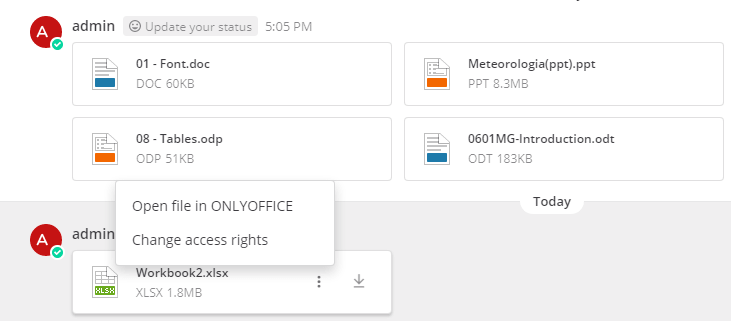
When files are sent in the chat message, the following actions are available in the file context menu by clicking the ⋮ symbol:
- Open file in ONLYOFFICE and Change access rights - for the author of the message.
- Open file in ONLYOFFICE - for the recipient of the message.
Creating a new file
Users can create new files directly in the chat by clicking the paperclip icon in the message input field and clicking ONLYOFFICE. Next, specify the file name, select the file format (Document, Spreadsheet, Presentation), and click the Create button. A message with the created file will be sent to the chat.
Opening the editors
Clicking the file name opens a file preview with an Open button.
Clicking the Open file in ONLYOFFICE button opens the corresponding ONLYOFFICE editor in the same window.
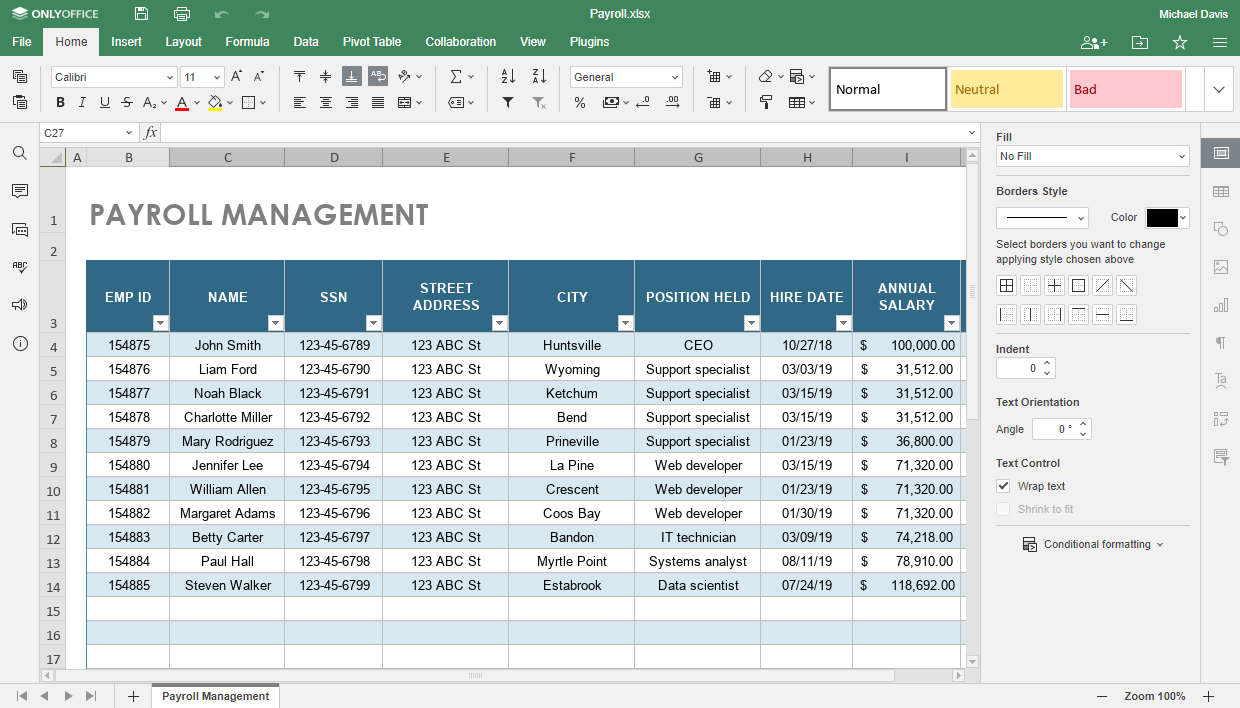
You can also open the file via the file context menu in the message.
Setting file access rights
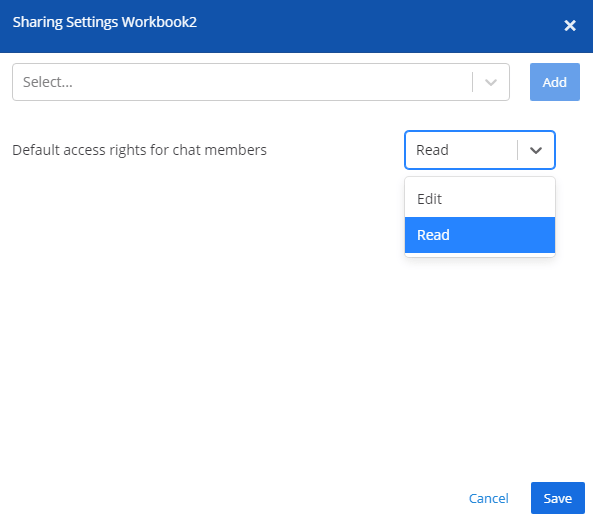
By default, the sender of a message has full editing access to the file, while all recipients are granted read-only access. Only the sender can modify user access rights through the context menu by selecting the Change access rights option.
In personal chats: Access rights can be adjusted using a drop-down menu. When the access level is changed, the ONLYOFFICE bot will send a notification to the chat.
In group chats: A Default access rights option is available for quickly setting permissions for all participants. To grant specific access rights to an individual, simply type their name in the search bar and click Add.
The user will then appear in a list where you can assign their desired access level. To remove a user, click the cross icon next to their name. Their access will revert to the permissions set under Default access rights.
Whenever access levels are updated, the ONLYOFFICE bot will notify the chat. For individual changes, the bot will send a personal notification to the affected participant.
Tracking changes
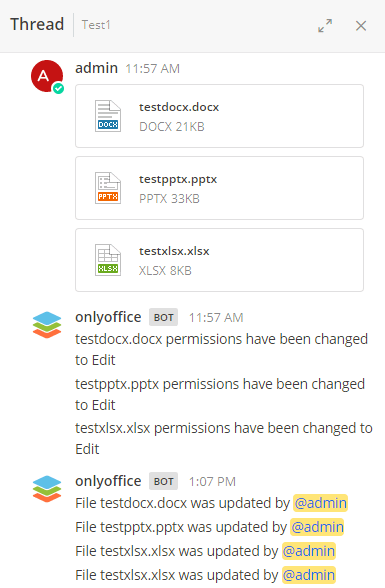
ONLYOFFICE bot sends notifications about changes in the document specifying the name of the user who made those changes.
All change notifications can be found within the message's discussion thread. Simply click the arrow on the right edge of the message to open a panel on the right, where the full history of the message's discussion is displayed.
How it works
The ONLYOFFICE integration follows the API documented here.
Download the ONLYOFFICE app for Mattermost here.