Events
The events section defines the callback functions for editor events.
onAppReady
The function called when the application is loaded into the browser.
Example:
function onAppReady() {
  console.log("ONLYOFFICE Document Editor is ready");
}

const config = {
  // ...
  events: {
    onAppReady,
  },
};

const docEditor = new DocsAPI.DocEditor("placeholder", config);
onCollaborativeChanges
The function called when the document is co-edited by another user in the strict co-editing mode.
Example:
function onCollaborativeChanges() {
  console.log("The document changed by collaborative user");
}

const config = {
  // ...
  events: {
    onCollaborativeChanges,
  },
};

const docEditor = new DocsAPI.DocEditor("placeholder", config);
onDocumentReady
The function called when the document is loaded into the document editor.
Example:
function onDocumentReady() {
  console.log("Document is loaded");
}

const config = {
  // ...
  events: {
    onDocumentReady,
  },
};

const docEditor = new DocsAPI.DocEditor("placeholder", config);
onDocumentStateChange
The function called when the document is modified.
Parameters:
| Parameter | Type | Description |
|---|---|---|
| event.data | boolean | true when the current user is editing the document, false when the changes are sent to the document editing service. |
Example:
function onDocumentStateChange(event) {
  if (event.data) {
    console.log("The document changed");
  } else {
    console.log("Changes are collected on document editing service");
  }
}

const config = {
  // ...
  events: {
    onDocumentStateChange,
  },
};

const docEditor = new DocsAPI.DocEditor("placeholder", config);
onDownloadAs
The function called with the absolute URL to the edited file when the downloadAs method is being called.
Parameters:
| Parameter | Type | Description |
|---|---|---|
| event.data.fileType | string | The file type of the downloaded document. |
| event.data.url | string | The absolute URL to the document to be downloaded. |
Example:
function onDownloadAs(event) {
  const fileType = event.data.fileType;
  const url = event.data.url;
  console.log(`ONLYOFFICE Document Editor create file: ${url}`);
}

const config = {
  // ...
  events: {
    onDownloadAs,
  },
};

const docEditor = new DocsAPI.DocEditor("placeholder", config);
onError
The function called when an error or some other specific event occurs.
Parameters:
| Parameter | Type | Description |
|---|---|---|
| event.data.errorCode | number | The error code. |
| event.data.errorDescription | string | The error description. |
Example:
function onError(event) {
  console.log(`ONLYOFFICE Document Editor reports an error: code ${event.data.errorCode}, description ${event.data.errorDescription}`);
}

const config = {
  // ...
  events: {
    onError,
  },
};

const docEditor = new DocsAPI.DocEditor("placeholder", config);
onInfo
The function called when the application opened the file.
Parameters:
| Parameter | Type | Description |
|---|---|---|
| event.data.mode | "view" | "edit" | The file opening mode. |
Example:
function onInfo(event) {
  console.log(`ONLYOFFICE Document Editor is opened in mode ${event.data.mode}`);
}

const config = {
  // ...
  events: {
    onInfo,
  },
};

const docEditor = new DocsAPI.DocEditor("placeholder", config);
onMakeActionLink
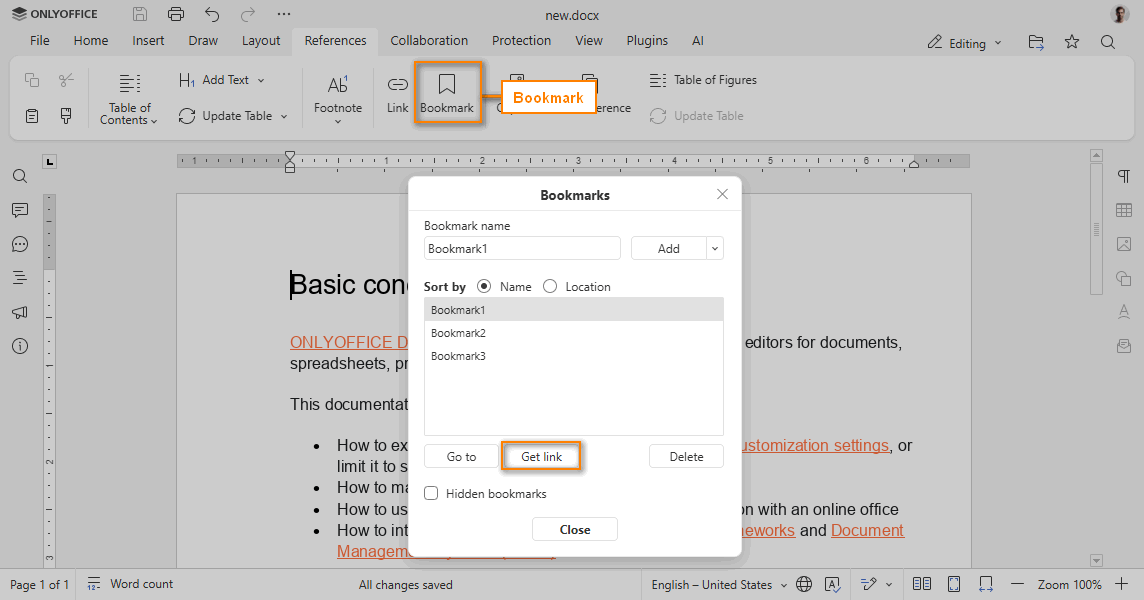
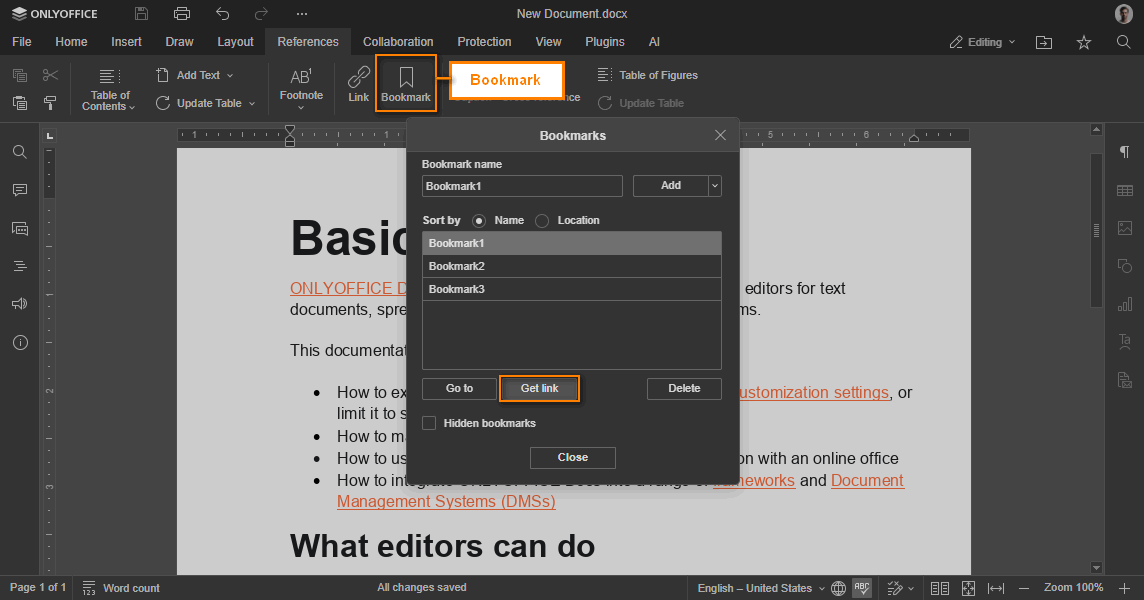
The function called when the user is trying to get a link for opening the document which contains a bookmark, scrolling to the bookmark position. To set the bookmark link, call the setActionLink method.
If this event is not declared, the Get Link button will not be displayed.
Parameters:
| Parameter | Type | Description |
|---|---|---|
| event.data | object | The action data. Must be used in the configuration as the value for the editorConfig.actionLink parameter. |
| event.data.action | object | The action object that defines what to scroll to in the document. |
| event.data.action.type | "bookmark" | "comment" | The type of action in the document. |
| event.data.action.data | string | The data associated with the action: the bookmark name or the comment ID. |
Example:
function onMakeActionLink(event) {
  const ACTION_DATA = event.data;
  const link = GENERATE_LINK(ACTION_DATA);
  docEditor.setActionLink(link);
}

const config = {
  // ...
  events: {
    onMakeActionLink,
  },
};

const docEditor = new DocsAPI.DocEditor("placeholder", config);
onMetaChange
The function called when the meta information of the document is changed via the meta command.
Parameters:
| Parameter | Type | Description |
|---|---|---|
| event.data.title | string | The document title. |
| event.data.favorite | boolean | The Favorite icon highlighting state. |
When the user clicks the Favorite icon, the setFavorite method is called to update the information about the Favorite icon highlighting state. If the method is not declared, the Favorite icon will not be changed.
Example:
function onMetaChange(event) {
  const title = event.data.title;
  const favorite = event.data.favorite;
}

const config = {
  // ...
  events: {
    onMetaChange,
  },
};

const docEditor = new DocsAPI.DocEditor("placeholder", config);
onOutdatedVersion
The function called after the error is shown, when the document is opened for editing with the old document.key value. This key was used to edit the previous document version and was successfully saved. When this event is called, the editor must be reinitialized with a new document.key.
Starting from version 8.3, please use onRequestRefreshFile instead.
Example:
function onOutdatedVersion() {
  location.reload(true);
}

const config = {
  // ...
  events: {
    onOutdatedVersion,
  },
};

const docEditor = new DocsAPI.DocEditor("placeholder", config);
onPluginsReady
The function called when all plugins are loaded and can be used.
Example:
function onPluginsReady() {
  console.log("All plugins are loaded");
}

const config = {
  // ...
  events: {
    onPluginsReady,
  },
};

const docEditor = new DocsAPI.DocEditor("placeholder", config);
onRequestClose
The function called when the user is trying to end the work with the editor and close it by clicking the cross button.
If this event is not declared, the editorConfig.customization.close parameter will not be available, and the cross button will not be displayed.
Example:
function onRequestClose() {
  if (window.opener) {
    window.close();
    return;
  }
  docEditor.destroyEditor();
}

const config = {
  // ...
  events: {
    onRequestClose,
  },
};

const docEditor = new DocsAPI.DocEditor("placeholder", config);
onRequestCompareFile
The function called when the user is trying to select a document for comparing by clicking the Document from Storage button.
This event is available only for ONLYOFFICE Docs Enterprise and ONLYOFFICE Docs Developer.
Starting from version 7.5, please use onRequestSelectDocument instead.
onRequestCreateNew
The function called when the user is trying to create a new document by clicking the Create New button.
This event is used instead of the createUrl field. If this event is not declared and createUrl is not specified, the Create New button will not be displayed.
Example:
function onRequestCreateNew() {
  console.log("Create new document");
}

const config = {
  // ...
  events: {
    onRequestCreateNew,
  },
};

const docEditor = new DocsAPI.DocEditor("placeholder", config);
onRequestEditRights
The function called when the user is trying to switch the document from the viewing into the editing mode by clicking the Edit current file button. When the function is called, the editor must be initialized again, in editing mode.
If editorConfig.mode is set to view and document.permissions.edit is set to true, this event must be declared for the Edit current file button to be displayed.


Example:
function onRequestEditRights() {
  console.log("ONLYOFFICE Document Editor requests editing rights");
  document.location.reload();
}

const config = {
  // ...
  events: {
    onRequestEditRights,
  },
};

const docEditor = new DocsAPI.DocEditor("placeholder", config);
onRequestFillingStatus
The function called to request the filling status for the current role in PDF form filling mode.
Parameters:
| Parameter | Type | Description |
|---|---|---|
| event.data | string | The role name for which the filling status is requested. |
Example:
function onRequestFillingStatus(event) {
  const role = event.data;
  console.log("Filling status requested for role:", role);
}

const config = {
  // ...
  events: {
    onRequestFillingStatus,
  },
};

const docEditor = new DocsAPI.DocEditor("placeholder", config);
onRequestHistory
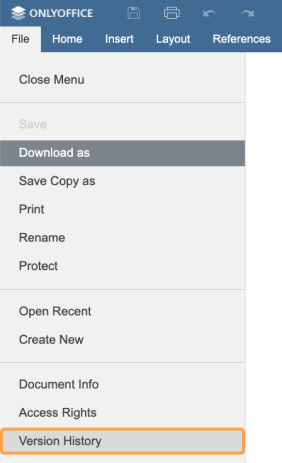
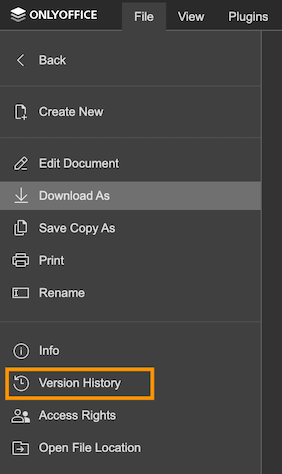
The function called when the user is trying to show the document version history by clicking the Version History button. To show the document version history, call the refreshHistory method.
If this event is not declared, the Version History button will not be displayed.
Example:
function onRequestHistory() {
  docEditor.refreshHistory({
    currentVersion: 2,
    history: [
      {
        created: "2010-07-06 10:13 AM",
        key: "af86C7e71Ca8",
        user: {
          id: "F89d8069ba2b",
          name: "Kate Cage",
        },
        version: 1,
      },
      {
        changes,
        created: "2010-07-07 3:46 PM",
        key: "Khirz6zTPdfd7",
        serverVersion,
        user: {
          id: "78e1e841",
          name: "John Smith",
        },
        version: 2,
      },
    ],
  });
}

const config = {
  // ...
  events: {
    onRequestHistory,
  },
};

const docEditor = new DocsAPI.DocEditor("placeholder", config);
Where the changes is the changes from the history object returned after saving the document.
Where the serverVersion is the serverVersion from the history object returned after saving the document.
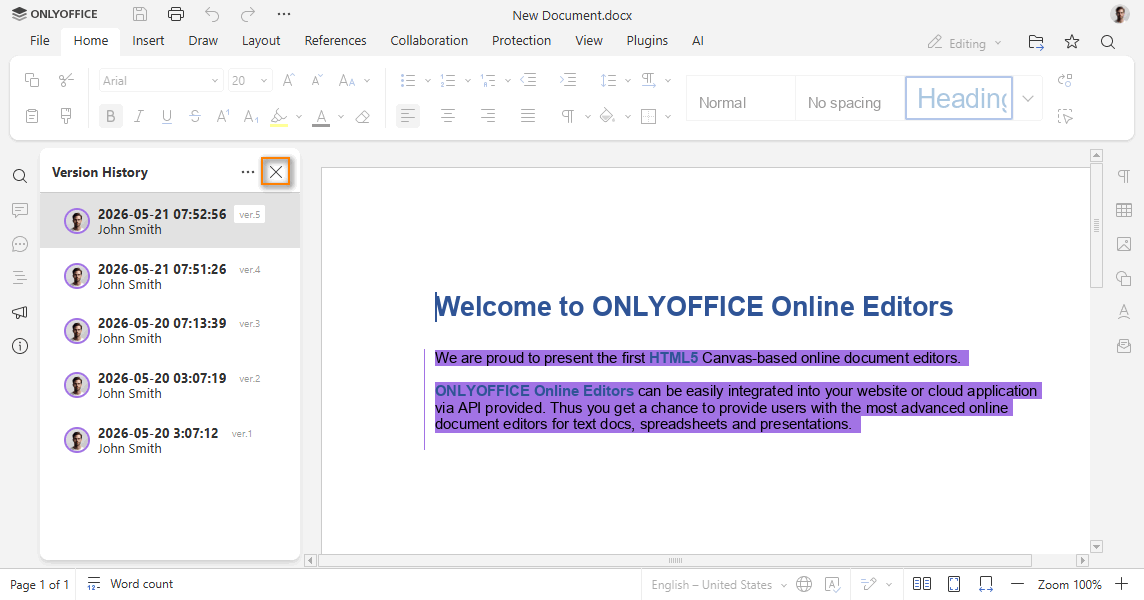
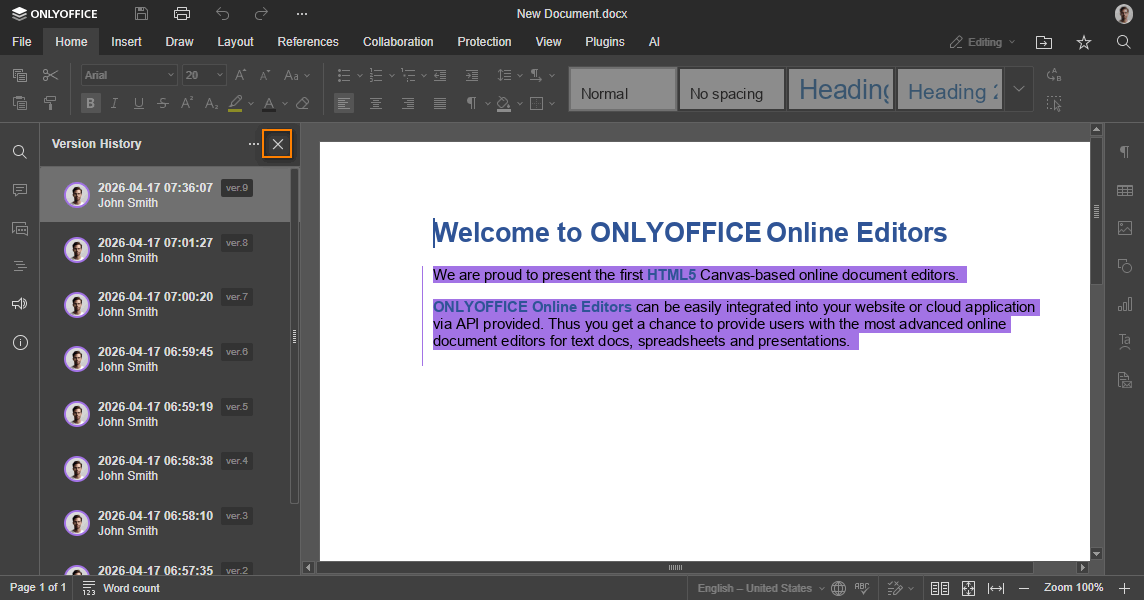
onRequestHistoryClose
The function called when the user is trying to go back to the document from viewing the document version history by clicking the Close History button. When the function is called, the editor must be initialized again, in editing mode.
If this event is not declared, the Close History button will not be displayed.
Example:
function onRequestHistoryClose() {
  document.location.reload();
}

const config = {
  // ...
  events: {
    onRequestHistoryClose,
  },
};

const docEditor = new DocsAPI.DocEditor("placeholder", config);
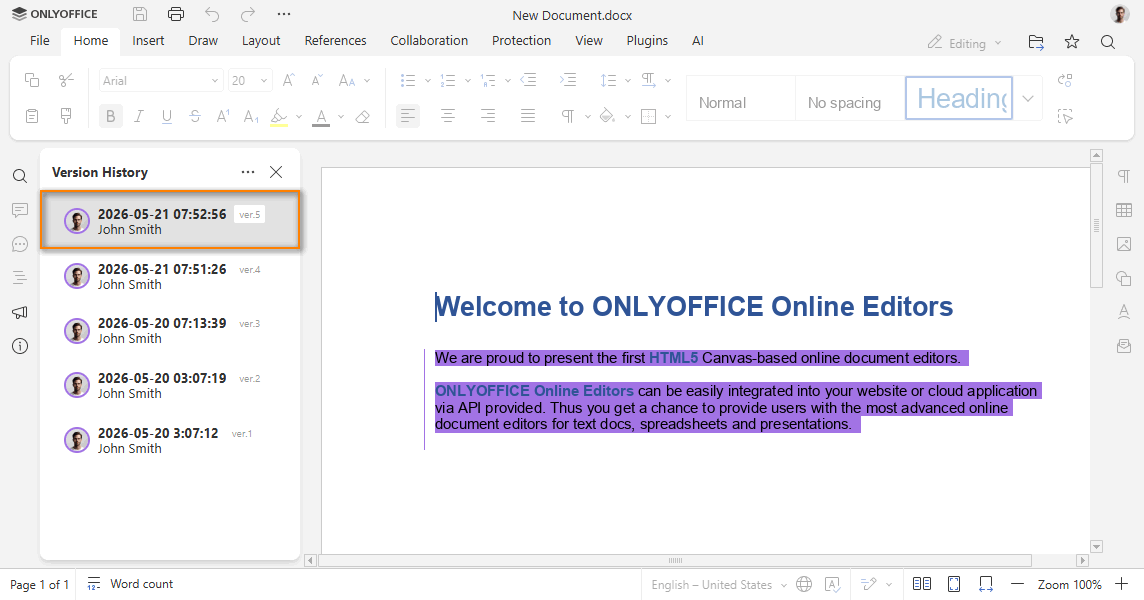
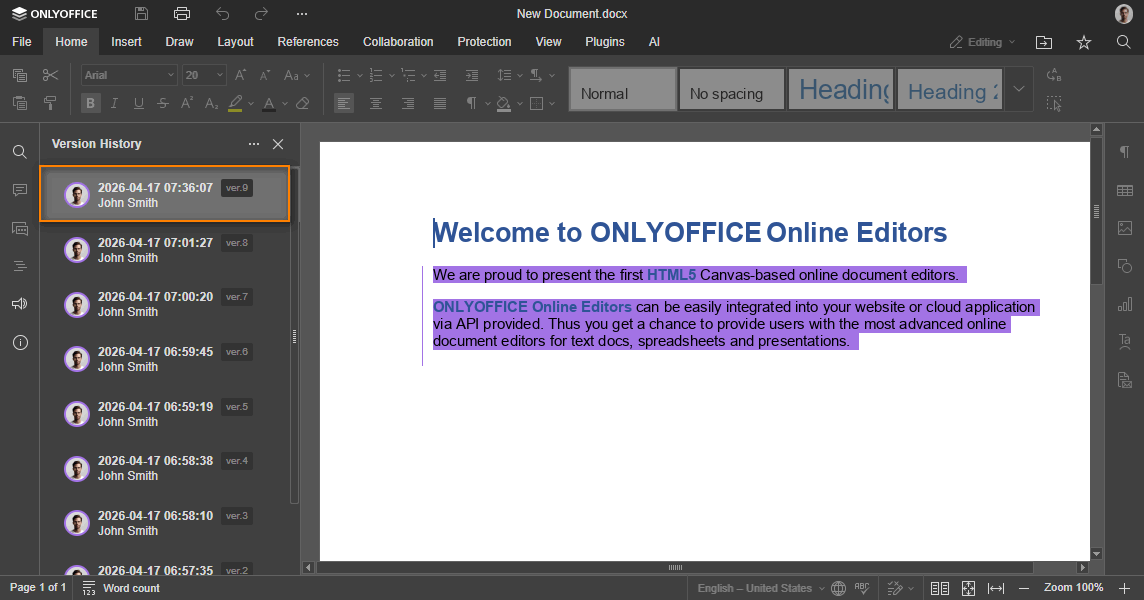
onRequestHistoryData
The function called when the user is trying to click a specific document version in the document version history. To show the changes, call the setHistoryData method. When calling this method, the token must be added to validate the parameters.
This event is optional. If each version passed to refreshHistory already contains a url, the version opens without it. It is still recommended, because the editor requests the data again when a version has no url or when its URL is older than 5 minutes.
Parameters:
| Parameter | Type | Description |
|---|---|---|
| event.data | number | The document version number. |
Example:
function onRequestHistoryData(event) {
  const version = event.data;
  docEditor.setHistoryData({
    changesUrl: "https://example.com/url-to-changes.zip",
    fileType: "docx",
    key: "Khirz6zTPdfd7",
    previous: {
      fileType: "docx",
      key: "af86C7e71Ca8",
      url: "https://example.com/url-to-the-previous-version-of-the-document.docx",
    },
    token: "eyJhbGciOiJIUzI1NiIsInR5cCI6IkpXVCJ9.eyJjaGFuZ2VzVXJsIjoiaHR0cHM6Ly9leGFtcGxlLmNvbS91cmwtdG8tY2hhbmdlcy56aXAiLCJmaWxlVHlwZSI6ImRvY3giLCJrZXkiOiJLaGlyejZ6VFBkZmQ3IiwicHJldmlvdXMiOnsiZmlsZVR5cGUiOiJkb2N4Iiwia2V5IjoiYWY4NkM3ZTcxQ2E4IiwidXJsIjoiaHR0cHM6Ly9leGFtcGxlLmNvbS91cmwtdG8tdGhlLXByZXZpb3VzLXZlcnNpb24tb2YtdGhlLWRvY3VtZW50LmRvY3gifSwidXJsIjoiaHR0cHM6Ly9leGFtcGxlLmNvbS91cmwtdG8tZXhhbXBsZS1kb2N1bWVudC5kb2N4In0.pfPJs9XvCmAnPiUnZYRm0rZGPYHzqfEP7AFRjKg1af4",
    url: "https://example.com/url-to-example-document.docx",
    version,
  });
}

const config = {
  // ...
  events: {
    onRequestHistoryData,
  },
};

const docEditor = new DocsAPI.DocEditor("placeholder", config);
Where the changesUrl is the changesUrl from the JSON object returned after saving the document.
onRequestInsertImage
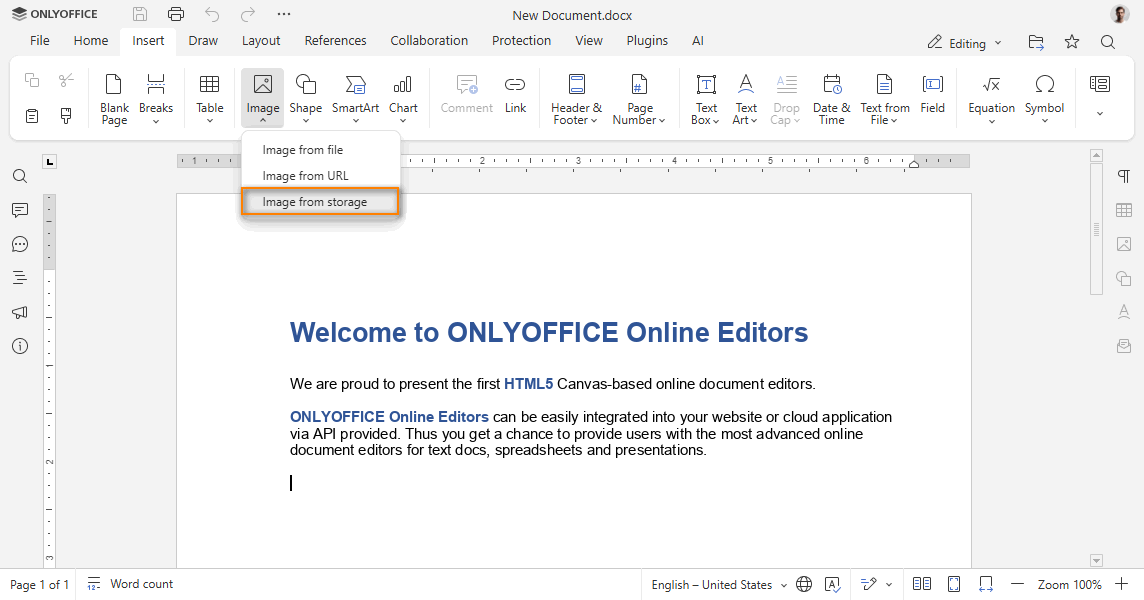
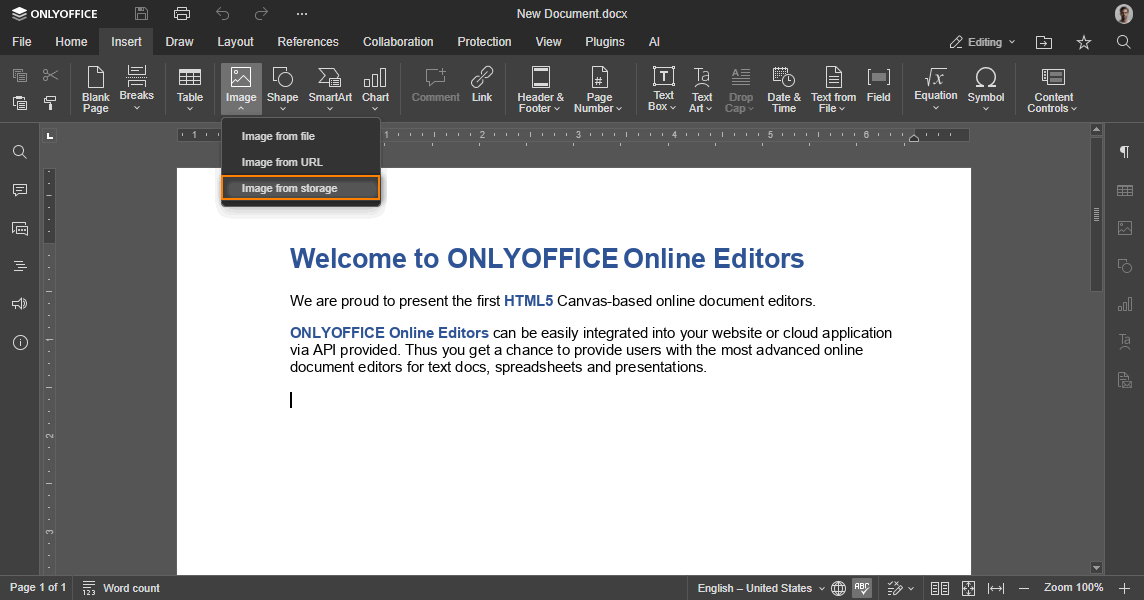
The function called when the user is trying to insert an image by clicking the Image from Storage button. To insert an image, call the insertImage method with the specified command. When calling this method, the token must be added to validate the parameters.
If this event is not declared, the Image from Storage button will not be displayed.
Parameters:
| Parameter | Type | Description |
|---|---|---|
| event.data.c | "add" | "change" | "fill" | "watermark" | "slide" | The type of image insertion. |
Example:
function onRequestInsertImage(event) {
  docEditor.insertImage({
    c: event.data.c,
    images: [
      {
        fileType: "png",
        url: "https://example.com/url-to-example-image1.png",
      },
      {
        fileType: "png",
        url: "https://example.com/url-to-example-image2.png",
      },
    ],
    token: "eyJhbGciOiJIUzI1NiIsInR5cCI6IkpXVCJ9.eyJpbWFnZXMiOlt7ImZpbGVUeXBlIjoicG5nIiwidXJsIjoiaHR0cHM6Ly9leGFtcGxlLmNvbS91cmwtdG8tZXhhbXBsZS1pbWFnZTEucG5nIn0seyJmaWxlVHlwZSI6InBuZyIsInVybCI6Imh0dHBzOi8vZXhhbXBsZS5jb20vdXJsLXRvLWV4YW1wbGUtaW1hZ2UyLnBuZyJ9XX0.ly1O8-6u4Y7WJlgp9O-bJMeffHe0GtaXzyvY2UUFJTg",
  });
}

const config = {
  // ...
  events: {
    onRequestInsertImage,
  },
};

const docEditor = new DocsAPI.DocEditor("placeholder", config);
onRequestMailMergeRecipients
The function called when the user is trying to select recipients data by clicking the Mail merge button.
Starting from version 7.5, please use onRequestSelectSpreadsheet instead.
onRequestOpen
The function called when the user is trying to open an external link by clicking the Open source button. To open the editor with the external file referenced by the path or referenceData parameters in a new tab, pass a link to this tab by calling the window.open method with the path and windowName parameters.
If this event is not declared, the Open source button will not be displayed.
Parameters:
| Parameter | Type | Description |
|---|---|---|
| event.data.path | string | The file path. |
| event.data.referenceData | object | The unique file data from the source file. |
| event.data.windowName | string | The new browser tab name. |


Example:
function onRequestOpen(event) {
  const path = event.data.path;
  const referenceData = event.data.referenceData;
  const windowName = event.data.windowName;
  window.open("https://example.com/external-url.docx", event.data.windowName);
}

const config = {
  // ...
  events: {
    onRequestOpen,
  },
};

const docEditor = new DocsAPI.DocEditor("placeholder", config);
onRequestReferenceData
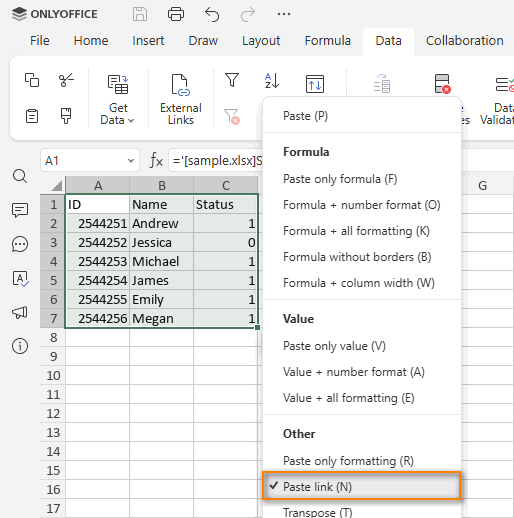
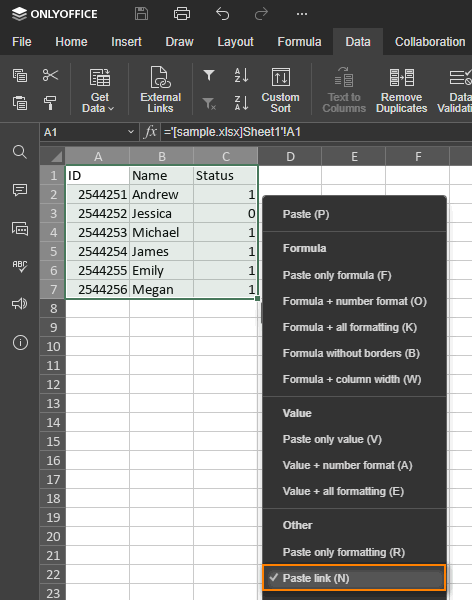
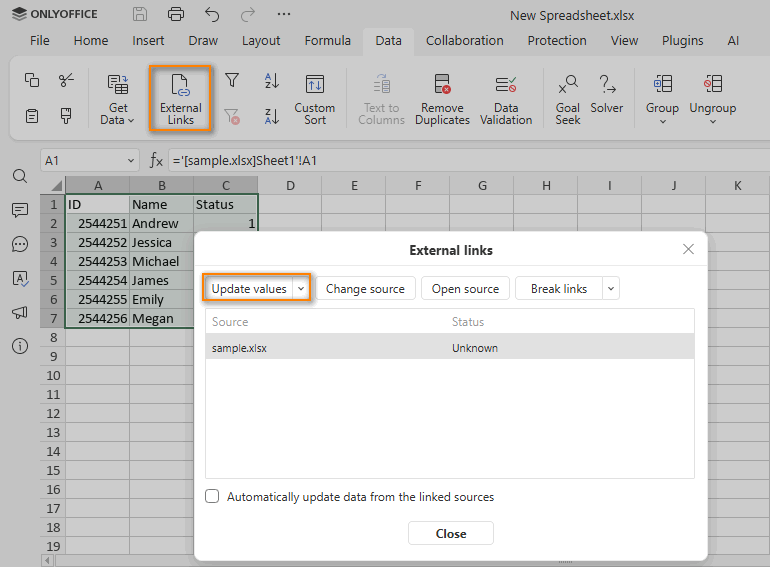
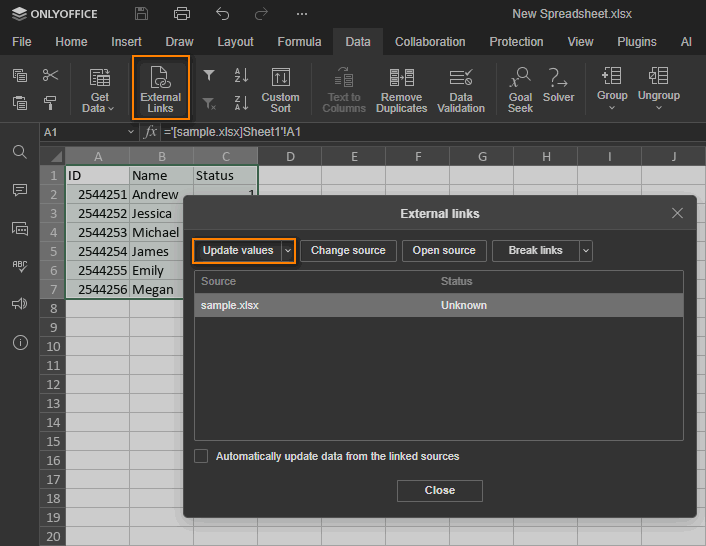
The function called when the user is trying to refresh data inserted from the external file by clicking the Update values button in the External links dialog box of the Data tab. To refresh data, call the setReferenceData method. When calling this method, the token must be added to validate the parameters. This event also fires when the user runs the IMPORTRANGE function.
- If this event is not declared, the Paste link and Update values buttons will not be displayed.
- To send the data to the
setReferenceDatamethod, it is recommended to search for the file by thereferenceDataparameter first. If there is no such a field or a file cannot be found, then thepathorlinkparameters are used.
Parameters:
| Parameter | Type | Description |
|---|---|---|
| event.data.referenceData | object | The unique file data from the source file. |
| event.data.path | string | The file path or name. |
| event.data.link | string | The URL of the external file. |
Example:
function onRequestReferenceData(event) {
  const link = event.data.link;
  const referenceData = event.data.referenceData;
  const path = event.data.path;

  docEditor.setReferenceData({
    fileType: "xlsx",
    key: "Khirz6zTPdfd7",
    path: "sample.xlsx",
    referenceData: {
      fileKey: "BCFA2CED",
      instanceId: "https://example.com",
    },
    token: "eyJhbGciOiJIUzI1NiIsInR5cCI6IkpXVCJ9.eyJmaWxlVHlwZSI6Inhsc3giLCJwYXRoIjoic2FtcGxlLnhsc3giLCJyZWZlcmVuY2VEYXRhIjp7ImZpbGVLZXkiOiJCQ0ZBMkNFRCIsImluc3RhbmNlSWQiOiJodHRwczovL2V4YW1wbGUuY29tIn0sInVybCI6Imh0dHBzOi8vZXhhbXBsZS5jb20vdXJsLXRvLWV4YW1wbGUtZG9jdW1lbnQueGxzeCJ9.UXosmM-E_Cu9j9QGSlcj9FEoSu5m-zCS4b6FxO_2k7w",
    url: "https://example.com/url-to-example-document.xlsx",
  });
}

const config = {
  // ...
  events: {
    onRequestReferenceData,
  },
};

const docEditor = new DocsAPI.DocEditor("placeholder", config);
onRequestReferenceSource
The function called when the user is trying to change a source of the external data by clicking the Change source button. To change the source, call the setReferenceSource method. When calling this method, the token must be added to validate the parameters.
- If this event is not declared, the Change source button will not be displayed.
- To send the data to the
setReferenceSourcemethod, it is recommended to search for the file by thereferenceDataparameter first. If there is no such a field or a file cannot be found, then thepathparameter is used.
Parameters:
| Parameter | Type | Description |
|---|---|---|
| event.data.referenceData | object | The unique file data from the source file. |
| event.data.path | string | The file path or name. |


Example:
function onRequestReferenceSource(event) {
  const referenceData = event.data.referenceData;
  const path = event.data.path;

  docEditor.setReferenceSource({
    fileType: "xlsx",
    key: "Khirz6zTPdfd7",
    path: "sample.xlsx",
    referenceData: {
      fileKey: "BCFA2CED",
      instanceId: "https://example.com",
    },
    token: "eyJhbGciOiJIUzI1NiIsInR5cCI6IkpXVCJ9.eyJmaWxlVHlwZSI6Inhsc3giLCJwYXRoIjoic2FtcGxlLnhsc3giLCJyZWZlcmVuY2VEYXRhIjp7ImZpbGVLZXkiOiJCQ0ZBMkNFRCIsImluc3RhbmNlSWQiOiJodHRwczovL2V4YW1wbGUuY29tIn0sInVybCI6Imh0dHBzOi8vZXhhbXBsZS5jb20vdXJsLXRvLWV4YW1wbGUtZG9jdW1lbnQueGxzeCJ9.UXosmM-E_Cu9j9QGSlcj9FEoSu5m-zCS4b6FxO_2k7w",
    url: "https://example.com/url-to-example-document.xlsx",
  });
}

const config = {
  // ...
  events: {
    onRequestReferenceSource,
  },
};

const docEditor = new DocsAPI.DocEditor("placeholder", config);
onRequestRefreshFile
The function called instead of the onOutdatedVersion event in the following cases:
- when the editor is opened with
keythat was already used to successfully save a file; - when the editor reconnects to the server after losing the connection and interrupting the editing session.
In these cases, the refreshFile method is called and the file version is updated without reloading the editor.
Example:
function onRequestRefreshFile() {
  docEditor.refreshFile({
    document: {
      fileType: "docx",
      key: "Khirz6zTPdfd7",
      title: "Example Document Title.docx",
      url: "https://example.com/url-to-example-document.docx",
    },
    documentType: "word",
    editorConfig: {
      callbackUrl: "https://example.com/url-to-callback",
    },
    token: "eyJhbGciOiJIUzI1NiIsInR5cCI6IkpXVCJ9.eyJkb2N1bWVudCI6eyJmaWxlVHlwZSI6ImRvY3giLCJrZXkiOiJLaGlyejZ6VFBkZmQ3IiwidGl0bGUiOiJFeGFtcGxlIERvY3VtZW50IFRpdGxlLmRvY3giLCJ1cmwiOiJodHRwczovL2V4YW1wbGUuY29tL3VybC10by1leGFtcGxlLWRvY3VtZW50LmRvY3gifSwiZG9jdW1lbnRUeXBlIjoid29yZCIsImVkaXRvckNvbmZpZyI6eyJjYWxsYmFja1VybCI6Imh0dHBzOi8vZXhhbXBsZS5jb20vdXJsLXRvLWNhbGxiYWNrLmFzaHgifX0.vbezS2aM8Xf8qFzIAsO-jrIsi7VLxjRYkIkwh5jLTJU",
  });
}

const config = {
  // ...
  events: {
    onRequestRefreshFile,
  },
};

const docEditor = new DocsAPI.DocEditor("placeholder", config);
onRequestRename
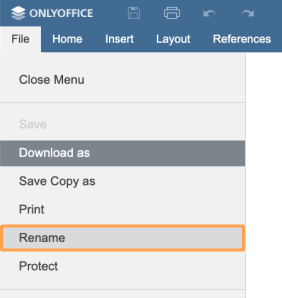
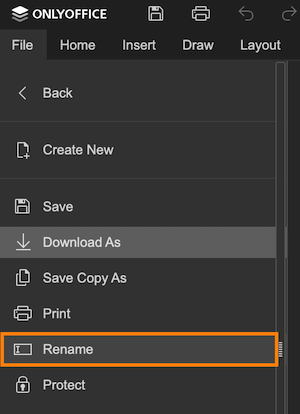
The function called when the user is trying to rename the file by clicking the Rename... button.
If this event is not declared, the Rename... button will not be displayed.
Parameters:
| Parameter | Type | Description |
|---|---|---|
| event.data | string | The new document title. |
Example:
function onRequestRename(event) {
  const title = event.data;
  console.log(`The user is trying to rename the file to: ${title}`);
}

const config = {
  // ...
  events: {
    onRequestRename,
  },
};

const docEditor = new DocsAPI.DocEditor("placeholder", config);
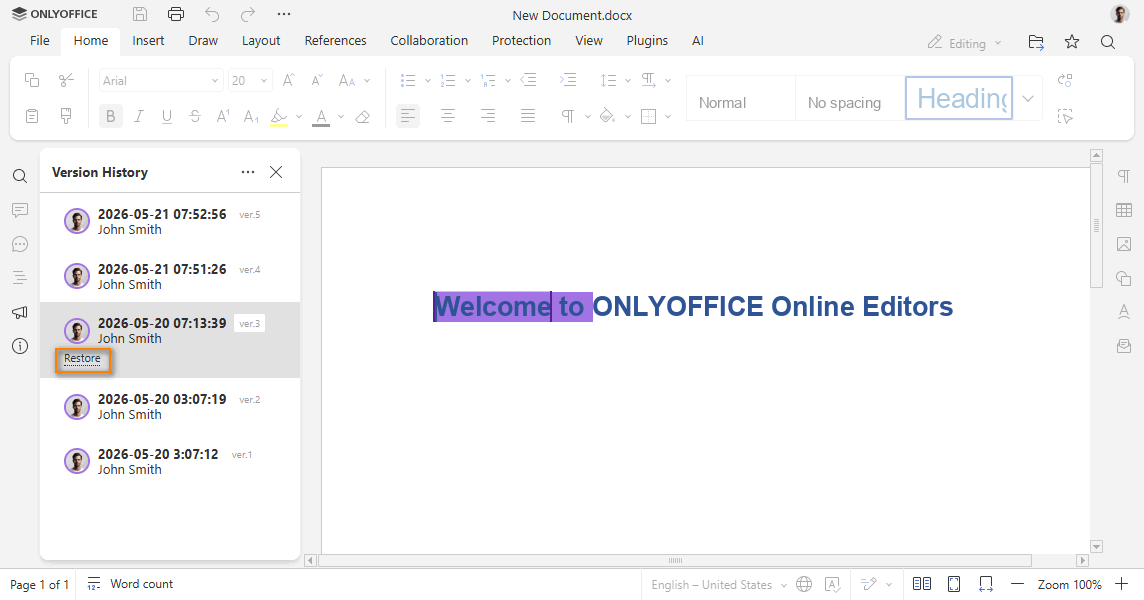
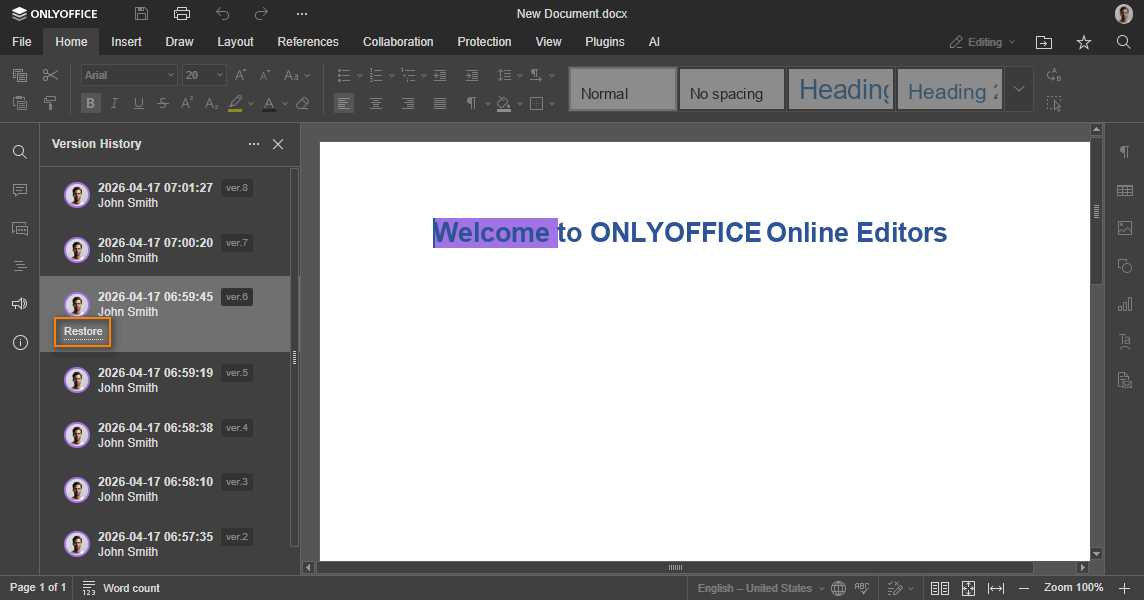
onRequestRestore
The function called when the user is trying to restore the file version by clicking the Restore button in the version history. When the function is called, you must call the refreshHistory method to initialize version history again.
If this event is not declared, the Restore button will not be displayed. The Restore button is displayed for the previous document versions only and hidden for the current one.
Parameters:
| Parameter | Type | Description |
|---|---|---|
| event.data.version | number | The document version number. |
| event.data.url | string | The document link from the history object. Sent if called for the document changes. |
| event.data.fileType | string | The type of the document specified with the url link. |
Example:
function onRequestRestore(event) {
  const fileType = event.data.fileType;
  const url = event.data.url;
  const version = event.data.version;

  docEditor.refreshHistory({
    currentVersion: 2,
    history: [
      {
        created: "2010-07-06 10:13 AM",
        key: "af86C7e71Ca8",
        user: {
          id: "F89d8069ba2b",
          name: "Kate Cage",
        },
        version: 1,
      },
      {
        changes,
        created: "2010-07-07 3:46 PM",
        key: "Khirz6zTPdfd7",
        serverVersion,
        user: {
          id: "78e1e841",
          name: "John Smith",
        },
        version: 2,
      },
    ],
  });
}

const config = {
  // ...
  events: {
    onRequestRestore,
  },
};

const docEditor = new DocsAPI.DocEditor("placeholder", config);
Where the changes is the changes from the history object returned after saving the document.
Where the serverVersion is the serverVersion from the history object returned after saving the document.
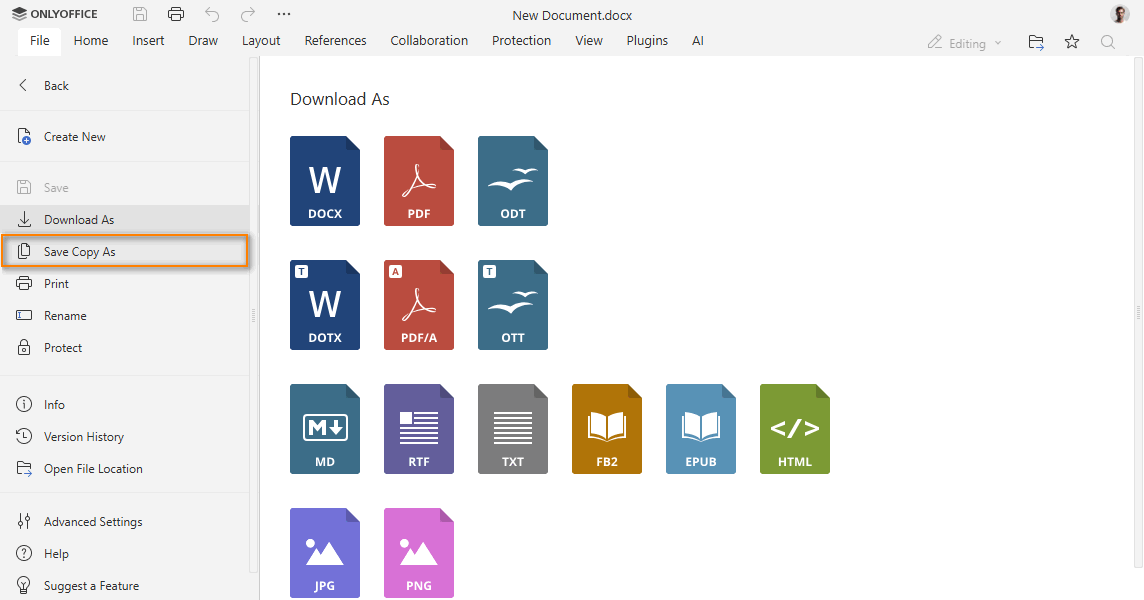
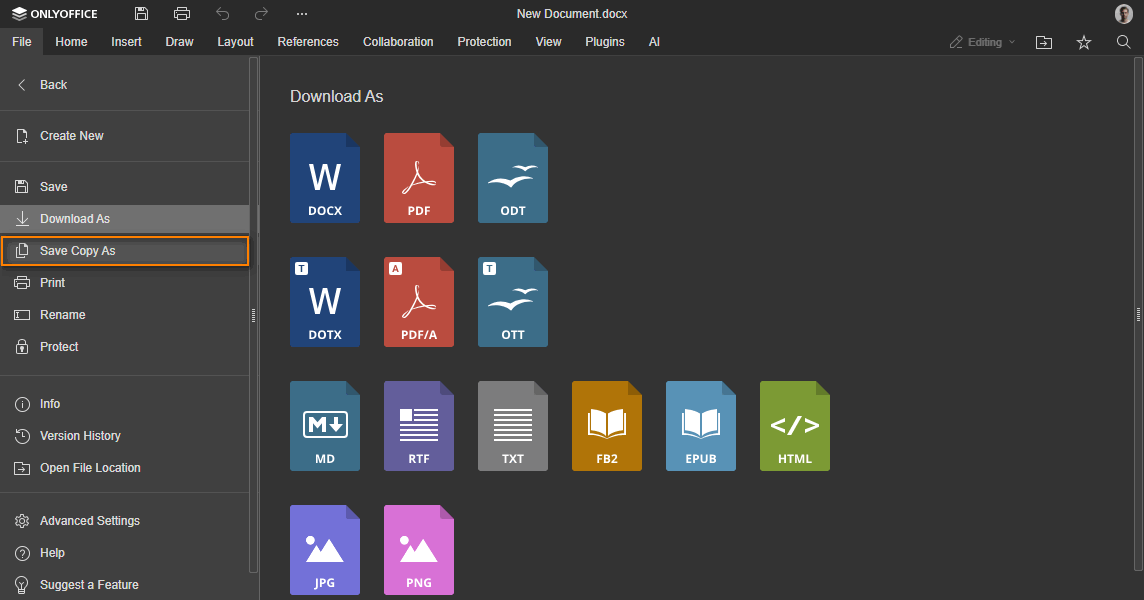
onRequestSaveAs
The function called when the user is trying to save a file by clicking the Save Copy as... button.
If this event is not declared, the Save Copy as... button will not be displayed.
Parameters:
| Parameter | Type | Description |
|---|---|---|
| event.data.fileType | string | The document type. |
| event.data.title | string | The title of the document. |
| event.data.url | string | The absolute URL to the document to be downloaded. |
Example:
function onRequestSaveAs(event) {
  const fileType = event.data.fileType;
  const title = event.data.title;
  const url = event.data.url;
}

const config = {
  // ...
  events: {
    onRequestSaveAs,
  },
};

const docEditor = new DocsAPI.DocEditor("placeholder", config);
onRequestSelectDocument
The function called when the user is trying to select a document for comparing, combining, or inserting text. To select a document, call the setRequestedDocument method. When calling this method, the token must be added to validate the parameters.
Parameters:
| Parameter | Type | Description |
|---|---|---|
| event.data.c | "compare" | "combine" | "insert-text" | The type of document selection. |




Example:
function onRequestSelectDocument(event) {
  docEditor.setRequestedDocument({
    c: event.data.c,
    fileType: "docx",
    url: "https://example.com/url-to-example-document.docx",
    token: "eyJhbGciOiJIUzI1NiIsInR5cCI6IkpXVCJ9.eyJmaWxlVHlwZSI6ImRvY3giLCJ1cmwiOiJodHRwczovL2V4YW1wbGUuY29tL3VybC10by1leGFtcGxlLWRvY3VtZW50LmRvY3gifQ.t8660n_GmxJIppxcwkr_mUxmXYtE8cg-jF2cTLMtuk8",
  });
}

const config = {
  // ...
  events: {
    onRequestSelectDocument,
  },
};

const docEditor = new DocsAPI.DocEditor("placeholder", config);
onRequestSelectSpreadsheet
The function called when the user is trying to select recipients data by clicking the Mail merge button. To select recipient data, call the setRequestedSpreadsheet method. When calling this method, the token must be added to validate the parameters.
Parameters:
| Parameter | Type | Description |
|---|---|---|
| event.data.c | "mailmerge" | The type of spreadsheet selection. |


Example:
function onRequestSelectSpreadsheet(event) {
  docEditor.setRequestedSpreadsheet({
    c: event.data.c,
    fileType: "xlsx",
    token: "eyJhbGciOiJIUzI1NiIsInR5cCI6IkpXVCJ9.eyJmaWxlVHlwZSI6Inhsc3giLCJ1cmwiOiJodHRwczovL2V4YW1wbGUuY29tL3VybC10by1leGFtcGxlLXJlY2lwaWVudHMueGxzeCJ9.P3TjOyX1Tv3xAVRAc8qtNb-uFLD6FH_WErag_rbI6nQ",
    url: "https://example.com/url-to-example-recipients.xlsx",
  });
}

const config = {
  // ...
  events: {
    onRequestSelectSpreadsheet,
  },
};

const docEditor = new DocsAPI.DocEditor("placeholder", config);
onRequestSendNotify
The function called when the user is mentioned in a comment. The list of users to be mentioned should be completed by the setUsers method.
Parameters:
| Parameter | Type | Description |
|---|---|---|
| event.data.actionLink | object | The comment data. Must be used in the configuration as the value for the editorConfig.actionLink parameter. |
| event.data.message | string | The message of the comment. |
| event.data.emails | string[] | The list of user emails to be notified. |
Example:
function onRequestSendNotify(event) {
  const ACTION_DATA = event.data.actionLink;
  const comment = event.data.message;
  const emails = event.data.emails;
}

const config = {
  // ...
  events: {
    onRequestSendNotify,
  },
};

const docEditor = new DocsAPI.DocEditor("placeholder", config);
onRequestSharingSettings
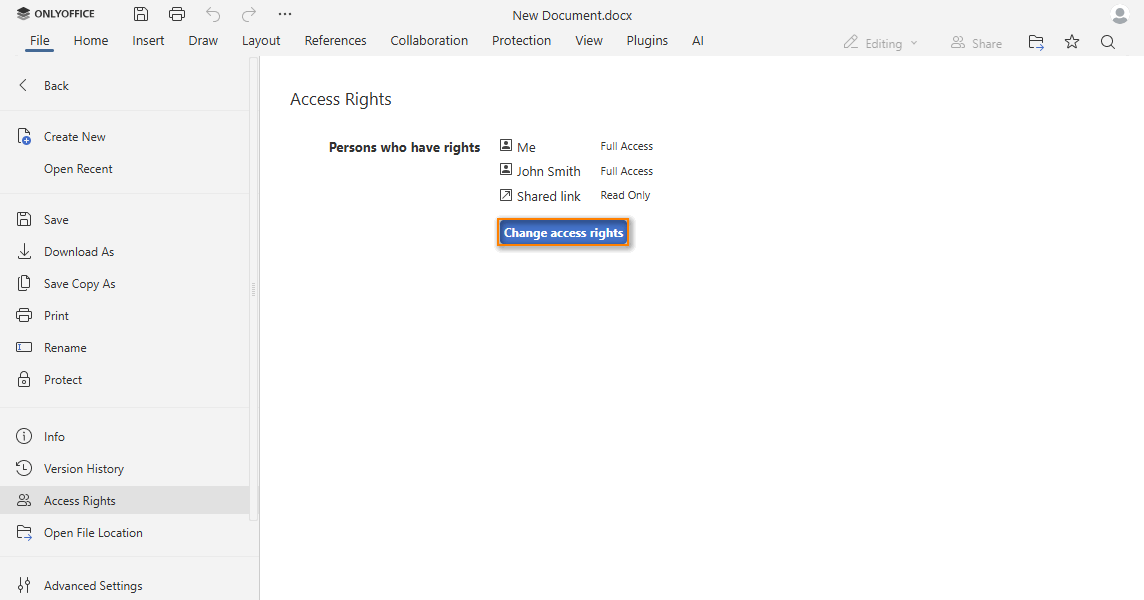
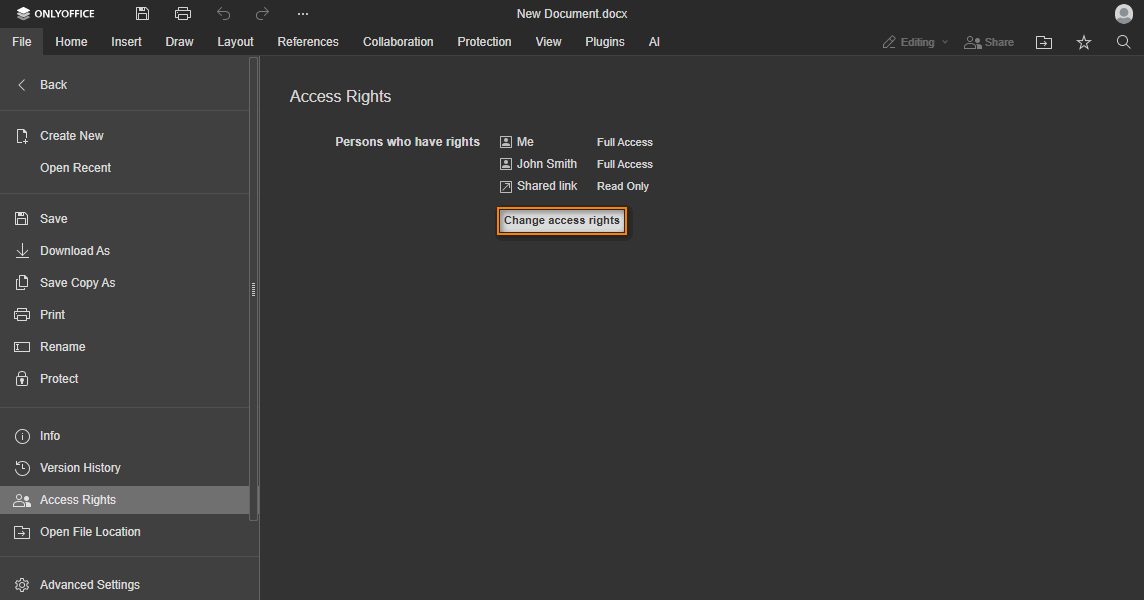
The function called when the user is trying to manage document access rights by clicking the Change access rights button. When the access rights are changed, you must call the setSharingSettings method to update the information about the settings which allow to share the document with other users.
If this event is not declared, the Change access rights button will not be displayed.
Example:
function onRequestSharingSettings() {
  docEditor.setSharingSettings({
    sharingSettings: [
      {
        permissions: "Full Access",
        user: "John Smith",
      },
      {
        isLink: true,
        permissions: "Read Only",
        user: "External link",
      },
    ],
  });
}

const config = {
  // ...
  events: {
    onRequestSharingSettings,
  },
};

const docEditor = new DocsAPI.DocEditor("placeholder", config);
onRequestStartFilling
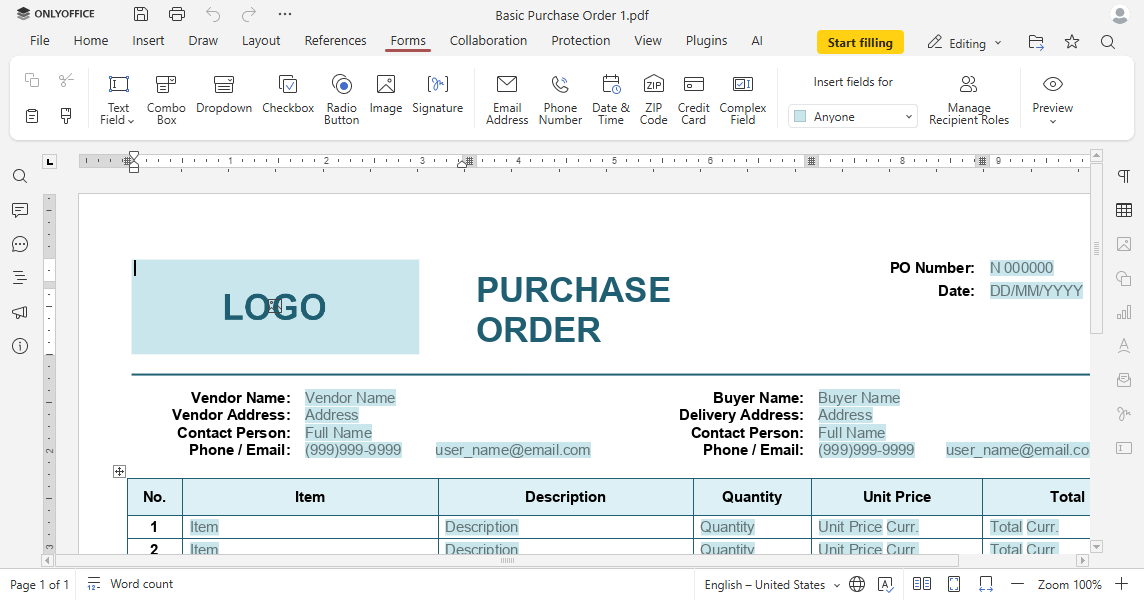
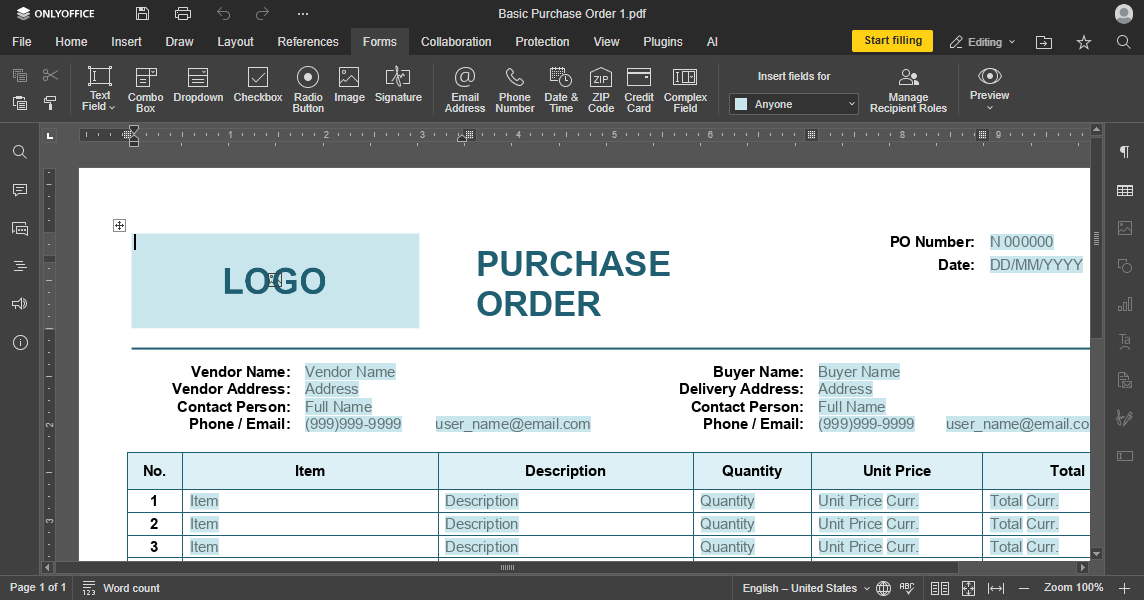
The function called when the user is trying to start filling out ready forms by clicking the Start filling button in PDF editing mode. When the user clicks the Start filling button, the startFilling method is called to lock PDF editing (only PDF viewing becomes available).
If this event is not declared, the Start filling button will not be displayed.
Parameters:
| Parameter | Type | Description |
|---|---|---|
| event.data | object[] | The array of role objects. |
| event.data[].name | string | The role name. |
| event.data[].color | string | The role color in hex format (e.g. #FF0000). |
Example:
function onRequestStartFilling(event) {
  const roles = event.data;
  console.log("Roles:", roles);
  docEditor.startFilling();
}

const config = {
  // ...
  events: {
    onRequestStartFilling,
  },
};

const docEditor = new DocsAPI.DocEditor("placeholder", config);
onRequestUsers
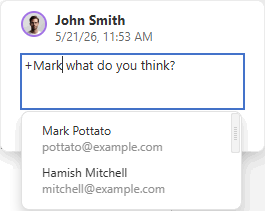
The function called when the user can select other users to mention in the comments, grant the access rights to edit the specific sheet ranges, or set the user avatars. To set a list of users, you must call the setUsers method which can take different lists of users depending on the specified operation type. The onRequestUsers event is called once for each c type when the corresponding operation is performed. If setUsers is called with an empty list, then the onRequestUsers event will fire again.
Parameters:
| Parameter | Type | Description |
|---|---|---|
| event.data.c | "mention" | "protect" | "info" | The operation type. |
| event.data.id | string[] | The list of user IDs associated with the operation. |


Example:
function onRequestUsers(event) {
  const c = event.data.c;
  const id = event.data.id;

  docEditor.setUsers({
    c: event.data.c,
    users: [
      {
        email: "john@example.com",
        id: "78e1e841",
        image: "https://example.com/url-to-user-avatar1.png",
        name: "John Smith",
      },
      {
        email: "kate@example.com",
        id: "F89d8069ba2b",
        image: "https://example.com/url-to-user-avatar2.png",
        name: "Kate Cage",
      },
    ],
  });
}

const config = {
  // ...
  events: {
    onRequestUsers,
  },
};

const docEditor = new DocsAPI.DocEditor("placeholder", config);
onSaveDocument
The function called to save the document as binary data.
Parameters:
| Parameter | Type | Description |
|---|---|---|
| event.data | ArrayBuffer | The document file data in binary format. |
Example:
function onSaveDocument(event) {
  const buffer = event.data;
  console.log("Document binary size:", buffer.byteLength);
}

const config = {
  // ...
  events: {
    onSaveDocument,
  },
};

const docEditor = new DocsAPI.DocEditor("placeholder", config);
onStartFilling
The function called when the PDF form is ready for filling, i.e. after the startFilling method is called and the form preparation is complete.
Parameters:
| Parameter | Type | Description |
|---|---|---|
| event.data | object[] | The array of role objects. |
| event.data[].color | string | The role color in hex format (e.g. #FF0000). |
| event.data[].name | string | The role name. |
| event.data[].user | object | The user assigned to the role. |
| event.data[].user.email | string | The user email. |
| event.data[].user.id | string | The user ID. |
| event.data[].user.image | string | The URL to the user avatar. |
| event.data[].user.name | string | The user name. |
Example:
function onStartFilling(event) {
  const roles = event.data;
  console.log("Roles:", roles);
}

const config = {
  // ...
  events: {
    onStartFilling,
  },
};

const docEditor = new DocsAPI.DocEditor("placeholder", config);
onSubmit
The function called when the force saving request of the 3 forcesavetype is successfully performed, i.e. when the Complete & Submit button is clicked and the form is submitted.
Example:
function onSubmit() {
  console.log("The form was submitted.");
}

const config = {
  // ...
  events: {
    onSubmit,
  },
};

const docEditor = new DocsAPI.DocEditor("placeholder", config);
onUserActionRequired
The function called when a user action is required to open a document in the following cases:
- when the user needs to enter a password to open the protected document;
- when the user needs to select an encoding for the
txtfile; - when the user needs to select an encoding and a delimiter for the
csvfile.
Example:
function onUserActionRequired() {
  console.log("Enter a password");
}

const config = {
  // ...
  events: {
    onUserActionRequired,
  },
};

const docEditor = new DocsAPI.DocEditor("placeholder", config);
onWarning
The function called when a warning occurs.
Parameters:
| Parameter | Type | Description |
|---|---|---|
| event.data.warningCode | number | The warning code. |
| event.data.warningDescription | string | The warning description. |
Example:
function onWarning(event) {
  console.log(`ONLYOFFICE Document Editor reports a warning: code ${event.data.warningCode}, description ${event.data.warningDescription}`);
}

const config = {
  // ...
  events: {
    onWarning,
  },
};

const docEditor = new DocsAPI.DocEditor("placeholder", config);