Adding custom functions
Custom functions are JavaScript functions that you write in the Macros plugin and then call in a spreadsheet like any built-in function. They are available in the spreadsheet editor starting from version 8.1.
Creating custom functions
-
Open the View tab and select Macros. The macros window will pop up.
-
In the Custom functions section, click

 . You will be presented with the custom function template:(function(){/*** Function that returns the argument* @customfunction* @param {any} arg Any data.* @returns {any} The argument of the function.*/function myFunction(arg) {return arg;}Api.AddCustomFunction(myFunction);})();
 -
Write a description for your function and specify its parameters and return value. The JSDoc comment is required: a function without it, or with a parameter whose type is not supported, is not registered, and a function without
@returnsreturns an error value to the cell. Add a script for your function. Use the Api.AddCustomFunction method to add a function to the system. -
Click Save.
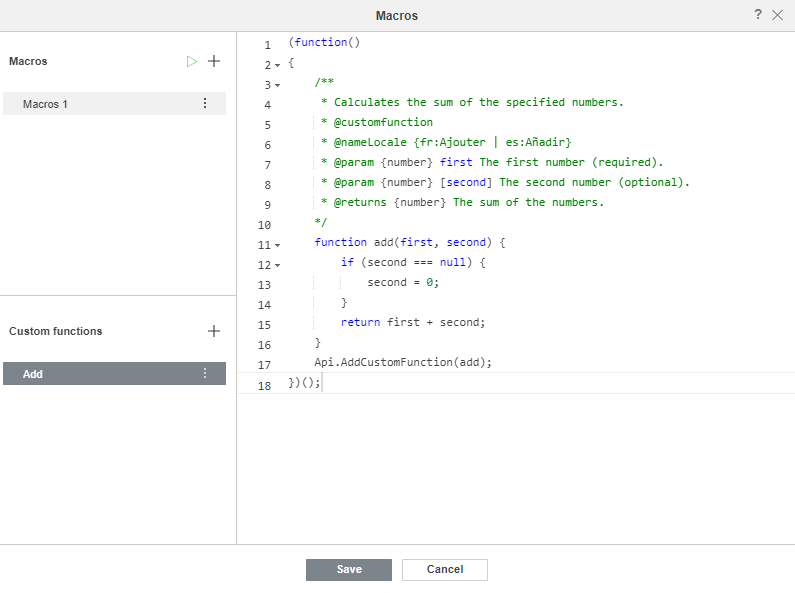
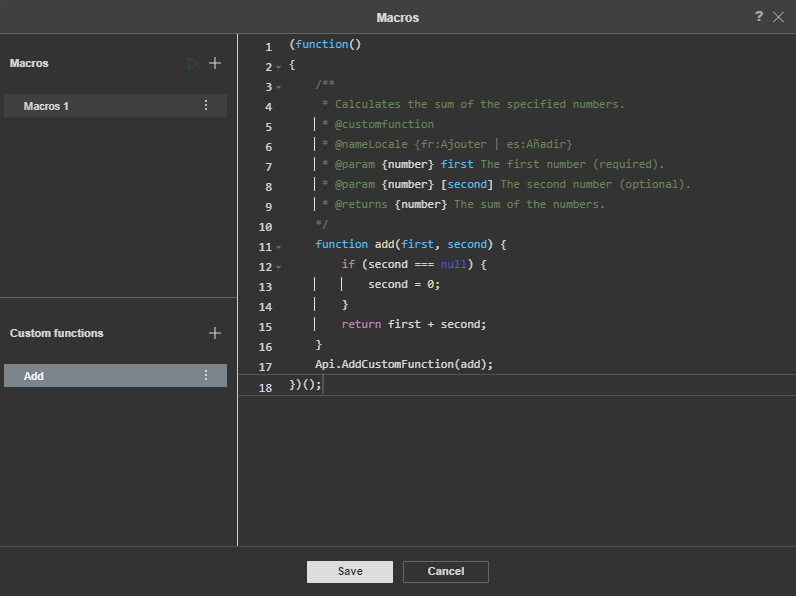
Now you can use this function in the spreadsheet.


For a complete sample, see Weighted average function.
Accessing cell addresses
Starting from version 9.0.4, you can access cell address information inside custom functions.
Inside a custom function, this refers to a context object with the address of the cell being calculated and the addresses of the cells the arguments came from. The following properties are available:
-
this.address- the address of the cell where the custom function is being calculated, qualified with the name of the sheet (e.g.,"Sheet1!C5"). A sheet name that contains spaces or special characters is enclosed in single quotes (e.g.,"'My Sheet'!C5"); -
this.args- an array describing the input arguments. An entry is present only for an argument that is a cell or range reference, and holds a singleaddressfield with the address of that cell or range, qualified in the same way (e.g.,"Sheet1!A1"). An argument passed as a literal value leaves its entryundefined. To read the values themselves, use the function parameters. This array has the following structure:[{"address": "arg1_address"},{"address": "arg2_address"},...]
If the function is called as =CUSTOMFUNC(5, A1), the first argument is a literal value and the second one is a cell reference, so this.args[0] is undefined and this.args[1] is {"address": "Sheet1!A1"}. Check an entry before reading its address field.
Example:
(function()
{
  /**
  * Returns the address of the cell where the function is calculated.
  * @customfunction
  * @param {any} arg1 Any data.
  * @param {any} arg2 Any data.
  * @returns {string} The address of the cell with the function.
  */
  function CUSTOMFUNC(arg1, arg2) {
    console.log("Function is evaluated in:", this.address);
    console.log("First argument:", arg1, "from cell:", this.args[0] && this.args[0].address);
    console.log("Second argument:", arg2, "from cell:", this.args[1] && this.args[1].address);
    return this.address;
  }
  Api.AddCustomFunction(CUSTOMFUNC);
})();
Managing custom functions
If you want to rename your function, click 
 next to the custom function name and select Rename. Enter a new name for the custom function and click Ok.
To delete an unnecessary custom function, click next to the custom function name and select Delete.
You can also copy your function. To do this, click next to the custom function name and select Copy.


Asynchronous functions
Starting from version 9.0, you can add asynchronous custom functions to manage any request within the function body.
An asynchronous custom function returns a promise instead of a value, so it can make a network request or wait for any other asynchronous operation. The editor recalculates the cell when the promise resolves. If the promise is rejected, the cell shows the #VALUE! error.
(function()
{
  /**
  * Function that returns the argument
  * @customfunction
  * @param {any} arg Any data.
  * @returns {any} The argument of the function.
  */
  async function myFunction(arg) {
    return arg;
  }
  Api.AddCustomFunction(myFunction);
})();
For a complete sample, see Calculate World Bank indicator.