Custom AI tools (beta)
Custom AI tools are functions that define the functionality of the AI agent. They specify:
- what request to send to the AI model;
- what manipulations to perform on the document.
Adding custom AI tools expands the AI agent's capabilities and allows adapting it to specific use cases. Whether working with documents, spreadsheets, or presentations, custom AI tools let you integrate AI-driven operations directly into your workflow and align the agent's behavior with your requirements.
You can find ready-to-use custom AI tools here or create your own ones.
Adding a custom AI tool requires modifying the AI plugin source code directly — you can then install the modified plugin via a custom store link.
How it works
Custom AI tool calling in the ONLYOFFICE AI agent follows a flow similar to function calling in LLM APIs:
- Function registration. Each function is registered with a name, parameter list, description, and usage examples. This metadata tells the AI model what the function does and when to invoke it.
- User prompt. The user opens the AI agent and types a request.
- Function selection. The AI model examines the prompt and the list of available functions, then decides which function to call and with what arguments.
- Execution. The selected function runs: it sends a request to the AI model and applies the result to the document using the Office API.
Setup
To add a custom AI tool and make it available in the AI agent:
- Clone the onlyoffice.github.io repository to your local machine.
- Write your function in the helpers folder (
sdkjs-plugins/content/ai/.dev/helpers). Depending on the editor type, place it in thecell/,slide/, orword/folder (see Function registration below). - Update the current version of the AI plugin in
config.jsonto avoid caching issues (for example,3.0.3→3.0.4). - Run the
helpers.pyfile. - Select all plugin files in the
aifolder (sdkjs-plugins/content/ai), zip them, and rename the archive toai.plugin. - Place the file back into
sdkjs-plugins/content/ai/deploy. - Push the changes.
- Build your GitHub Pages site from this repository (see the GitHub Pages documentation).
- Prepare a link to your custom store by appending
/store/index.htmlto your GitHub Pages URL:https://YOUR-USERNAME.github.io/onlyoffice.github.io/store/index.html. - Go to Plugins > Plugin Manager.
- Click the Store icon
(</>)in the top-right corner of the Plugin Manager and enter your custom store URL. - Update the AI plugin.
Example: the commentText function
The commentText function allows adding AI-generated comments directly to the document. Here’s how it works:
- Make sure AI plugin is installed and set up correctly.
- Select a word to leave a comment on.
- Open the AI agent dialog box (
CTRL + /). - Type in the instruction for the AI agent. For example:
Explain this textorAdd a footnote to this text. - Press
Enter.
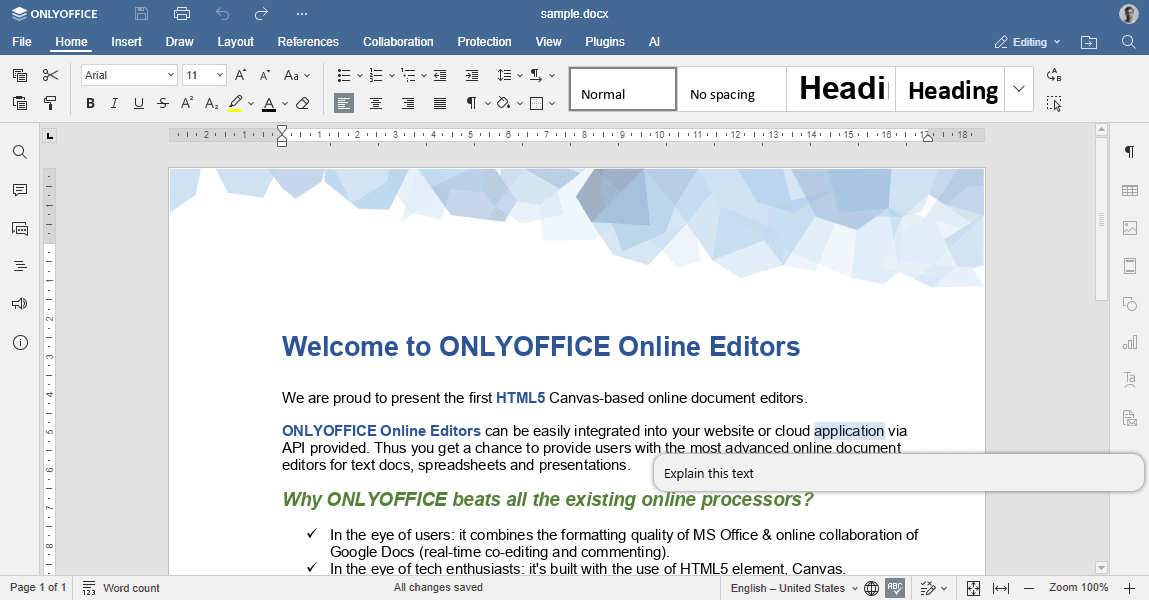
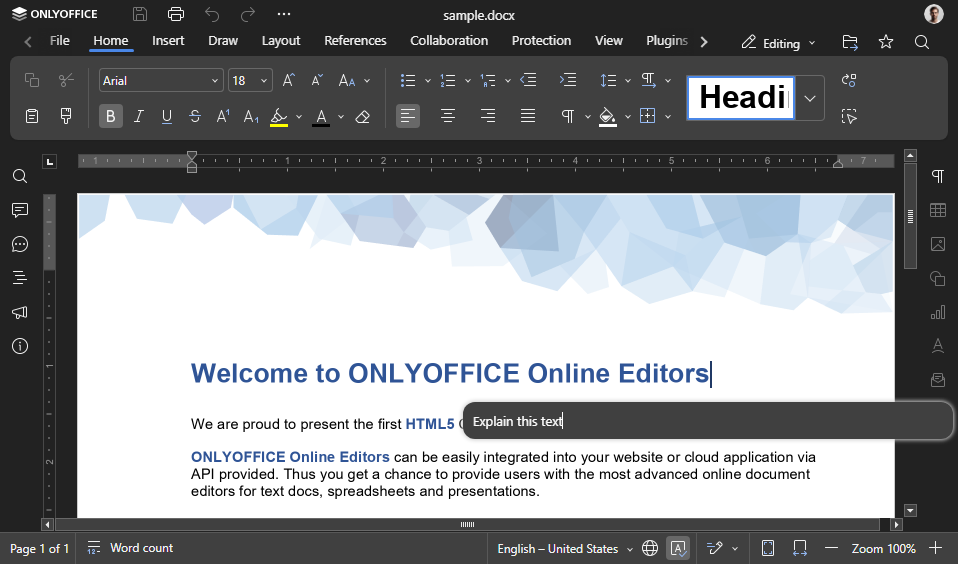
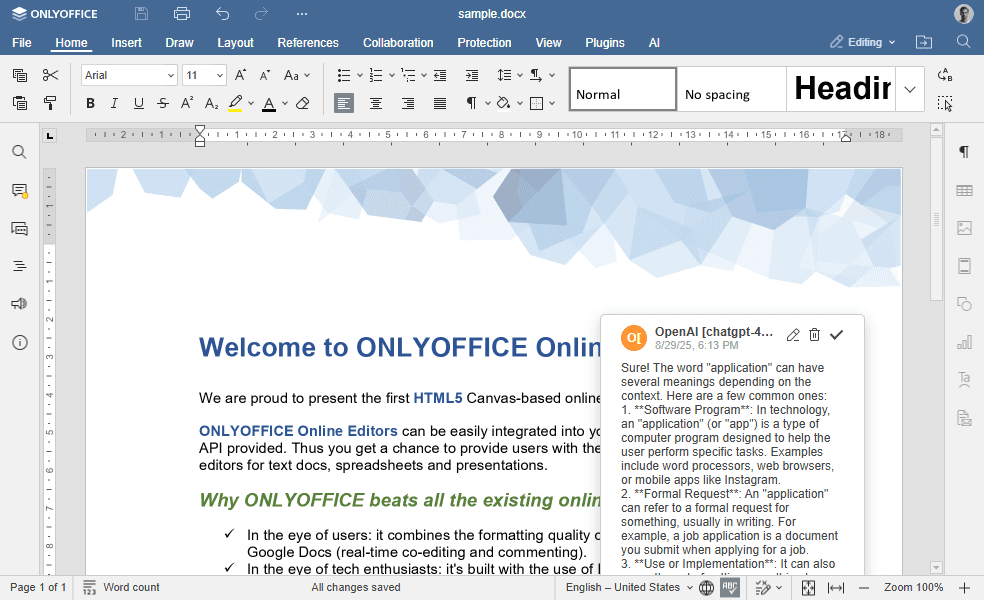
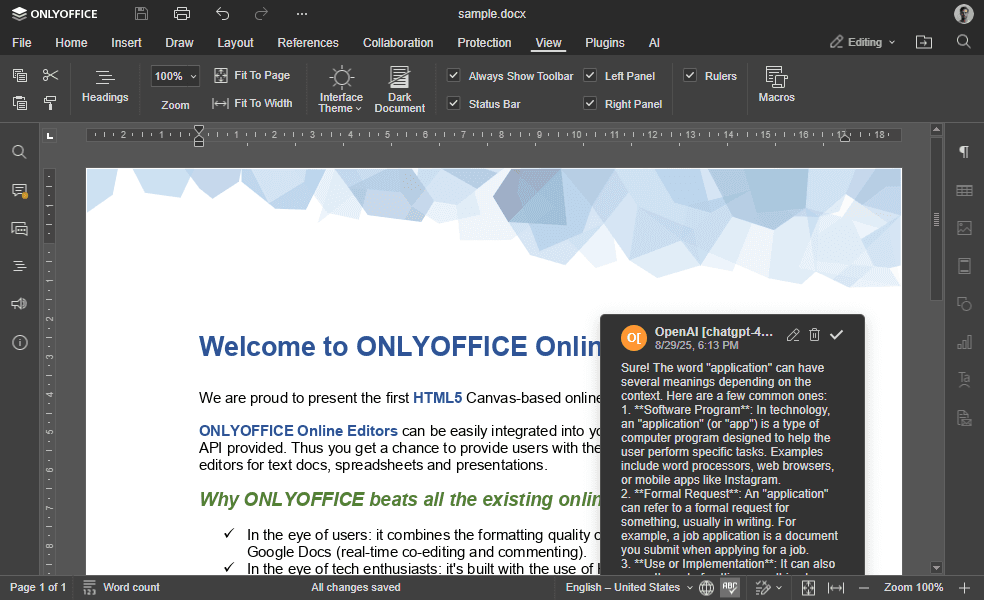
The AI agent will run the commentText function and insert relevant comments into the document.
How to create custom AI tools
The process of making a custom AI tool involves two main phases:
- Function registration: Registers the AI function and its metadata within the agent's environment.
- Function execution: Implements the core logic, which includes sending requests to the AI model and manipulating document content using our Office API.
Function registration
To add a new function, the RegisteredFunction object is used, which adds metadata and logic of the custom function to the AI agent.
Parameters
| Name | Type | Example | Description |
|---|---|---|---|
| name | string | "commentText" | The function name. |
| parameters | object | { type: "object", properties: { prompt: { type: "string" } }, required: ["prompt"] } | An object describing the parameters the function expects from the AI. |
| examples | array of objects | [{ prompt: "Explain this text", arguments: { prompt: "Explain this text", type: "comment" } }] | The examples of correct function calls for the AI. |
| description | string | "Adds a comment or footnote to explain or annotate the selected text." | The function description which explains to the AI what the function is used for. |
These parameters are used by the AI. The RegisteredFunction() object is defined in the helperFuncs.js file.
Example
The full function flow is shown below, with inline comments explaining each step:
(function () {
  // Registers the "commentText" tool for the AI agent.
  // The metadata below (name/description/parameters/examples) is used by the model
  // to decide when and how to call this tool.
  let func = new RegisteredFunction({
    name: "commentText",
    description:
      "Adds a comment or footnote to explain or annotate the selected text. If no text is selected, works with the current paragraph.",
    parameters: {
      type: "object",
      properties: {
        // The instruction for the AI model (e.g., "Explain this text").
        prompt: {
          type: "string",
          description: "The instruction for what to explain or comment about the text.",
        },
        // Determines how the response will be inserted into the document.
        // Default behavior is a comment.
        type: {
          type: "string",
          enum: ["comment", "footnote"],
          description: "Whether to add as a comment or as a footnote.",
          default: "comment",
        },
      },
      required: ["prompt"],
    },
    // Example calls that teach the model the correct JSON arguments to provide.
    examples: [
      {
        prompt: "Explain this text",
        arguments: { prompt: "Explain this text", type: "comment" },
      },
      {
        prompt: "Add a historical context as footnote",
        arguments: { prompt: "Add historical context", type: "footnote" },
      },
      {
        prompt: "Comment on the significance",
        arguments: { prompt: "Explain significance", type: "comment" },
      },
    ],
  });

  // The actual logic that runs when the AI agent calls "commentText".
  func.call = async function (params) {
    // Decide whether we insert as a comment or as a footnote.
    let type = params.type;
    let isFootnote = "footnote" === type;

    // 1) Retrieve the selected text (or fallback to the current word if nothing is selected).
    // Asc.Editor.callCommand() executes inside the editor context, so Office API calls are available.
    let text = await Asc.Editor.callCommand(function () {
      let doc = Api.GetDocument();
      let range = doc.GetRangeBySelect();
      let text = range ? range.GetText() : "";

      if (!text) {
        // If nothing is selected, use the current word and select it
        text = doc.GetCurrentWord();
        doc.SelectCurrentWord();
      }

      return text;
    });

    // 2) Construct the prompt sent to the AI model by combining the user instruction and the selected text.
    let argPrompt = params.prompt + ":\n" + text;

    // 3) Initialize a request engine for communicating with the AI model.
    let requestEngine = AI.Request.create(AI.ActionType.Chat);
    if (!requestEngine) return;

    // Ensures EndAction is called only once.
    let isSendedEndLongAction = false;
    async function checkEndAction() {
      if (!isSendedEndLongAction) {
        await Asc.Editor.callMethod("EndAction", [
          "Block",
          "AI (" + requestEngine.modelUI.name + ")",
        ]);
        isSendedEndLongAction = true;
      }
    }

    // Start editor actions so the entire operation can be undone/redone as a single block.
    await Asc.Editor.callMethod("StartAction", [
      "Block",
      "AI (" + requestEngine.modelUI.name + ")",
    ]);
    await Asc.Editor.callMethod("StartAction", ["GroupActions"]);

    // 4) Send the request to the AI model and process the response in a callback
    // and insert the response either as a footnote or as a comment.
    if (isFootnote) {
      let addFootnote = true;

      await requestEngine.chatRequest(argPrompt, false, async function (data) {
        if (!data) return;

        // End the action block as soon as we receive the first chunk of data (streaming-safe).
        await checkEndAction();

        // Pass data/model info into the editor scope for use inside callCommand().
        Asc.scope.data = data;
        Asc.scope.model = requestEngine.modelUI.name;

        // Create the footnote once (on the first chunk), then keep inserting text into it.
        if (addFootnote) {
          await Asc.Editor.callCommand(function () {
            Api.GetDocument().AddFootnote();
          });
          addFootnote = false;
        }

        // Insert AI-generated text at the current cursor position (inside the new footnote).
        await Asc.Library.PasteText(data);
      });
    } else {
      let commentId = null;

      await requestEngine.chatRequest(argPrompt, false, async function (data) {
        if (!data) return;

        // End the action block as soon as we receive the first chunk of data (streaming-safe).
        await checkEndAction();

        // Store response/model and current comment ID in scope so callCommand() can access them.
        Asc.scope.data = data;
        Asc.scope.model = requestEngine.modelUI.name;
        Asc.scope.commentId = commentId;

        // Create the comment once (on first chunk), then append additional chunks to the same comment.
        commentId = await Asc.Editor.callCommand(function () {
          let doc = Api.GetDocument();

          let commentId = Asc.scope.commentId;
          if (!commentId) {
            // Add a new comment to the selected range.
            let range = doc.GetRangeBySelect();
            if (!range) return null;

            let comment = range.AddComment(
              Asc.scope.data,
              Asc.scope.model,
              "uid" + Asc.scope.model
            );
            if (!comment) return null;

            // Open the comment in the UI and return its ID for future appends.
            doc.ShowComment([comment.GetId()]);
            return comment.GetId();
          }

          // Append new streamed text chunks to the existing comment.
          let comment = doc.GetCommentById(commentId);
          if (!comment) return commentId;

          comment.SetText(comment.GetText() + Asc.scope.data);
          return commentId;
        });
      });
    }

    // Ensure actions are closed even if the response completed in a single chunk.
    await checkEndAction();
    await Asc.Editor.callMethod("EndAction", ["GroupActions"]);
  };

  return func;
})();
To ensure the entire block of changes can be rolled back after the request is executed, we use StartAction and EndAction methods across the commentText function.
The AI agent functionality continues to evolve alongside the needs of today's digital world. Extend its capabilities by creating your own custom tools, tailored to your specific use cases.