Recording macros
ONLYOFFICE Editors allow you to record macros. Recording a macro captures your actions, clicks, and movements in the editor and saves them as a macro to automate the process.
Steps to record a macro
To record a macro:
-
Navigate to the View tab.
-
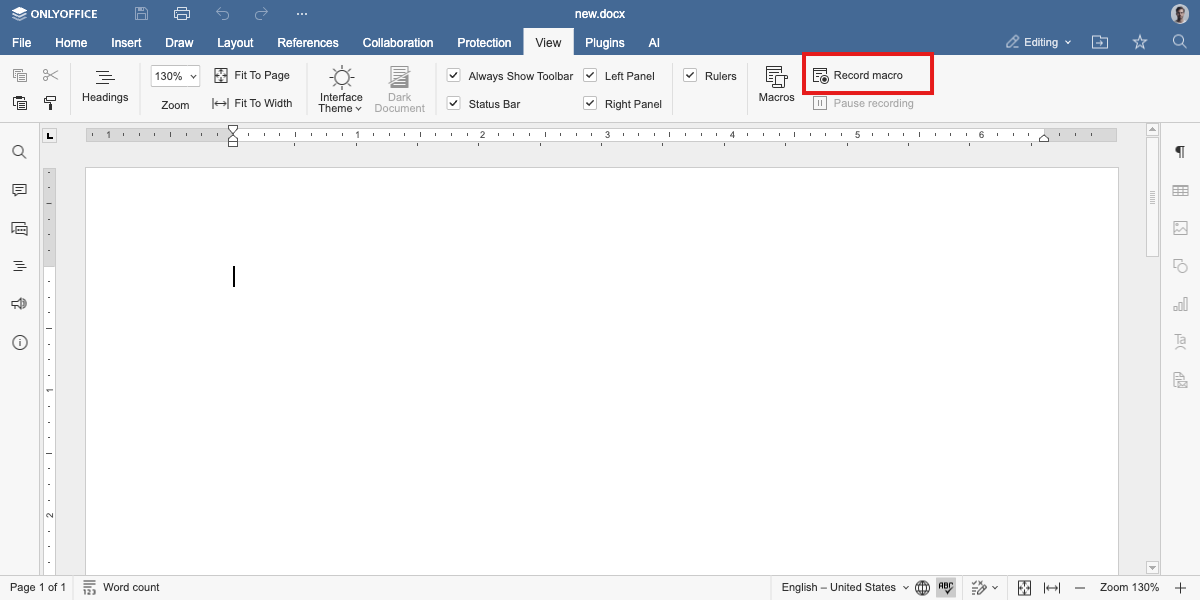
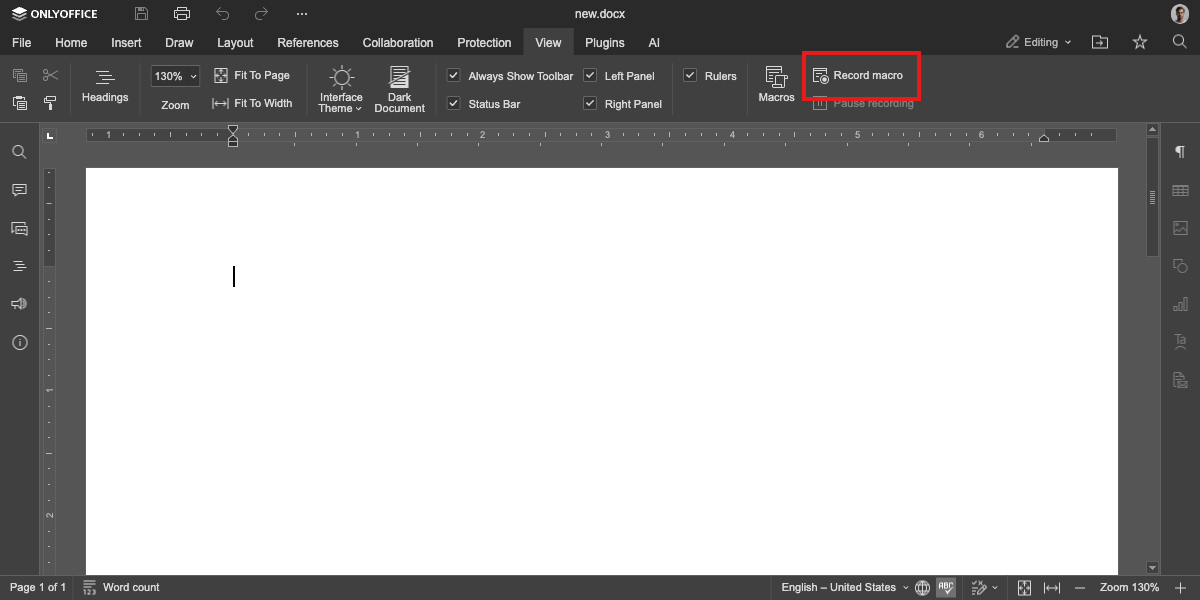
In the Macros section, click on Record Macro to start recording. If you want to pause the recording, you can click on Pause Recording and resume it by clicking on Resume Recording when ready.
-
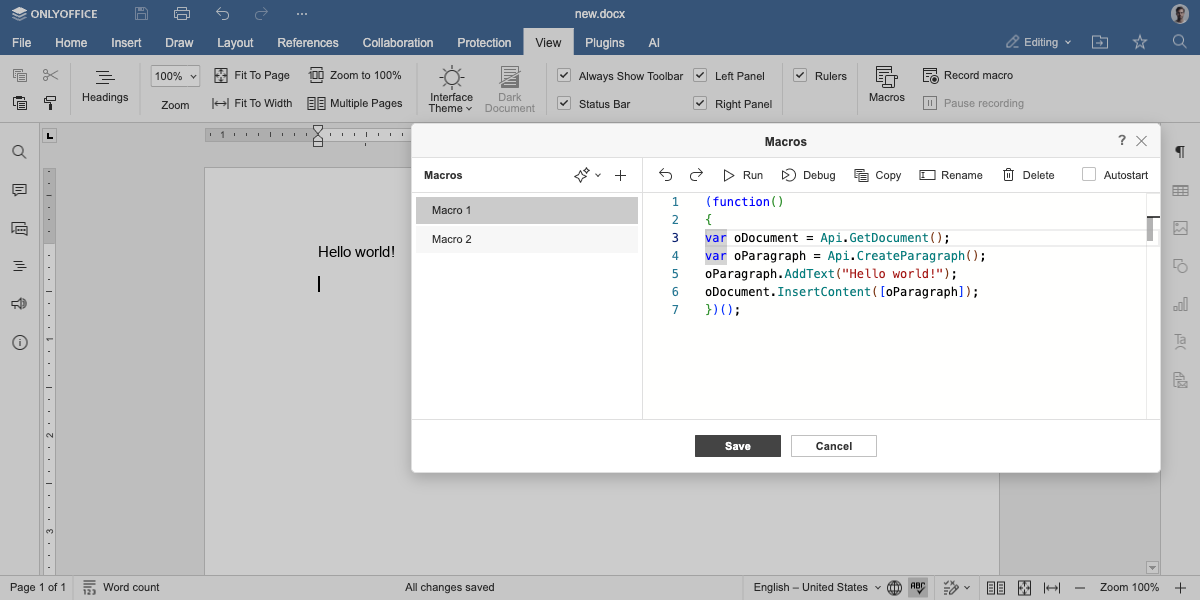
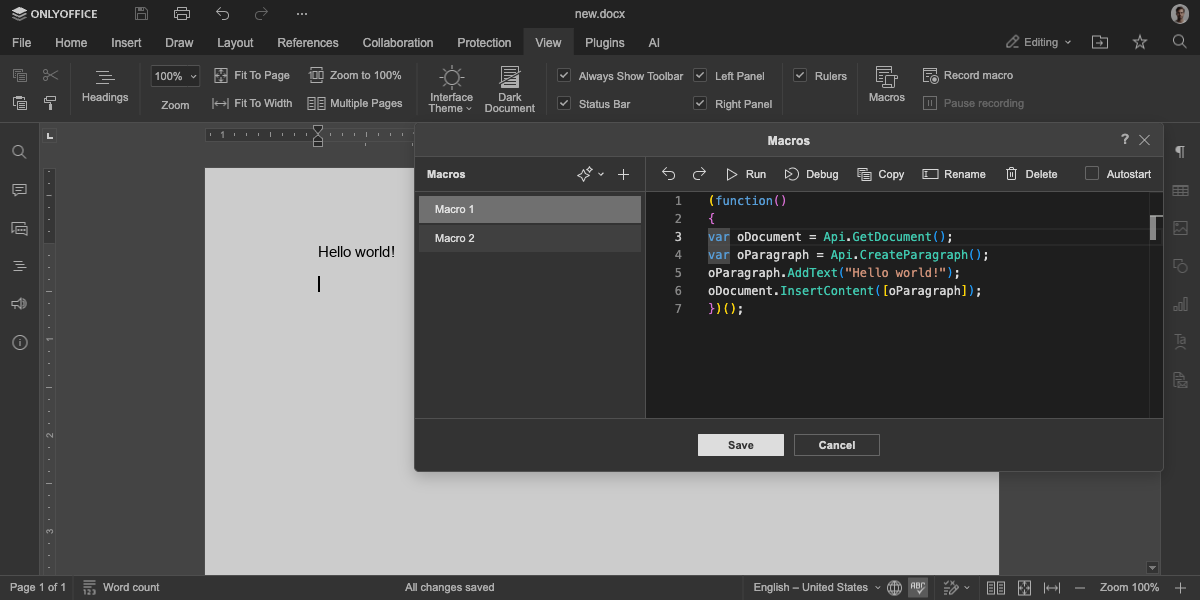
Once you record all the neccesary steps, click on Stop Recording to stop recording and save the macro. The generated macro code will be saved in the Macros window.
-
Review the code and make adjustments if necessary.
While recording a macro can generate a complete and working macro, it might not be accurate. Make sure to review the output carefully and test it thoroughly, especially for complex macros.
-
Click
 to run the script.