Developing plugins
To develop a plugin, create a folder on your machine and place the index.html and config.json files there. Then load the folder into the editors as described below.
Web editors
-
Serve the plugin folder with CORS enabled. The editor fetches
config.jsonand the other plugin files from a different origin, so the server must send CORS headers. For example, run the following command in the plugin folder:npx http-server -p 8080 --cors -
Open any document in an ONLYOFFICE web editor. In the browser DevTools, go to the Console tab, select
frameEditorfrom the drop-down list, and run:Asc.editor.installDeveloperPlugin("http://localhost:8080/config.json");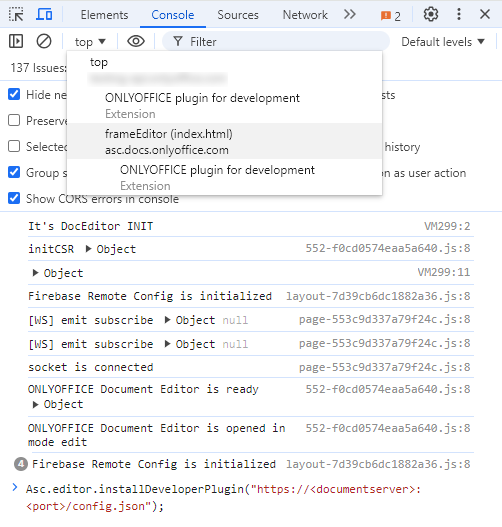
The command returns true and the plugin appears in the Plugins tab. If it returns false, config.json could not be fetched or parsed. The command does not report the reason. Check the URL, then see Plugin files blocked by CORS.
If you control the editor configuration of your integration, you can load the plugin on every document open instead: add the URL of its config.json to editorConfig.plugins.pluginsData. See Adding plugins through the config.json file.
The plugin files are loaded relative to the folder that contains config.json. The plugin stays installed after the page is reloaded, in the same browser and for the same editor address. After you change the plugin files, reload the page to load the new version.
Desktop editors
-
Pack all the plugin files into a
ziparchive and change its extension to.plugin. All the plugin files and subfolders must be at the archive root. -
Install the plugin through the Plugin Manager. The plugin is copied to the
sdkjs-pluginsdirectory, into a folder named after the pluginguidwithout theasc.prefix, for example{91EAC419-EF8B-440C-A960-B451C7DF3A37}:- Windows
- macOS
- Linux
%LOCALAPPDATA%\ONLYOFFICE\DesktopEditors\data\sdkjs-plugins\~/Library/Application\ Support/asc.onlyoffice.ONLYOFFICE/data/sdkjs-plugins/~/.local/share/onlyoffice/desktopeditors/sdkjs-plugins/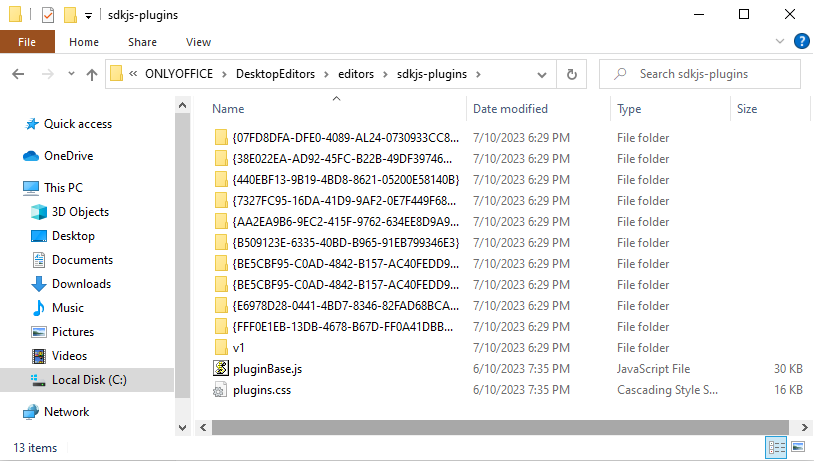
-
To avoid repacking the plugin after every change, replace this folder with a symbolic link to your development folder. Close the desktop editors, delete the installed plugin folder, and create the link:
- Windows
- macOS
- Linux
Run as Administrator:
mklink /D "%LOCALAPPDATA%\ONLYOFFICE\DesktopEditors\data\sdkjs-plugins\{YOUR-GUID}" "C:\path\to\your\plugin"ln -s /path/to/your/plugin ~/Library/Application\ Support/asc.onlyoffice.ONLYOFFICE/data/sdkjs-plugins/{YOUR-GUID}ln -s /path/to/your/plugin ~/.local/share/onlyoffice/desktopeditors/sdkjs-plugins/{YOUR-GUID}
After you change the plugin files, reopen the document to load the new version.
Next steps
To pause and inspect the plugin code, see Debugging plugins.