For desktop editors
To develop a plugin for ONLYOFFICE desktop editors, follow the instructions below.
-
Create a folder on your machine and place the index.html and config.json files there.
-
Pack all the plugin files within the plugin folder into a
ziparchive and change its extension to.plugin(all the plugin files and subfolders must be at the archive root). -
Install a plugin through the Plugin Manager.
The plugin will appear in the
sdkjs-pluginsdirectory. The path to the folder depends on the operating system you use:- Windows
- macOS
- Linux
C:\Users\<username>\AppData\Local\ONLYOFFICE\DesktopEditors\data\sdkjs-plugins\~/Library/Application\ Support/asc.onlyoffice.ONLYOFFICE/data/sdkjs-plugins/home/<username>/.local/share/onlyoffice/desktopeditors/sdkjs-plugins/A plugin GUID will be used as the folder name. For example,
{07FD8DFA-DFE0-4089-AL24-0730933CC80A}.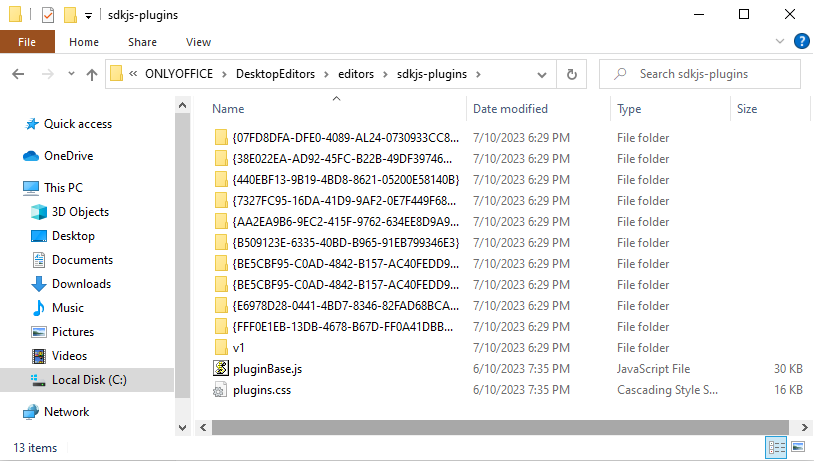
You can edit the plugin and reload it to see the changes.
Using symbolic links
To avoid repackaging after every change, create a symbolic link from the plugin directory to your development folder:
- Windows
- macOS
- Linux
Run as Administrator:
mklink /D "%LOCALAPPDATA%\ONLYOFFICE\DesktopEditors\data\sdkjs-plugins\{YOUR-GUID}" "C:\path\to\your\plugin"
ln -s /path/to/your/plugin ~/Library/Application\ Support/asc.onlyoffice.ONLYOFFICE/data/sdkjs-plugins/{YOUR-GUID}
ln -s /path/to/your/plugin ~/.local/share/onlyoffice/desktopeditors/sdkjs-plugins/{YOUR-GUID}
Symbolic links still require reloading the plugin in ONLYOFFICE to pick up changes, but they eliminate the repackaging step.