ChatGPT Web
This instruction describes how to connect to the DocSpace MCP server using ChatGPT Web.
Remote DocSpace MCP Server
Connect to the MCP server running remotely using ChatGPT's Connectors.
- Open ChatGPT Web;
- Navigate to Settings;
- Navigate to Apps;
- Navigate to Advanced Settings;
- Toggle on Developer Mode;
- Navigate back to Apps;
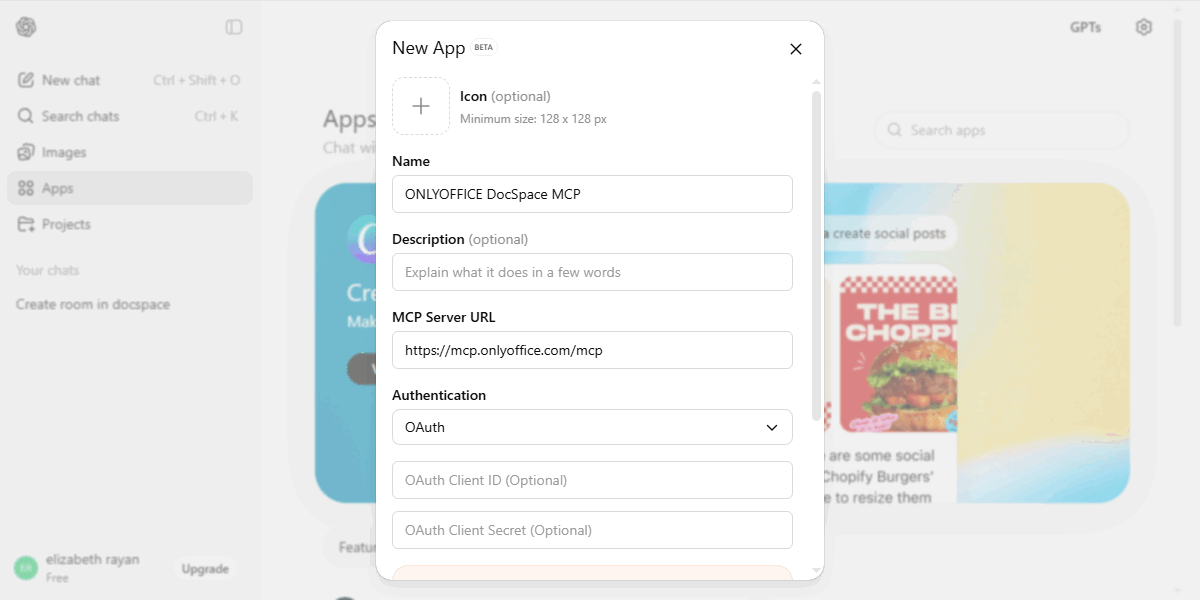
- Click "Create app";
- Enter a name (e.g., "ONLYOFFICE DocSpace MCP");
- Enter a URL (e.g., https://mcp.onlyoffice.com/mcp);
- Select "OAuth" in Authentication;
- Check the "I understand and want to continue" box;
- Click "Create";
- Complete the OAuth authentication process:
- Sign in to your DocSpace account by entering your email and password and clicking "Sign In".
- If you have more than one account associated with the entered email, choose one of them.
- Allow the MCP Remote Server to access the specified data in your DocSpace account.