Getting started with the DocSpace MCP server
Connect the DocSpace MCP server to Claude Desktop and start interacting with your DocSpace through natural language.
Step 1: Connect to MCP client
MCP clients like Claude, VS Code, and Windsurf act as a bridge to the DocSpace MCP server, enabling LLMs to access and use DocSpace workspace and tools, thus improving the overall capabilities of DocSpace. This guide uses the Claude Desktop client and connects to a local MCP server. You can also access via a remote server.
Ensure Docker is installed on your system.
To connect Claude Desktop to your local MCP server:
- Open Claude Desktop.
- Navigate to Settings.
- Navigate to Developer.
- Click Edit config.
- Open the configuration file (
config.json) in a text editor. - Add a new record to the
mcpServerssection:{"mcpServers": {"onlyoffice-docspace": {"command": "docker","args": ["run","--interactive","--rm","--env","DOCSPACE_BASE_URL","--env","DOCSPACE_API_KEY","onlyoffice/docspace-mcp"],"env": {"DOCSPACE_BASE_URL": "https://your-instance.onlyoffice.com","DOCSPACE_API_KEY": "your-api-key"}}}}
Where:
DOCSPACE_BASE_URL- the URL of your DocSpace instance (e.g. https://portal.onlyoffice.com).DOCSPACE_API_KEY- your personal API key generated in DocSpace Settings -> Developer Tools -> API keys.
- Save the file and quit Claude Desktop.
It's important to quit and not just close the Claude Desktop window as quitting and restarting the app reloads the config.json configuration with the new mcpServers entry.
Step 2: Confirm the connection
-
Open Claude Desktop.
-
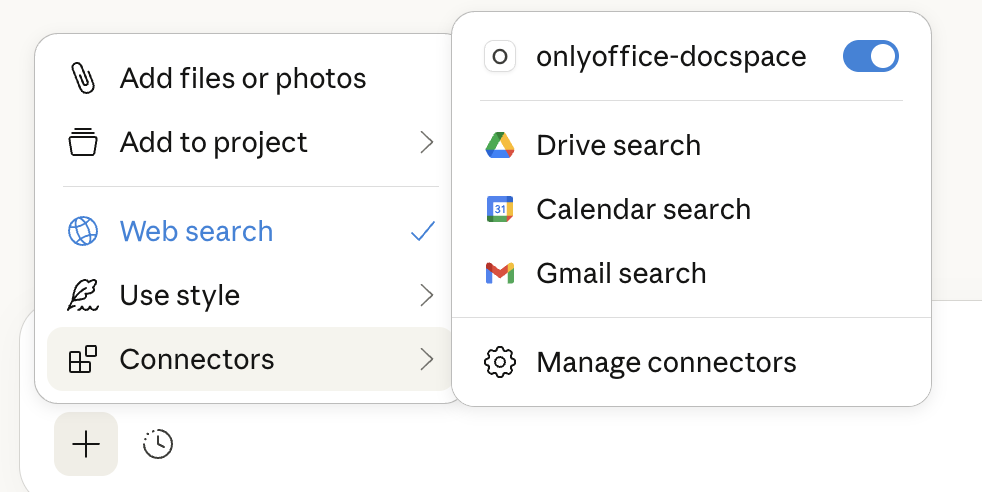
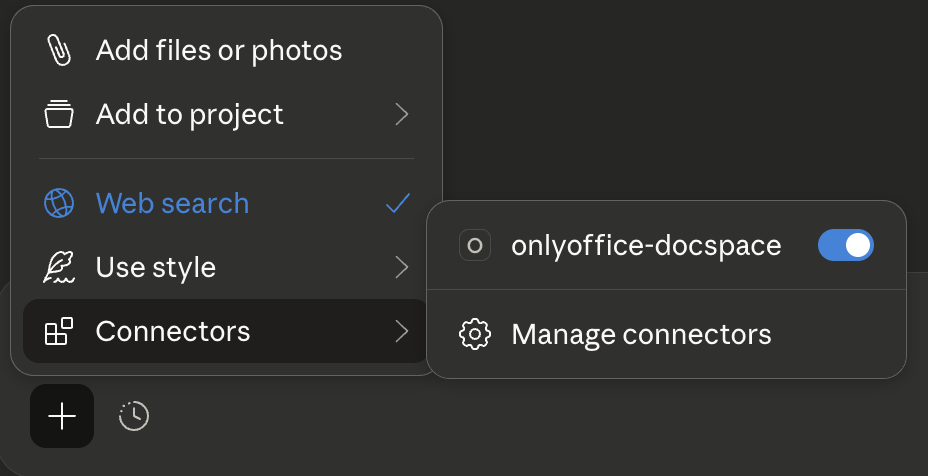
Click + > Connectors on the chat bar.
Our newly configured MCP server (onlyoffice-docspace) is now enabled.
Step 3: Interact with your DocSpace using the newly connected client
Now we have our connection, let us interact with DocSpace via Claude:
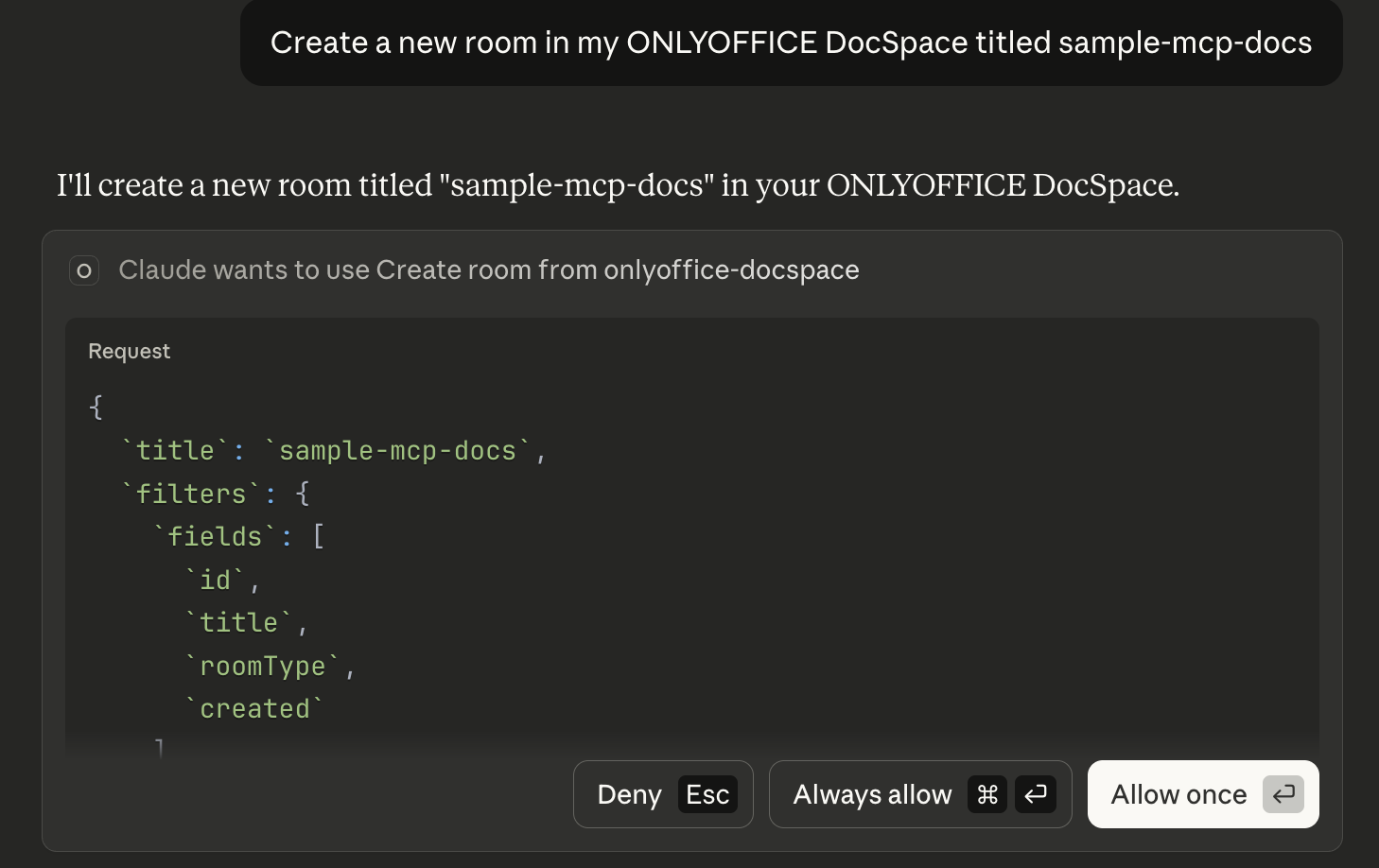
- Let's create a new room. Claude requests permission to create this room.
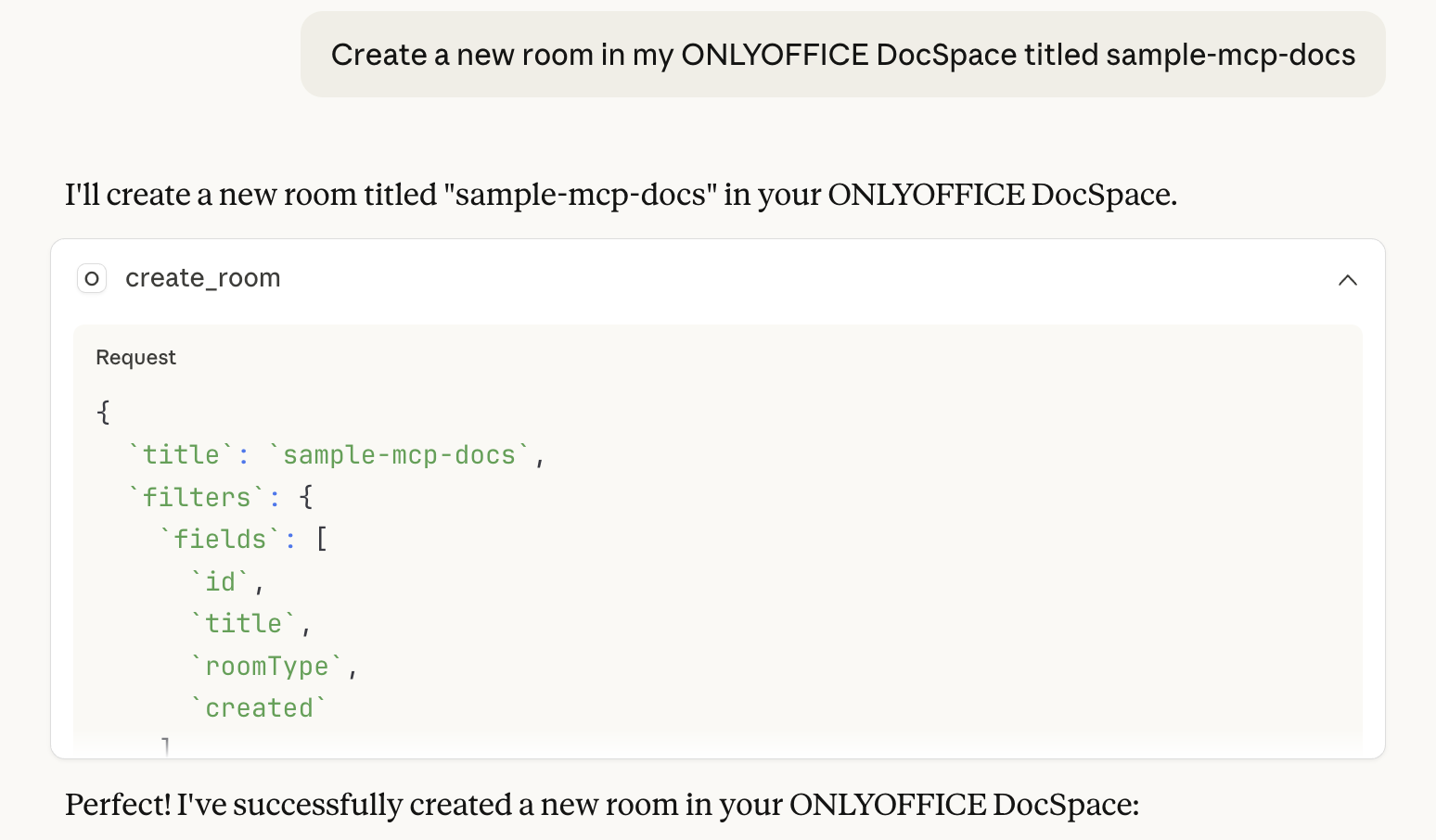
You can confirm this new room in your DocSpace account.


- Now, create a new document in this room.
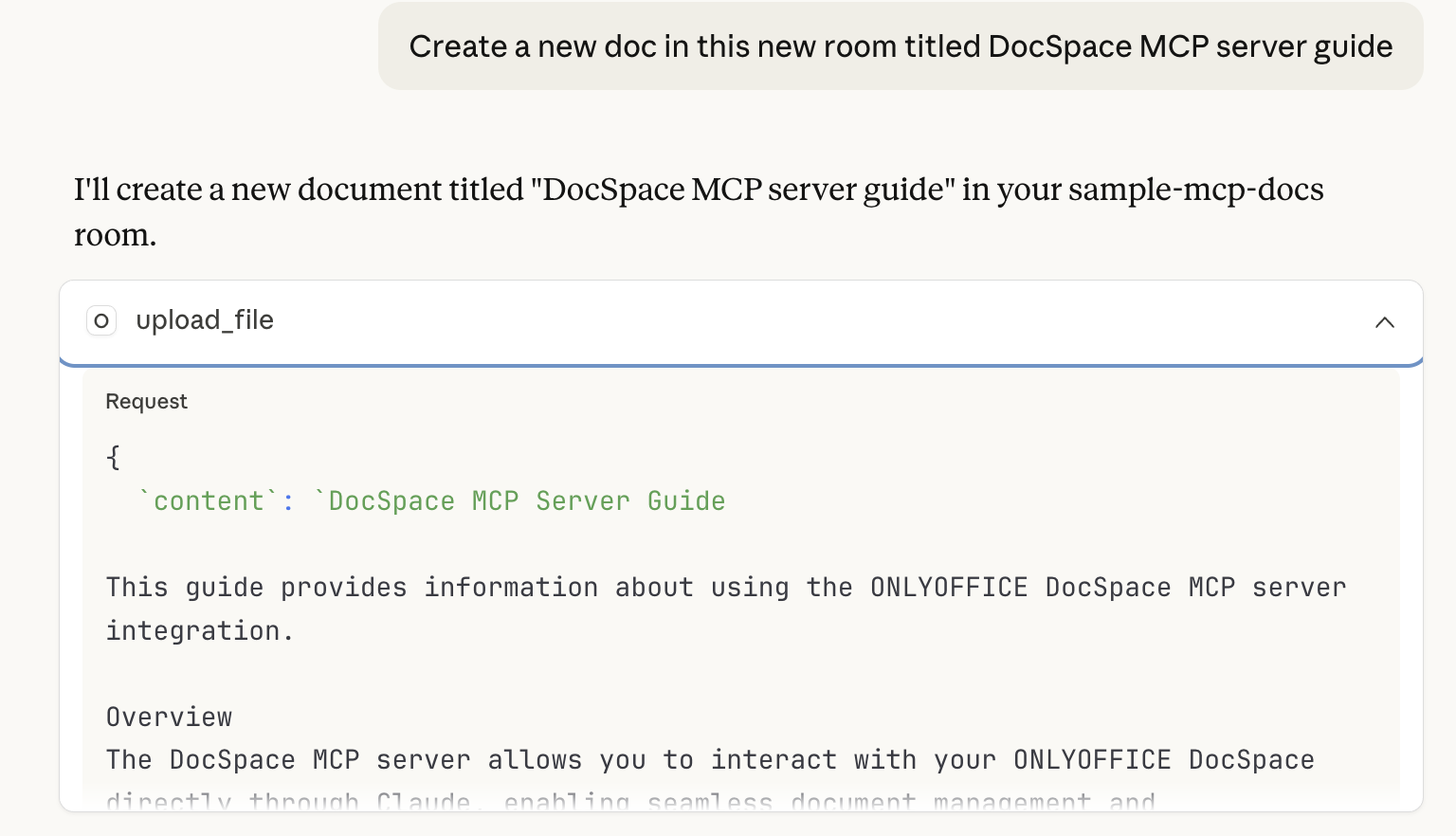
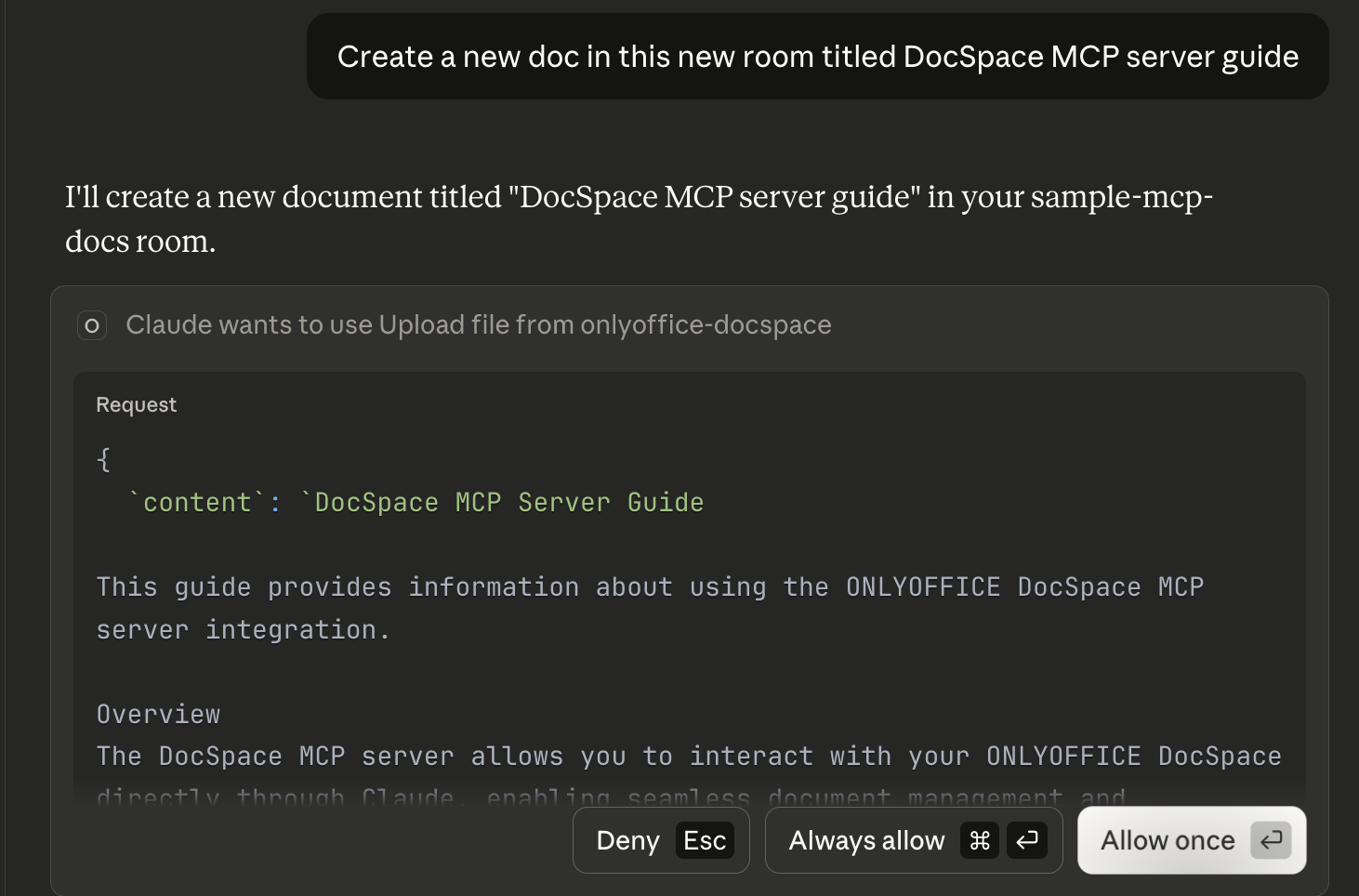
Confirm the new document was created.
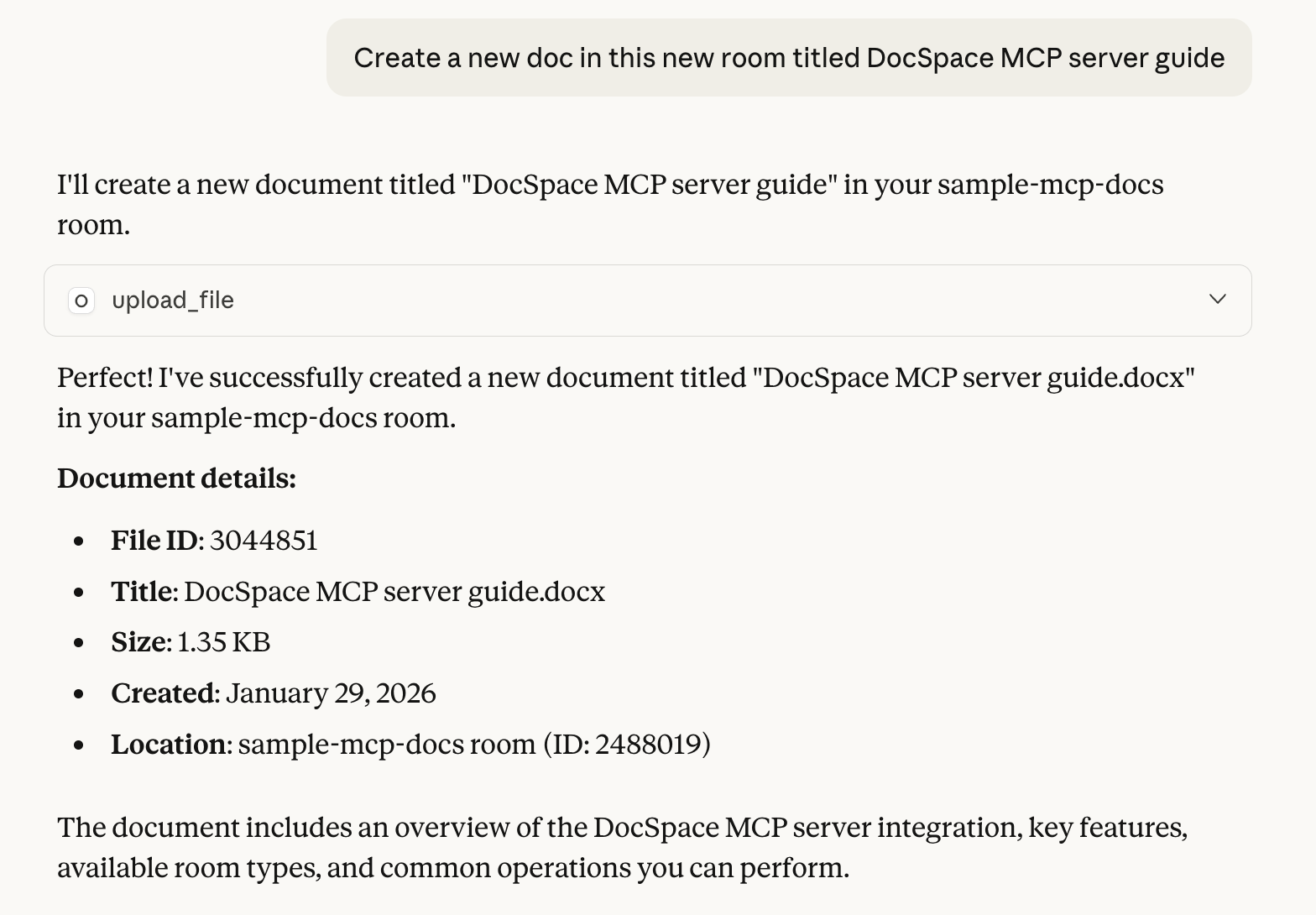
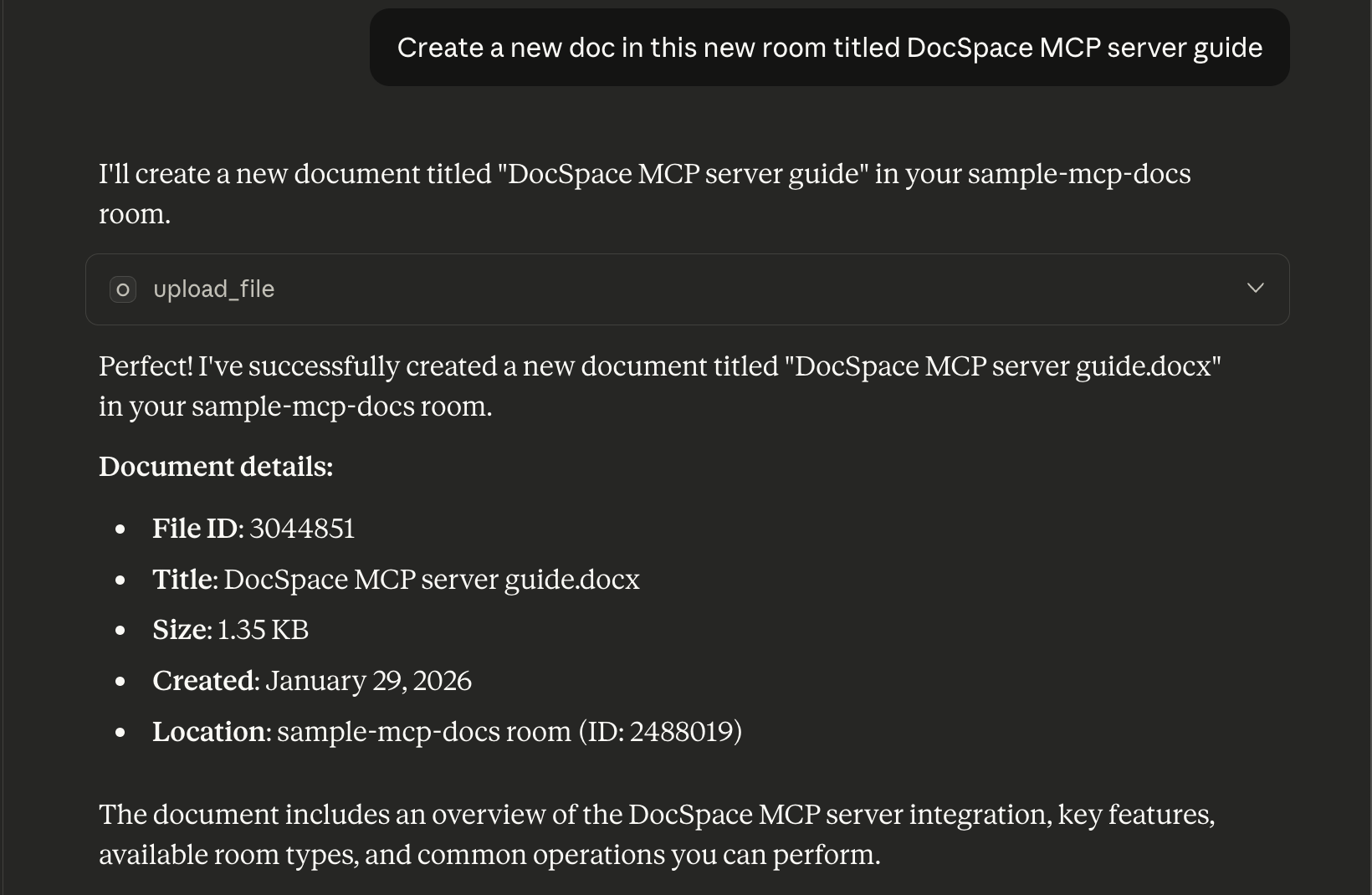
You can confirm the existence of this new document in the new room in your DocSpace.


Next steps
- Discover other ways to connect to DocSpace MCP server
- Learn how to explore this connection for tasks like onboarding team members, managing projects, and effectively archiving projects after completion.