CodeMirror
Tool for viewing and editing files with various programming code formats.
Installation
Available by default in the ONLYOFFICE Apps SaaS solution.
You can enable it following the instructions here.
Configuration
To start working with the plugin, you don't need to change the default settings.
In case you want to adjust the plugin settings, go to Settings → Integration → Plugins and click 
 next to the codemirror plugin. The settings are organized into two groups:
General
- Highlight whitespaces - display whitespaces as dots and tabs as arrows.
- Highlight trailing whitespaces - highlight whitespaces at the end of a line.
HTML
- Auto close tags - automatically insert close tags when a
>or/is typed in HTML-like files.
There you can also view the plugin metadata, such as the author, version, status, homepage, and description.
Usage
Creating a new file
To create a new code file:
-
Open the Documents section or one of the available rooms.
-
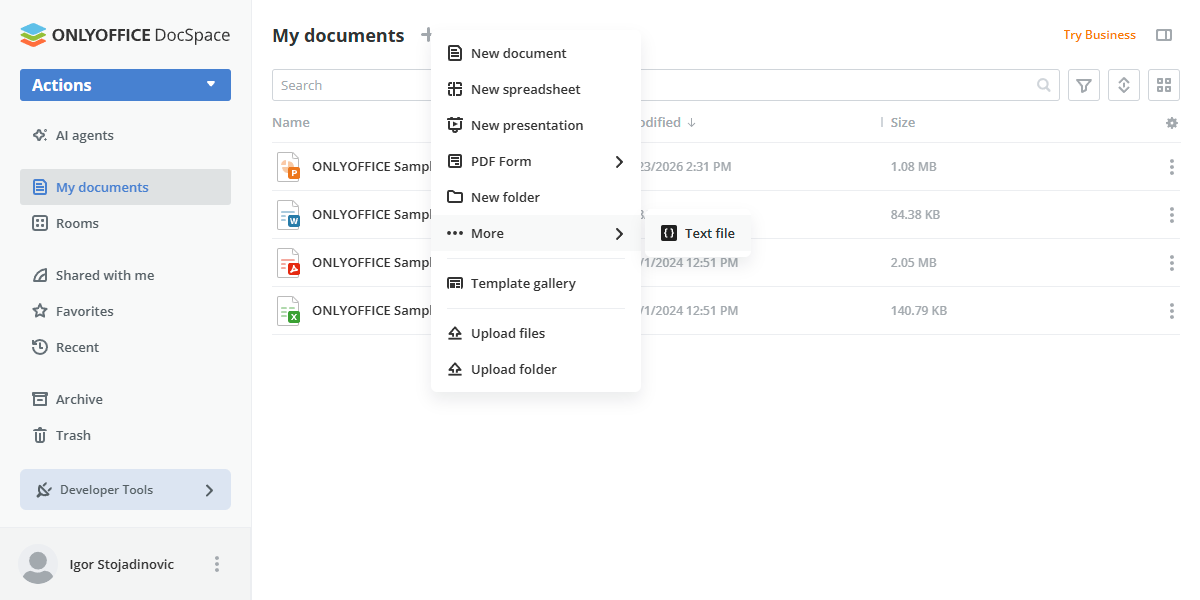
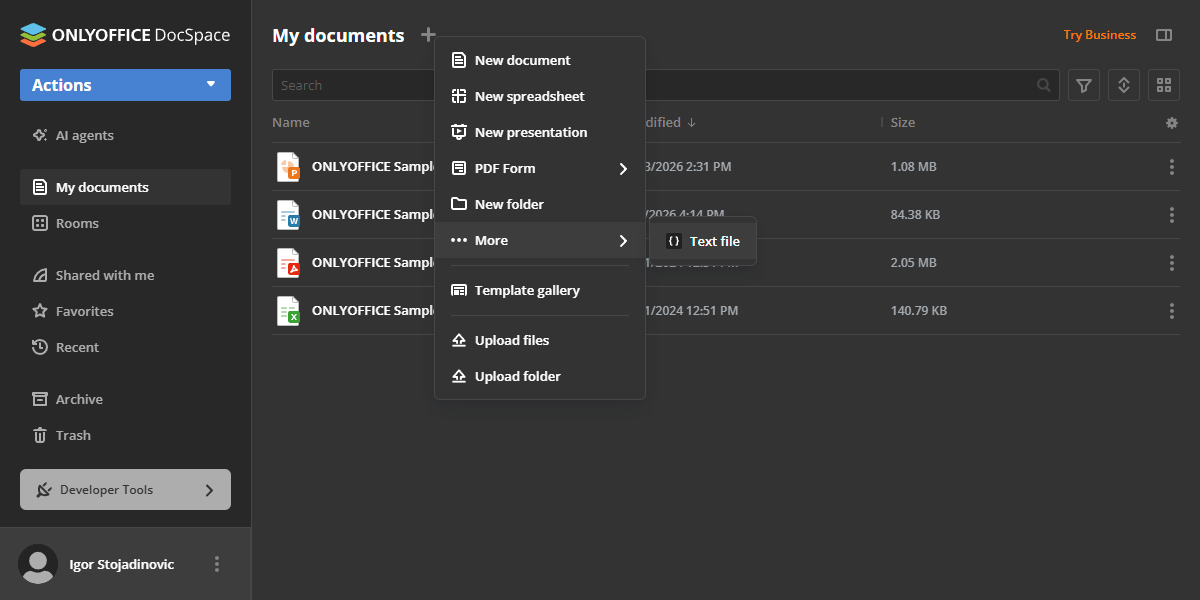
Click Actions → More. The same menu also opens from the + button next to the section title.
-
Select the Text file option from the appeared menu.
-
Enter a file name with the appropriate extension (e.g.,
style.css,script.js,app.py) in the pop-up window and click Create. -
The CodeMirror code editor opens in a new pop-up window where you can edit the file content.
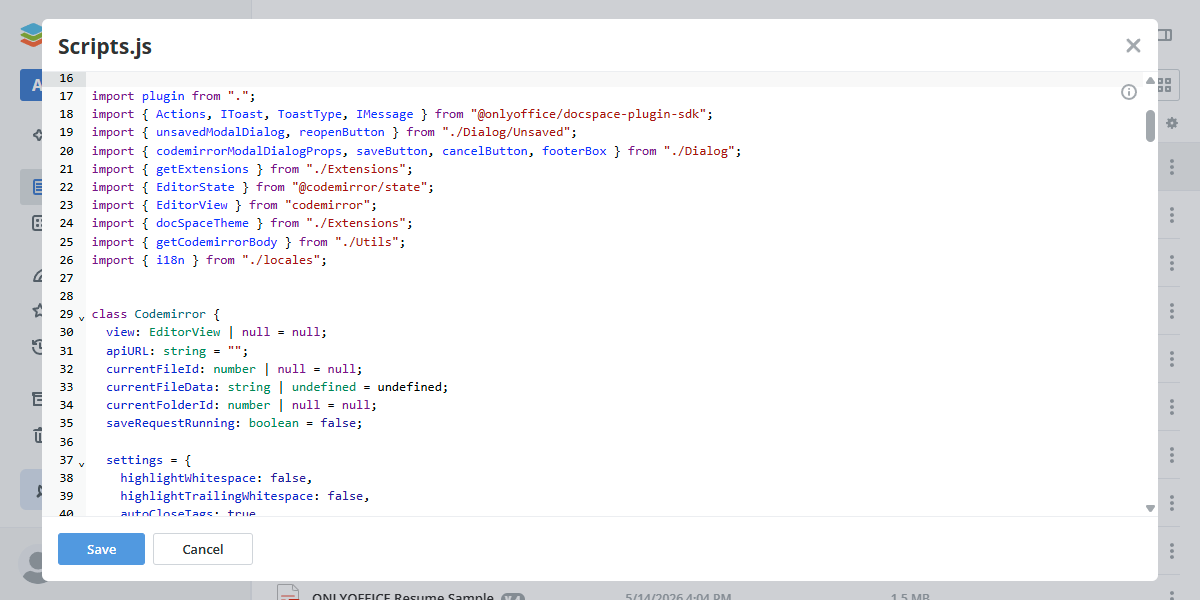
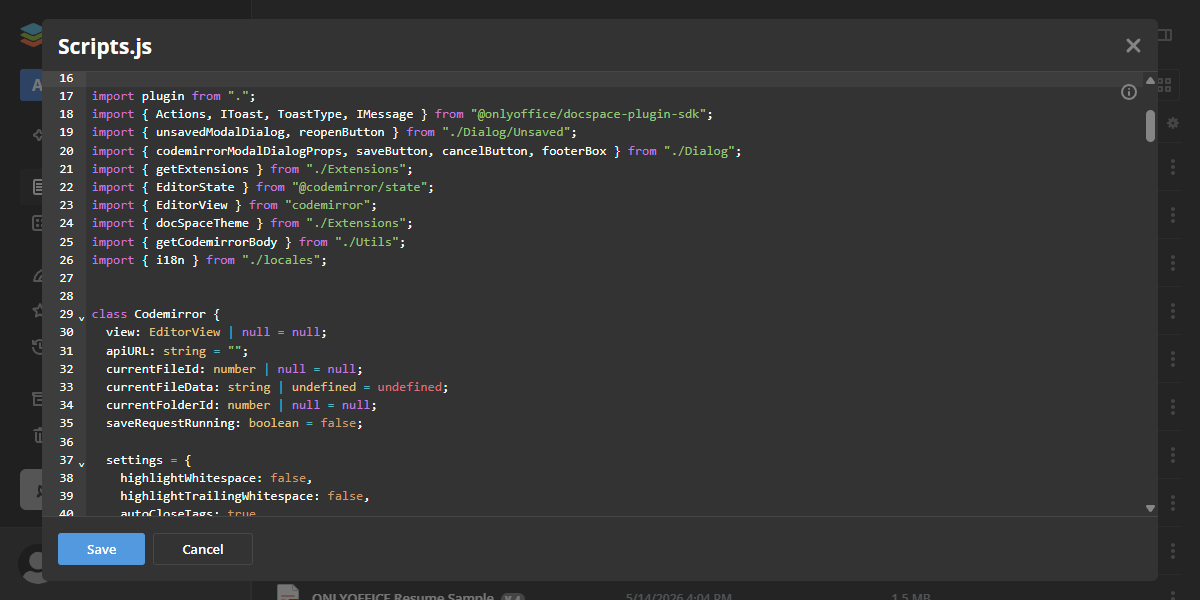
-
Click Save to save your changes, or Cancel to discard them. To close the editor, click the X icon in the upper-right corner of the pop-up.
The newly created file will appear in the file list.
Editing files
You can open previously created or downloaded files using the CodeMirror plugin:
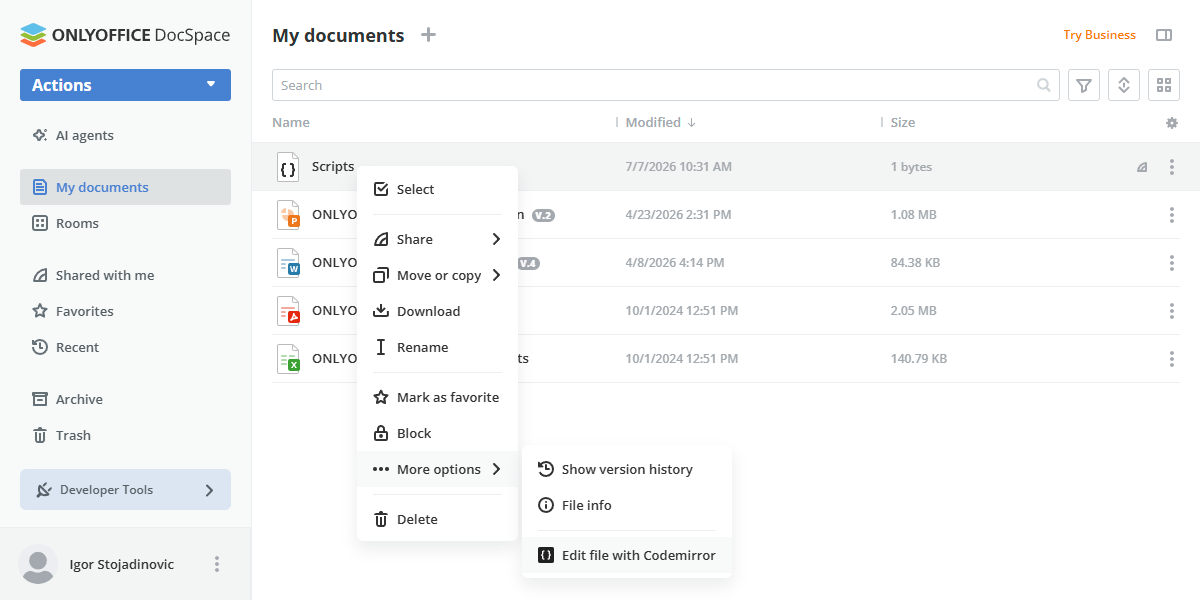
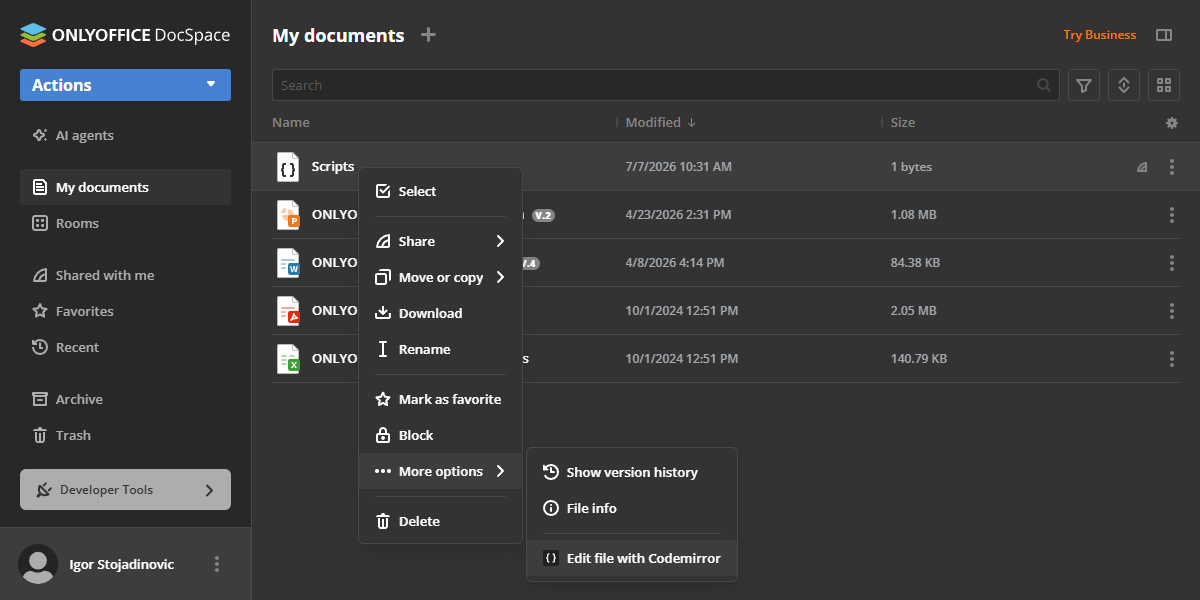
- Click on the file name with the CodeMirror icon, or
- Right-click to open the context menu and select Edit file with Codemirror.
Keyboard shortcuts
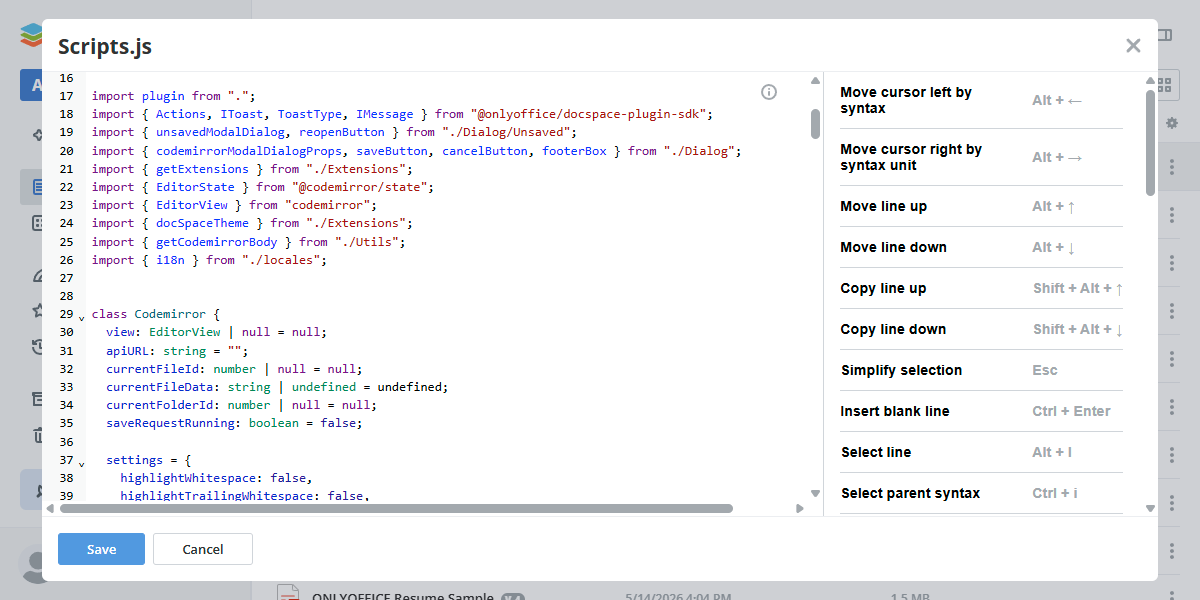
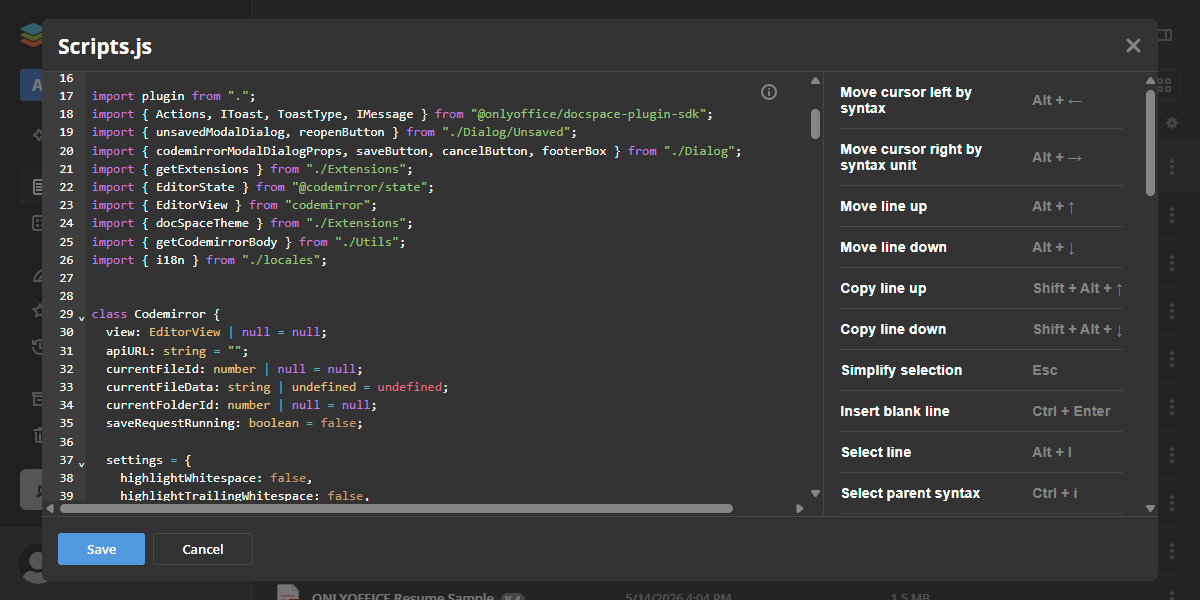
On desktop devices, the editor includes a keyboard shortcuts side panel. Click the Shortcuts plugin icon (a standard info icon — a circle with an i) in the upper-right corner of the editor area to open or close the panel. The panel lists available shortcuts for your operating system (Windows or macOS). This panel is not available on mobile devices.
Supported languages
The plugin supports syntax highlighting for the following languages and file formats:
| Language | File extensions |
|---|---|
| C/C++ | .cpp, .cc, .h, .hpp |
| CSS | .css |
| Go | .go |
| HTML | .html, .htm |
| Java | .java, .class |
| JavaScript/TypeScript | .js, .jsx, .ts, .tsx |
| JSON | .json |
| Liquid | .liquid |
| PHP | .php |
| Python | .py |
| Rust | .rs |
| SCSS/Sass | .sass, .scss |
| SQL | .sql, .mysql, .pgsql, .postgresql, .sqlite, .db, .mssql, .cql, .plsql, .mariadb |
| WAST | .wast, .wat |
| YAML | .yaml, .yml |
Plugin structure
Repository on GitHub: codemirror.
All the required files are described here.
Interfaces
The following plugin interfaces are used:
- IPlugin. Required for each plugin. It contains the plugin status (PluginStatus) variable, used to embed the plugin into ONLYOFFICE Apps.
- IApiPlugin. Required as we implement a code editor service (CodeMirror).
- ISettingsPlugin and ISettings. Used to add a settings block for plugin configuration. Users can access this block from Settings → Integration → Plugins to adjust the plugin parameters.
- IContextMenuPlugin and IContextMenuItem. Used to implement the Edit file with Codemirror context menu action.
- IMainButtonPlugin and IMainButtonItem. Used to add the Text file option to the Actions → More menu for creating new code files.
- IFilePlugin and IFileItem. Used to register supported file types and open them in the CodeMirror editor.
Support
If you want to request a feature or report a bug regarding this plugin, use the issues section on GitHub.