Convert to markdown
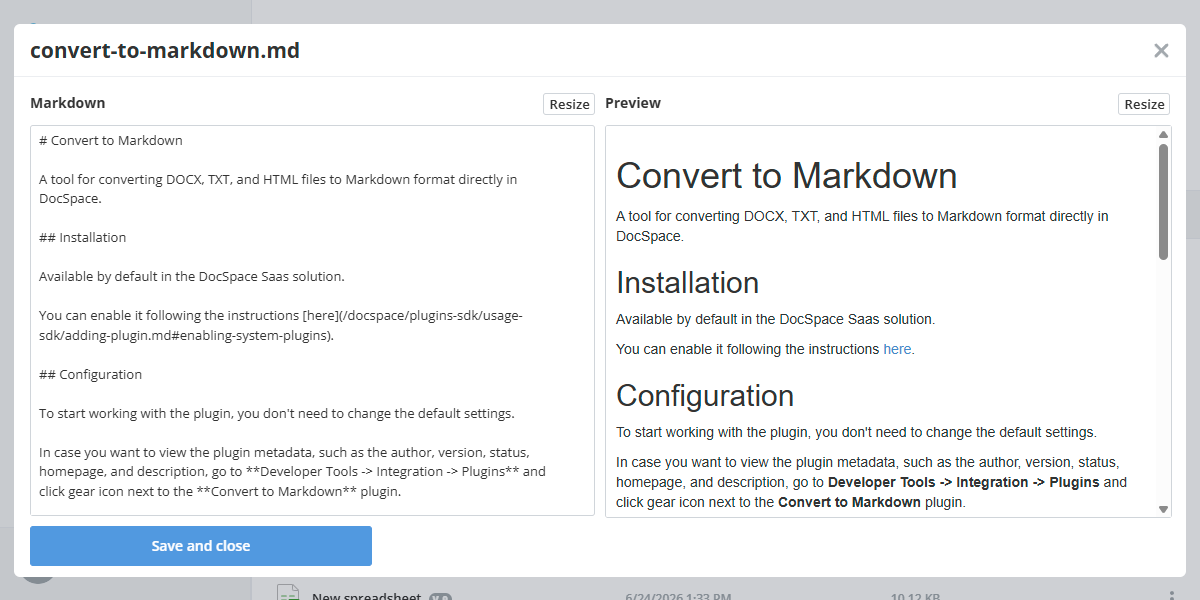
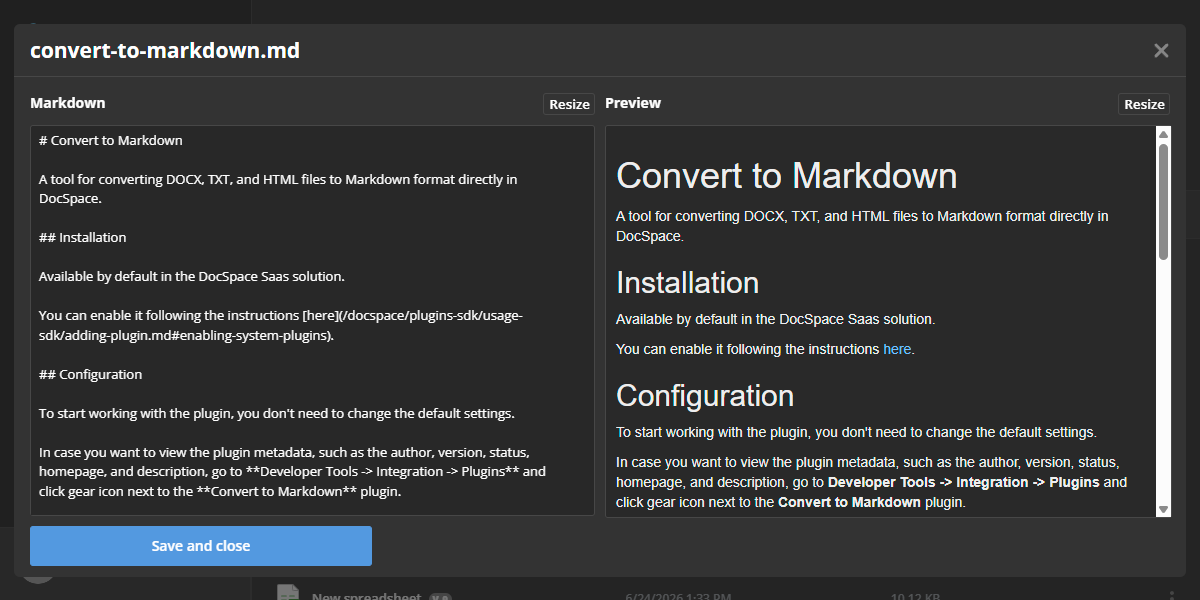
A tool for converting DOCX, TXT, and HTML files to Markdown format directly in ONLYOFFICE Apps.
Installation
Available by default in the ONLYOFFICE Apps SaaS solution.
You can enable it following the instructions here.
Configuration
To start working with the plugin, you don't need to change the default settings.
In case you want to view the plugin metadata, such as the author, version, status, homepage, and description, go to Settings → Integration → Plugins and click 
 next to the convert-to-markdown plugin.
Usage
Files in a room with the Add watermarks to documents setting enabled cannot be converted. Disable this setting and try again. This setting is commonly used in Virtual Data Rooms (VDR); for more information, see the Creating VDR with watermark example.
To convert a file to Markdown:
- Open the Documents section or one of the available rooms.
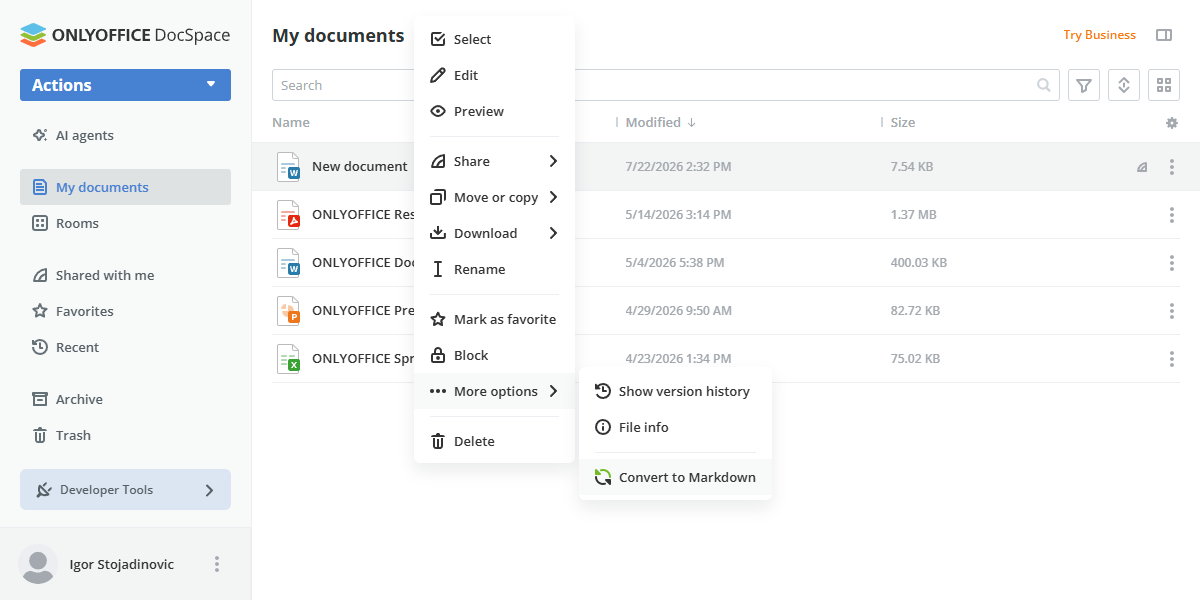
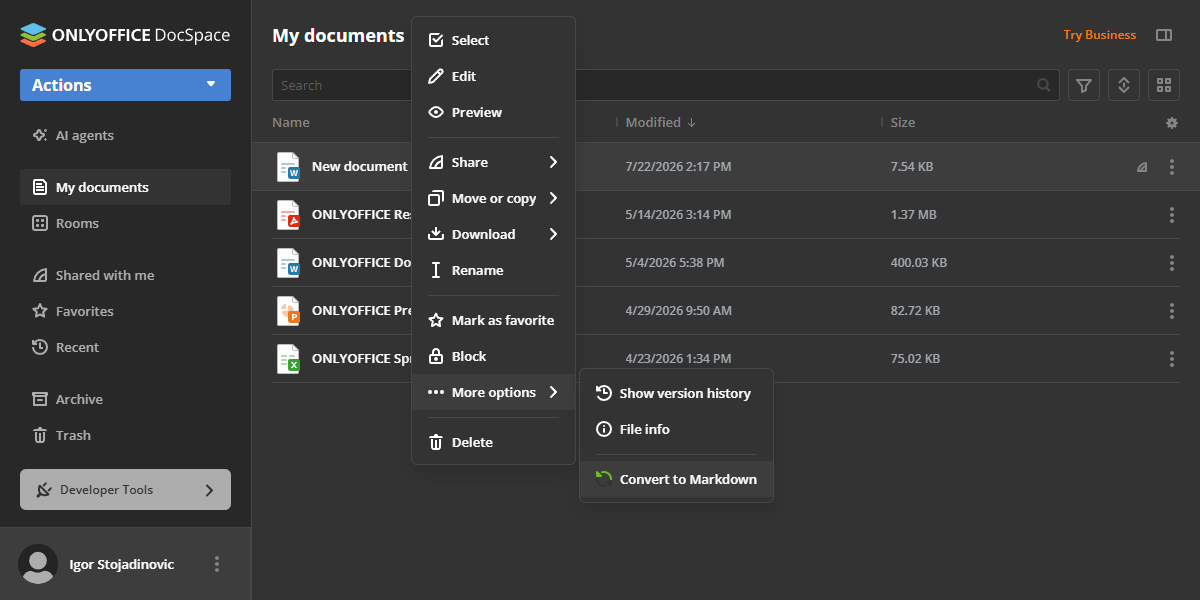
- Right-click a
.docx,.txt, or.htmlfile, then navigate to the More options dropdown menu. - Click Convert to Markdown.
A new .md file is created in the same folder as the original file. A success notification confirms that the conversion is complete.
Plugin structure
Repository on GitHub: convert-to-markdown.
All the required files are described here.
Interfaces
The following plugin interfaces are used:
- IPlugin. Required for each plugin. It contains the plugin status (PluginStatus) variable, used to embed the plugin into ONLYOFFICE Apps.
- IApiPlugin. Used to access the ONLYOFFICE Apps API for downloading the source file and uploading the converted Markdown file to the same folder.
- IContextMenuPlugin and IContextMenuItem. Used to implement a context menu action. The plugin adds a Convert to Markdown item to the context menu of
.docx,.txt, and.htmlfiles.
Support
If you want to request a feature or report a bug regarding this plugin, use the issues section on GitHub.