Plugin structure
Each ONLYOFFICE Apps plugin is a folder with files. It must contain the following files required for the plugin to work.
Files created automatically
Running the npx create-docspace-plugin command (see creating a plugin template) creates the following files and folders in the plugin root folder:
.prettierrc.json
The configuration file for the prettier npm package. This file can be edited.
src
A folder for the plugin source files.
src/index.ts
The entry point for building the plugin instance. This file is required. All the necessary functionality is added to this file for the plugin to work in the specified scope. The plugin instance is exported as the default ES module export:
export default plugin
In SDK versions prior to 3.0.0, plugins were registered in the window.Plugins.[pluginName] scope. This is no longer required — the portal imports the plugin as an ES module and uses the default export.
package.json
A file with the information about the plugin and dependencies. This file can be edited and the new dependencies can be added.
tsconfig.json
The TypeScript configuration file. Key compiler options:
target: ES2017— compiles TypeScript to ES2017 JavaScriptmodule: ESNext— uses the latest ECMAScript module syntaxlib: ["ES2017", "DOM"]— includes ES2017 and DOM type definitionsjsx: react-jsx— enables React JSX transformationstrict: true— enables all strict type-checking optionsisolatedModules: true— enables isolated modulesesModuleInterop: true— enables interoperability between CommonJS and ES modulesresolveJsonModule: true— allows importing JSON files as modulesallowSyntheticDefaultImports: true— allows default imports from modules with no default exportmoduleResolution: bundler— uses bundler-compatible module resolutionskipLibCheck: true— skips type checking of declaration files for faster builds
This file can be edited if needed.
vite.config.ts
The Vite configuration file generated automatically when creating the plugin template. This file configures the build output requirements:
- The plugin code is bundled into plugin.js as an ES module via
build.lib - CSS styles are output to plugin.css
- External dependencies (
react,react-dom,react/jsx-runtime, the SDK React entry@onlyoffice/docspace-plugin-sdk/react, and the UI kit@onlyoffice/apps-ui-kit) are kept out of the bundle — ONLYOFFICE Apps supplies them at load time
This file can be edited if needed. For more information on migrating older plugins, see Updating a plugin to SDK 3.0.0.
Optional files
The following file is not part of the plugin template, but is worth adding manually in most plugins.
vite-env.d.ts
A TypeScript declaration file, conventionally placed at src/vite-env.d.ts. A plain .css import (import "./styles/card.css") needs no type declaration — it has no binding to type, so TypeScript does not check whether the module even exists. This file is needed for anything TypeScript does need a type for: a CSS Modules import (import styles from "./button.module.css") or an imported image (import icon from "./icon.svg"):
/// <reference types="vite/client" />
This single reference pulls in Vite's own ambient type declarations for CSS, CSS Modules, and common asset extensions (images, fonts, and more) — covering both cases above. It replaces the custom.d.ts file from the SDK 2.x, webpack-based template; that file is not part of the SDK 3.0.0 template.
Since the file lives under src/, it is picked up automatically by the tsconfig.json file's include array without any extra configuration — unlike the old custom.d.ts, which had to be added to include by hand.
For more information and examples, see Styling plugin.
Files added separately
The following folders are not part of the plugin template — one is created by you, the other by the build:
assets
A folder for storing plugin images. This folder is not created automatically by the npx create-docspace-plugin command — create it yourself in the plugin root folder and add the images described below. When building the plugin, its contents are included in the plugin archive only if the folder exists.
Nesting is not supported. The number of icons and their sizes will depend on the plugin types you implement. The number of plugin icons must not exceed 10 if the archive does not contain plugin.css, or 9 if it does (the server allows up to 10 asset files plus 3 archive entries: plugin.js, config.json, and the assets/ folder itself; plugin.css, when present, takes one of the 10 asset slots). The following formats are currently supported: .jpg, .jpeg, .png, .svg.
-
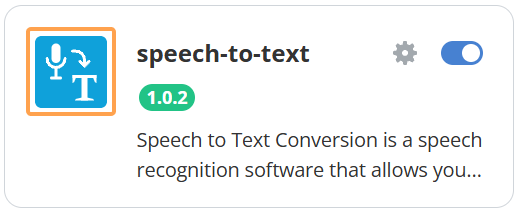
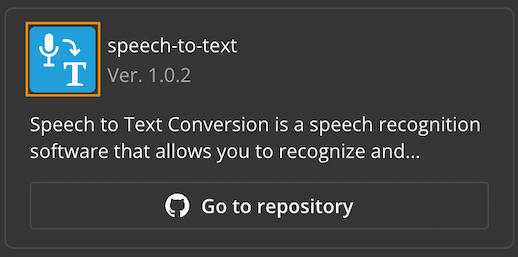
The default plugin type requires a logo image. It is equal to the logo parameter from the package.json file. The logo will be displayed in the list of plugins on the ONLYOFFICE Apps Plugins tab. The required icon size is 48x48 px. Otherwise, it will be compressed to this size.
-
The context menu plugin uses an icon for the context menu button. The required icon size is 16x16 px. Otherwise, it will be compressed to this size.
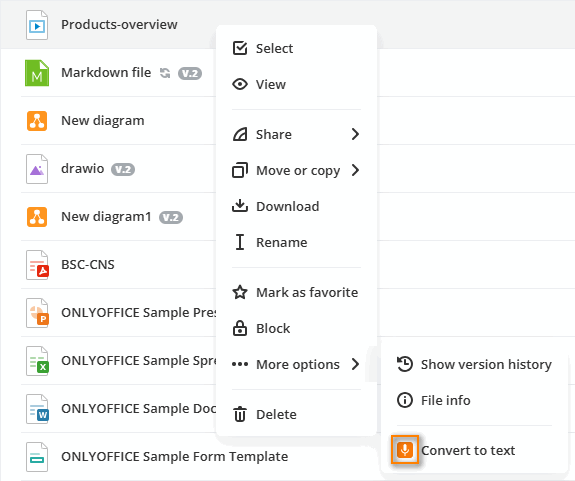
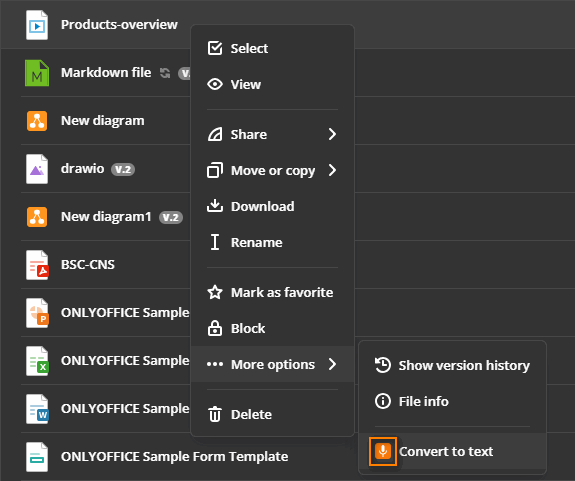
This icon can also be used for the main button icon. For example, in the Draw.io plugin, the same icon is used for the context and main button menu.
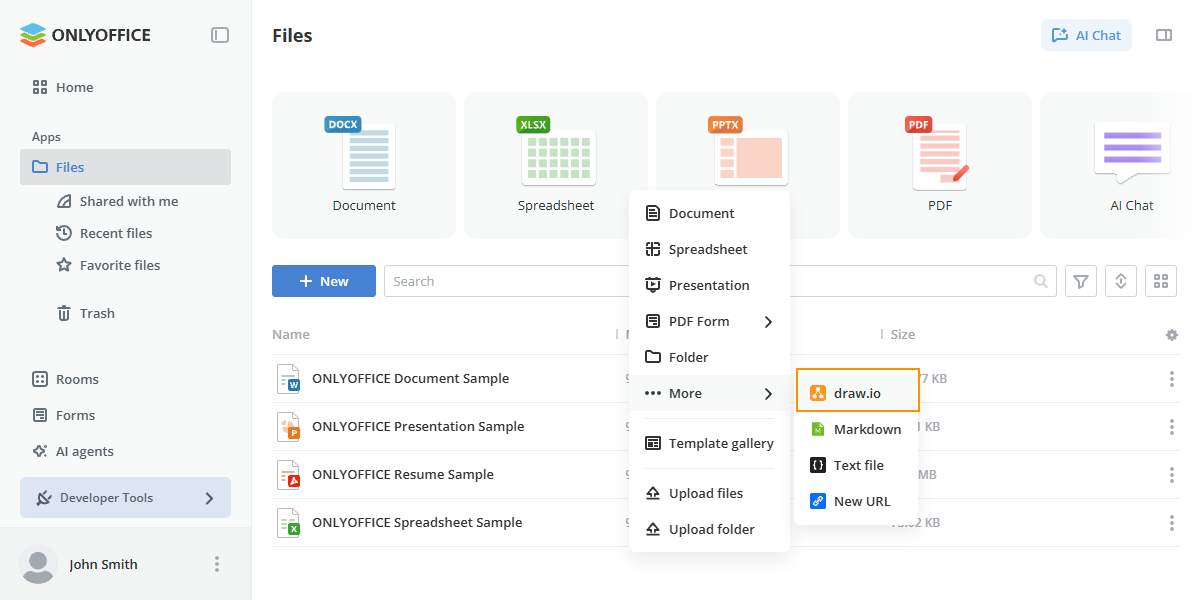
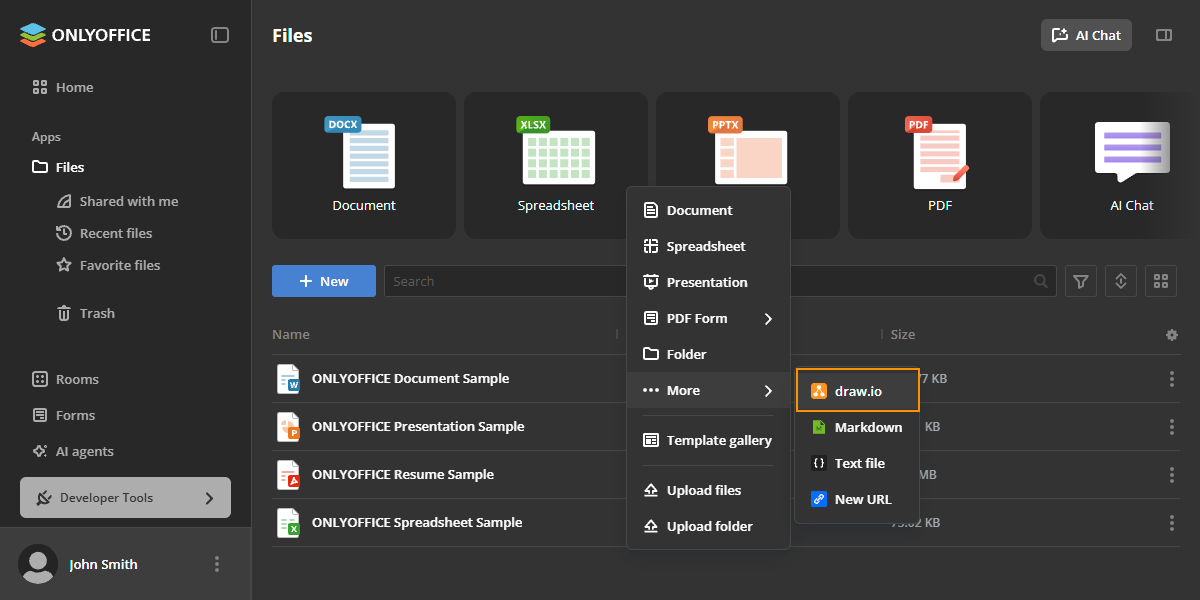
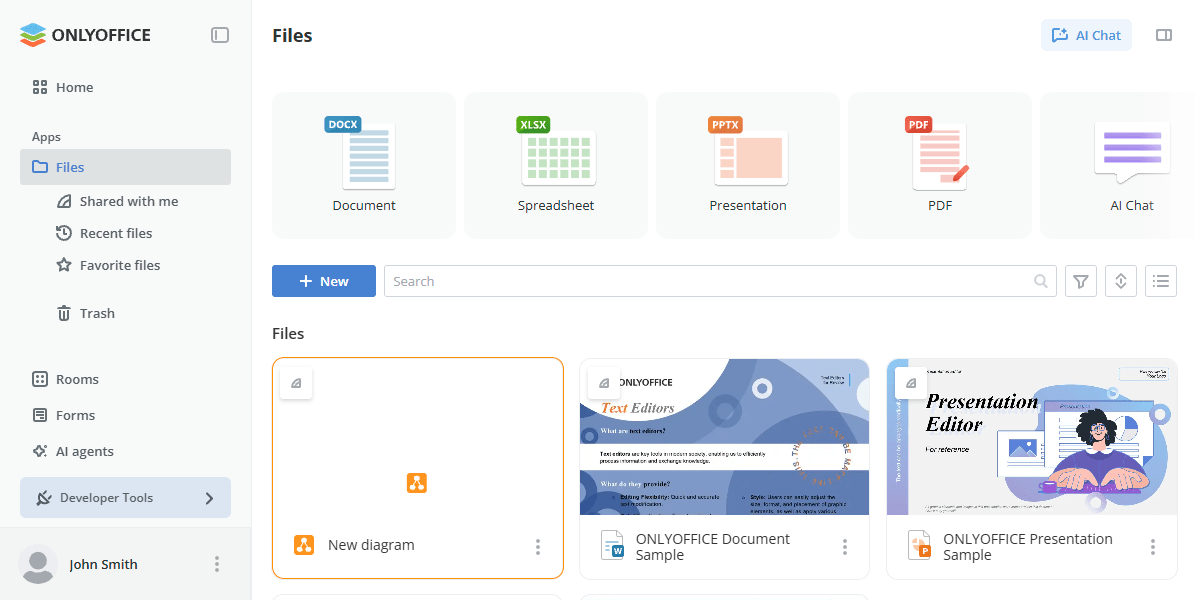
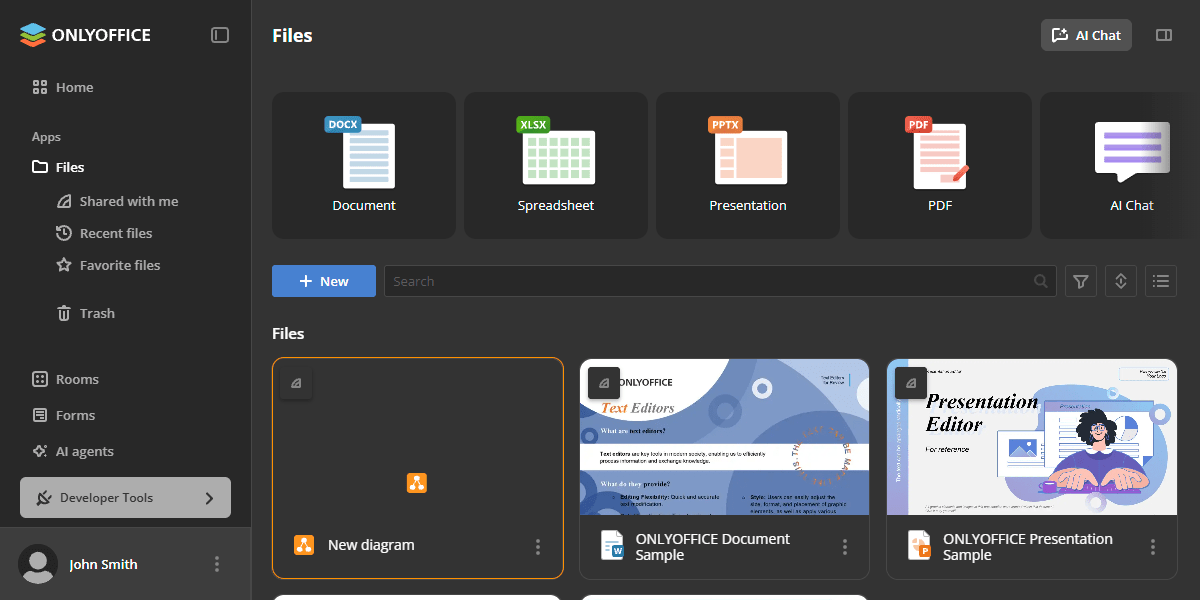
The Draw.io plugin also uses the specific file icon near the .drawio files, which are created with the file plugin type. The preferred icon size for the table format is 32x32 px.
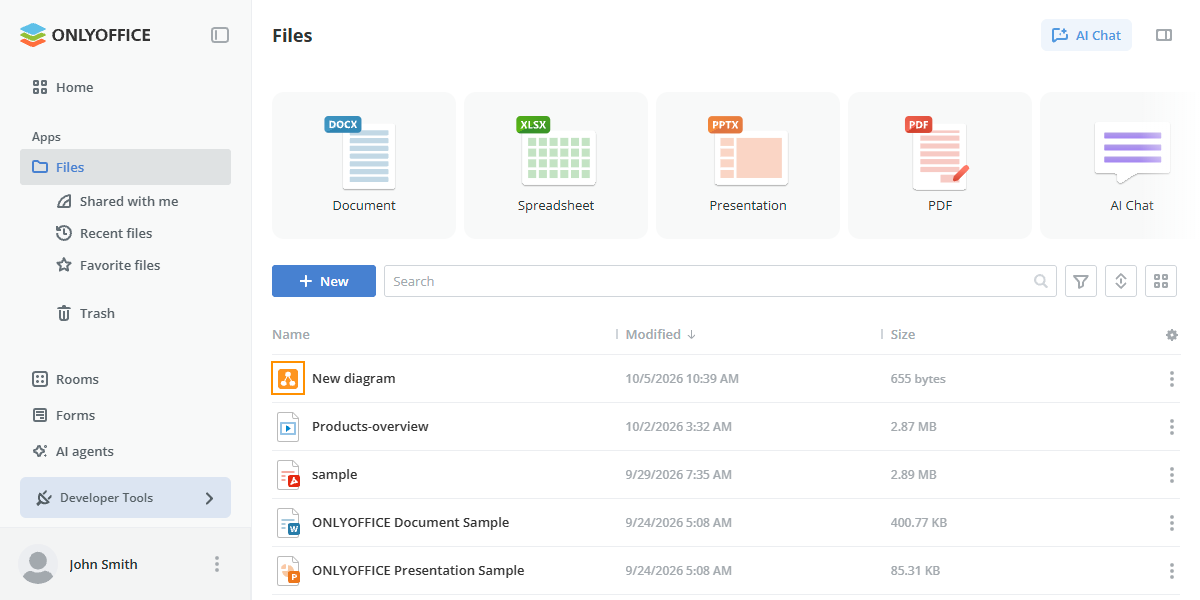
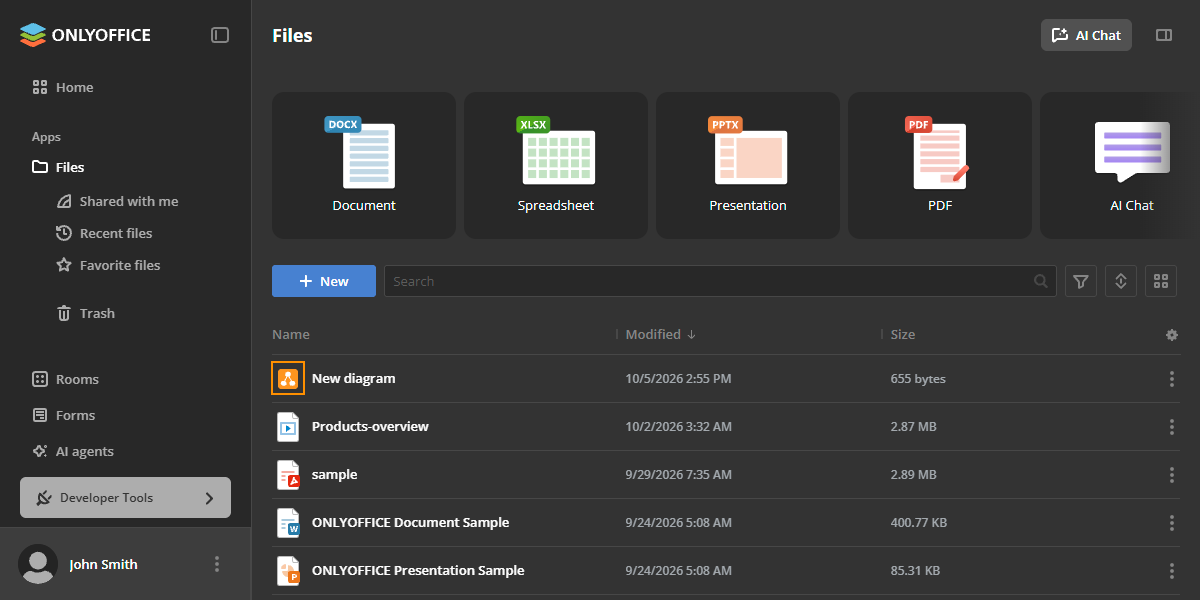
It is recommended to add another icon of the 96x96 px size for the file tile view.
dist
A folder for storing the compiled plugin version. It is not part of the plugin template — this folder is created automatically when running the npm run build command. For more information, see building a plugin.