C++示例指南
开始之前
为了使示例能够正常工作,请确保满足以下两个条件:
- 已安装ONLYOFFICE Document Builder。有关更多信息,请访问安装页面。
- 您将要存储下载的示例的目录具有一般编辑权限,以便保存由Document Builder创建的文件。
Hello World示例
本节将帮助您构建“Hello World”应用程序。如果您能够打开、保存和关闭文档,那么集成ONLYOFFICE Document Builder SDK会很容易。
#include <string>
#include "common.h"
#include "docbuilder.h"

// 指定Document Builder工作目录的路径和结果路径(生成的文件将保存在此处)
// Linux系统路径为builder/opt/onlyoffice/documentbuilder,Windows和Mac系统路径为builder
#define WORK_DIRECTORY L"builder/opt/onlyoffice/documentbuilder"

using namespace NSDoctRenderer;

int main(int argc, char *argv[])
{
    // 初始化DocBuilder
    CDocBuilder::Initialize(WORK_DIRECTORY);
    CDocBuilder oBuilder;
    oBuilder.SetProperty("--work-directory", WORK_DIRECTORY);

    oBuilder.CreateFile(OFFICESTUDIO_FILE_DOCUMENT_DOCX);

    CContext oContext = oBuilder.GetContext();
    CContextScope oScope = oContext.CreateScope();

    CValue oGlobal = oContext.GetGlobal();

    CValue oApi = oGlobal["Api"];
    CValue oDocument = oApi.Call("GetDocument");
    CValue oParagraph = oApi.Call("CreateParagraph");
    oParagraph.Call("SetSpacingAfter", 1000, false);
    oParagraph.Call("AddText", "Hello, world!");
    CValue oContent = oContext.CreateArray(1);
    oContent[0] = oParagraph;
    oDocument.Call("InsertContent", oContent);

    // 保存并关闭
    std::wstring sDstPath = L"result.docx";
    oBuilder.SaveFile(OFFICESTUDIO_FILE_DOCUMENT_DOCX, sDstPath.c_str());
    oBuilder.CloseFile();

    CDocBuilder::Dispose();

    return 0;
}
运行脚本:
- Windows
- Linux
- macOS
- 在CPP目录中创建一个
hello-world.cpp文件 - 将上述代码替换
hello-world.cpp的内容 - 使用
cl hello-world.cpp /Ibuilder/include builder\doctrenderer.lib /Fe:hello-world.exe进行构建 - 通过以下方式运行应用程序
# 将'builder'子文件夹添加到PATH(相对路径)
$env:PATH = "$(Get-Location)\builder;$env:PATH"

# 运行
.\hello-world.exe
- 在CPP目录中创建一个
hello-world.cpp文件 - 将上述代码替换
hello-world.cpp的内容 - 使用以下命令构建项目:
g++ hello-world.cpp \
    -Ibuilder/opt/onlyoffice/documentbuilder/include \
    -Lbuilder/opt/onlyoffice/documentbuilder \
    -lDocxRenderer \
    -ldoctrenderer \
    -lstdc++ -lpthread -lm -lc \
    -Wl,-rpath=builder/opt/onlyoffice/documentbuilder \
    -o hello-world
- 通过以下方式运行应用程序
./hello-world
- 在CPP目录中创建一个
hello-world.cpp文件 - 将上述代码替换
hello-world.cpp的内容 - 使用以下命令构建项目:
g++ hello-world.cpp \
    -Ibuilder/include \
    -Lbuilder \
    -lDocxRenderer \
    -ldoctrenderer \
    -lpthread \
    -o hello-world \
    -Wl,-rpath,@executable_path/builder \
    -Wl,-rpath,@loader_path/builder
- 通过以下方式运行应用程序
export DYLD_LIBRARY_PATH=builder:$DYLD_LIBRARY_PATH
./hello-world
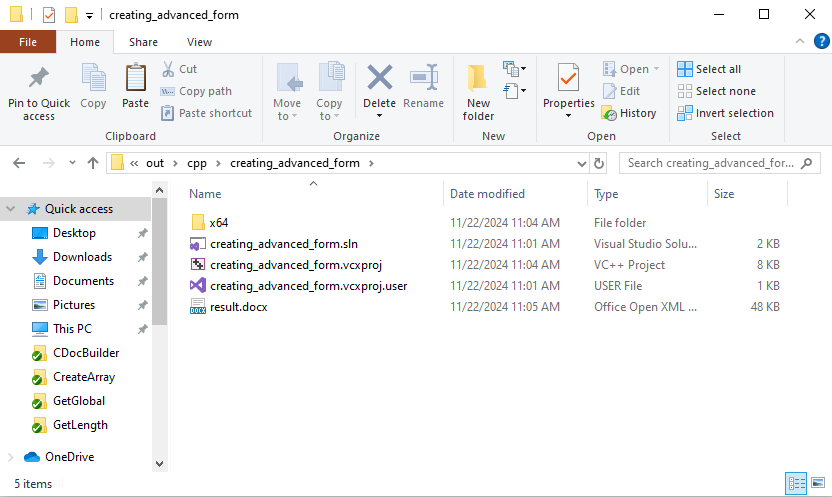
调用make,它将构建并运行可执行文件。文档将创建在与Makefile相同的目录中。
运行其他示例
从https://github.com/ONLYOFFICE/document-builder-samples克隆包含Document Builder示例的存储库。创建的文件夹必须具有一般编辑权限。
git clone https://github.com/ONLYOFFICE/document-builder-samples
cd document-builder-samples
项目文件夹包含带有C++示例的cpp文件夹。每个示例都有自己的文件夹,其中包含main.cpp程序文件。