Introducing ONLYOFFICE Apps
ONLYOFFICE Apps is a collaborative cloud platform that allows users to edit and collaborate on documents, spreadsheets, presentations, PDFs, and forms in customizable rooms. It provides the following features:
- creating and customizing rooms for collaboration;
- collecting data from PDF forms in Form Filling Spaces;
- inviting users to collaborate on files in real time;
- creating, editing and viewing documents, spreadsheets, presentations, fillable forms, PDFs, ebooks, multimedia files using the built-in ONLYOFFICE Docs;
- creating and managing AI agents to automate workflows;
- extending ONLYOFFICE Apps functionality with plugins;
- integrating ONLYOFFICE Apps into your applications using the Embed SDK.
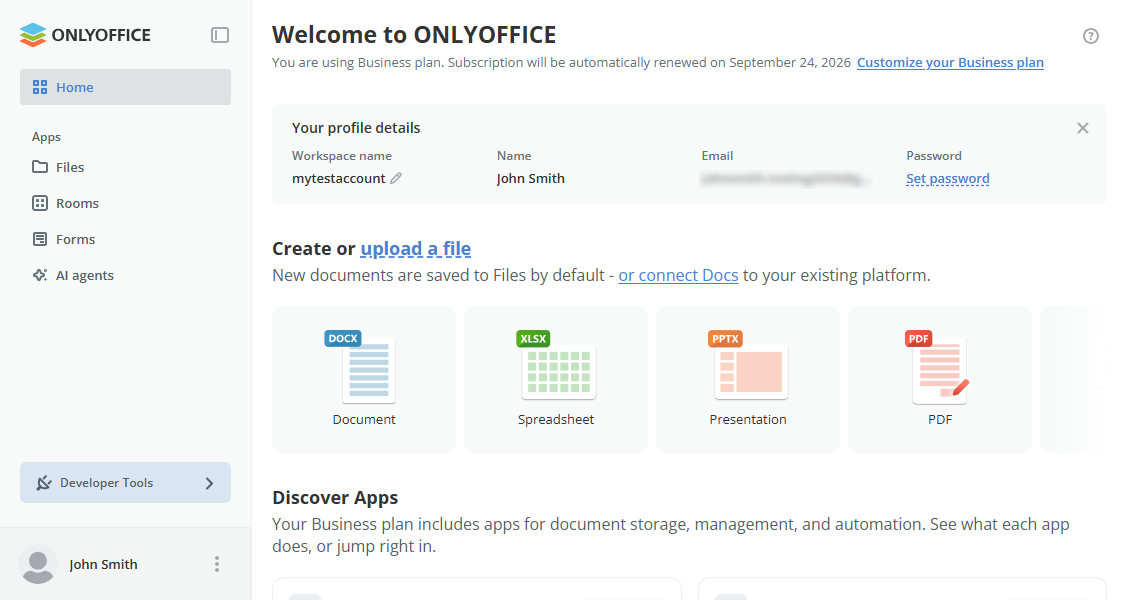
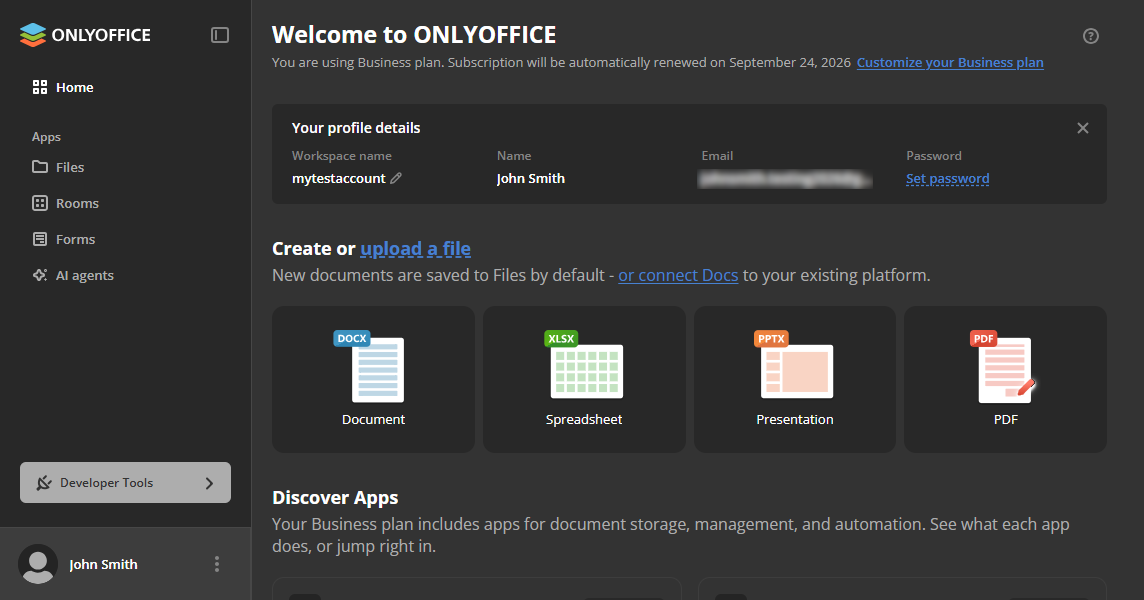
The ONLYOFFICE Apps API is implemented as REST over HTTP using GET/POST/PUT/DELETE. All resources, like rooms, files, or users, have their own URLs and are designed to be manipulated in isolation.
Basic concepts
Before getting started with ONLYOFFICE Apps, here are some terms to get familiar with:
- Workspace: A secure, web-based gateway that provides an interface for you to access, interact and use ONLYOFFICE Apps. This workspace enables you to create and manage rooms, users, files, API keys, AI agents, and other ONLYOFFICE Apps resources.
- Rooms: A space for users to create, edit, and work on files independently or collaboratively. ONLYOFFICE Apps offers different types of rooms (Collaboration, Public, Custom, and Virtual data) based on your specific needs.
- Form Filling Spaces: Spaces in the Forms section for working with PDF forms. You can create, edit, or upload forms, invite members and guests to fill them out, review completed copies, and analyze the collected data in a spreadsheet. In the API, Form Filling Spaces are created with the create room method using the
FillingFormsRoomtype. - AI agents: Integrations that connect ONLYOFFICE Apps to external tools and automate workflows via the MCP server.
- Users: People with access to your ONLYOFFICE Apps workspace. Each user has a type that defines their access rights: owner, full admin, room admin, user, or guest.
Quickstart
Follow these steps to get started with ONLYOFFICE Apps:
Step 1: Get ONLYOFFICE Apps
Get ONLYOFFICE Apps via the cloud or by installing it on your local server.
Step 2: Authenticate your account
Authenticate your account using API keys, OAuth, or any of the other authentication methods available on ONLYOFFICE Apps. This quickstart uses API keys. Follow these steps on how to create and use API keys for your request.
Step 3: Create a room
This sample request creates a Public Room titled Graduation Planning. You can replace PublicRoom with any other supported room type.
Set your Content-Type and Accept headers to application/json, as every endpoint in the ONLYOFFICE Apps API supports JSON.
POST /api/2.0/files/rooms HTTP/1.1
Host: yourportal.onlyoffice.com
Content-Type: application/json
Accept: application/json
Authorization: Bearer API_KEY
Content-Length: 113

{
    "title": "Graduation planning",
    "roomType": "PublicRoom",
    "color": "FF0000",
    "private": false
}
Where:
- API_KEY: ONLYOFFICE API key.
- yourportal.onlyoffice.com: Your ONLYOFFICE Apps workspace address.
The color must be specified as a hex code string (e.g., FF0000), not as a color name.
You can send requests to customize and change room details to fit your specific needs.
Decoding responses
| Response codes | Meaning |
|---|---|
| 200 | Successful query, delete, update, or read request. |
| 201 | Successfully created a new record. |
| 400 | Bad request from client-side error. |
| 401 | Client authentication error from invalid/incorrect authentication credentials. |
| 403 | Forbidden client request from inadequate permissions. |
| 404 | Requested resource not found. |
| 407 | Proxy authentication error from invalid/incorrect authentication credentials. |
| 429 | Exceeded rate limit. |
- Any non-2xx response status code indicates an unsuccessful response with error information in response content.
For instance, if a requested record could not be found, the HTTP response might look something like:
HTTP/1.1 404 Not Found
Rate limiting
ONLYOFFICE Apps has some restrictions on authenticated requests:
- Up to 1500 authenticated requests per minute.
- Up to 50 simultaneous GET authenticated requests.
- Up to 15 simultaneous authenticated requests of any type except GET.
- Some methods have additional restrictions. For example, you can perform up to 5 authenticated requests per minute to collect passwords.
Exceeding the rate limit returns the 429 Too Many Requests response for subsequent requests. This response may contain additional headers:
- X-Ratelimit-Limit. Request limit per time span: 100/30m.
- X-Ratelimit-Remaining. The number of requests left for the time window.
- X-Ratelimit-Reset. The remaining window before the rate limit resets in seconds.