Authentication & Security
Choosing the right authentication approach depends on who your users are and whether they have DocSpace accounts:
- Your users already have DocSpace accounts — rely on the existing browser session. The iframe picks it up automatically. See Session-based authentication below.
- You control the login UI — authenticate programmatically using
getHashSettings()→createHash()→login()before initializing any frame. See the Authorization sample and Login sample. - Your users have no DocSpace account — embed a public room using
requestToken. No login required on the viewer's side. See Token-based auth for public rooms below.
Session-based authentication
api.js uses the active DocSpace application sessions to authenticate users. If the user is logged in to the DocSpace portal that the SDK will connect to, then api.js recognizes and uses that active session.
If the users are not authenticated, they will see a page asking them to sign in to DocSpace whenever they are not already signed in. Authentication is also possible through the SDK login method.
Token-based auth for public rooms
To embed a public room without requiring the viewer to be a DocSpace user, pass a requestToken in the frame config:
DocSpace.SDK.initManager({
  frameId: "ds-frame",
  src: "https://your-docspace.example.com",
  requestToken: "<your-room-access-token>",
});
The token is scoped to a specific room and grants access to its contents without requiring the viewer to have a DocSpace account. The requestToken parameter is supported by all init methods, not just initManager.
Never expose admin-level tokens in client-side code. Obtain requestToken values server-side and inject them into the page at render time.
Registering allowed embed origins
For the Embed SDK to work correctly, it must be launched on the server. Note that running the HTML file directly will not work. Please make sure you are using a server environment.
You need to add the URL of your server's root directory to the Developer Tools section of DocSpace:
- Go to the DocSpace settings.
- Navigate to the Developer Tools section.
- On the Embed SDK tab, in the Enter the address of DocSpace to embed field, add the URL of your server's root directory.
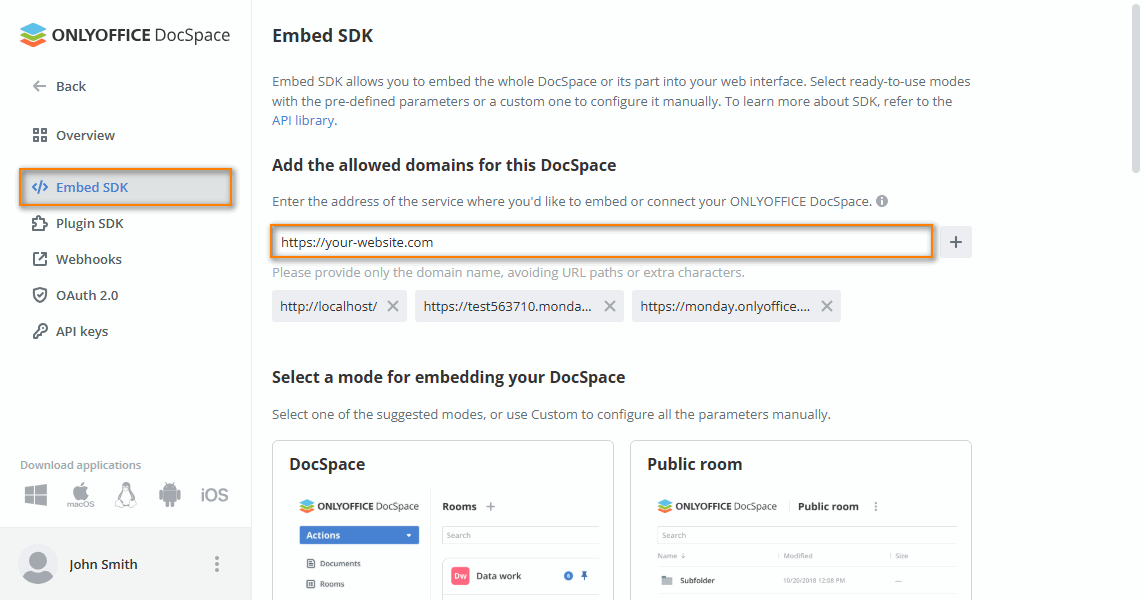
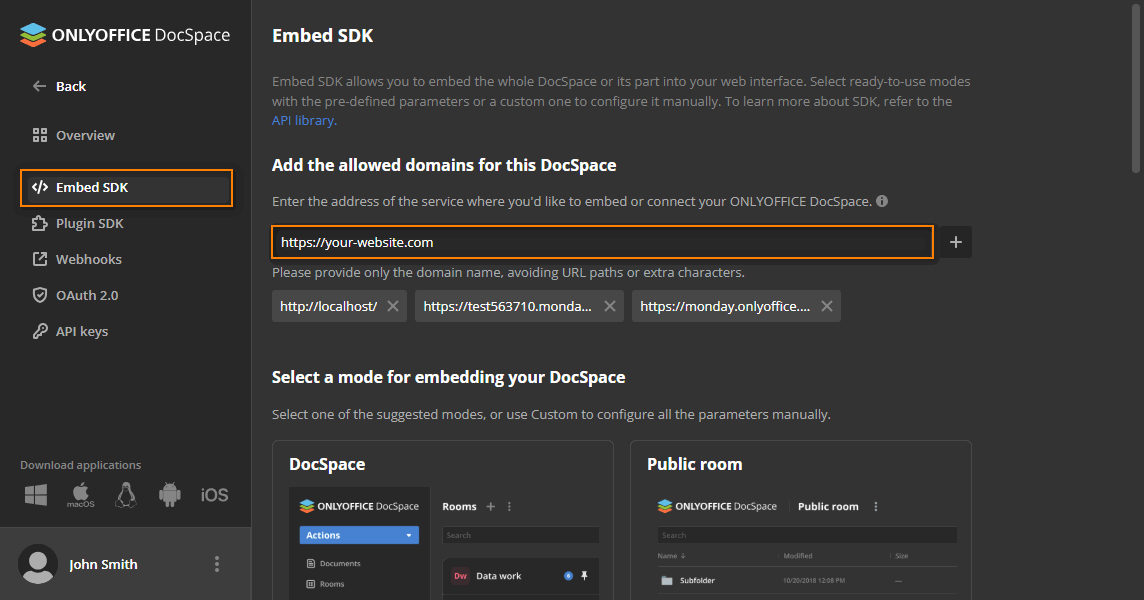
Only exact origins are matched — subdomains and paths are not automatically included. Add each distinct origin separately.
SameSite cookie requirements
When DocSpace is embedded in an iframe on a different domain, the browser must send session cookies with the cross-origin request. Without this setting, the embedded DocSpace behaves as if no user is logged in.
Note that "Secure": true requires both the DocSpace server and the embedding page to be served over HTTPS. Without HTTPS, browsers will not send cookies with the Secure flag set.
Set the following in appsettings.json on the DocSpace server:
{
  "CookieSettings": {
    "SameSite": "None",
    "Secure": true
  }
}
Content Security Policy (CSP)
Before initializing the iframe, the SDK checks whether the embedding domain is in DocSpace's CSP allowlist. If not, initialization fails with:
"The current domain is not set in the Content Security Policy (CSP) settings."
The current CSP allowlist can be checked via GET /api/2.0/security/csp. To add your domain, register it in DocSpace settings → Developer Tools → Embed SDK as described in Registering allowed embed origins above.
You can set checkCSP: false in the frame config to skip the check, but this is not recommended for production — doing so allows the SDK to initialize on any domain, including unauthorized ones.