跳到主要内容

Draw.io

A tool for creating diagrams, flowcharts, intelligence maps, business layouts, entity relationships, program blocks, and more.

Draw.ioDraw.io

Installation​

Available by default in the DocSpace Saas solution.

You can enable it following the instructions here.

Configuration​

To start working with the plugin, you don't need to change the default settings.

In case you want to adjust the plugin settings, go to Settings → Integration → Plugins and click Settings iconSettings icon next to the Draw.io plugin. You can change the following plugin parameters:

  • Languages - choose the necessary language from the list. The Auto option corresponds to the portal language.
  • Offline mode - when this setting is active, all remote operations and features are disabled for security reasons.
  • Libraries - turn on the switcher to be able to load custom shape libraries (File → New Library / Open Library from in the Draw.io menu).

There you can also view the plugin metadata, such as the author, version, status, homepage, and description.

Usage​

Creating a new diagram​

To create a new .drawio diagram:

  1. Open the Documents section or one of the available rooms.
  2. Click Actions → More.
  3. Select the Draw.io plugin from the appeared menu.
  4. Change the file name in a pop-up window and click Create. A new .drawio file appears in the file list.

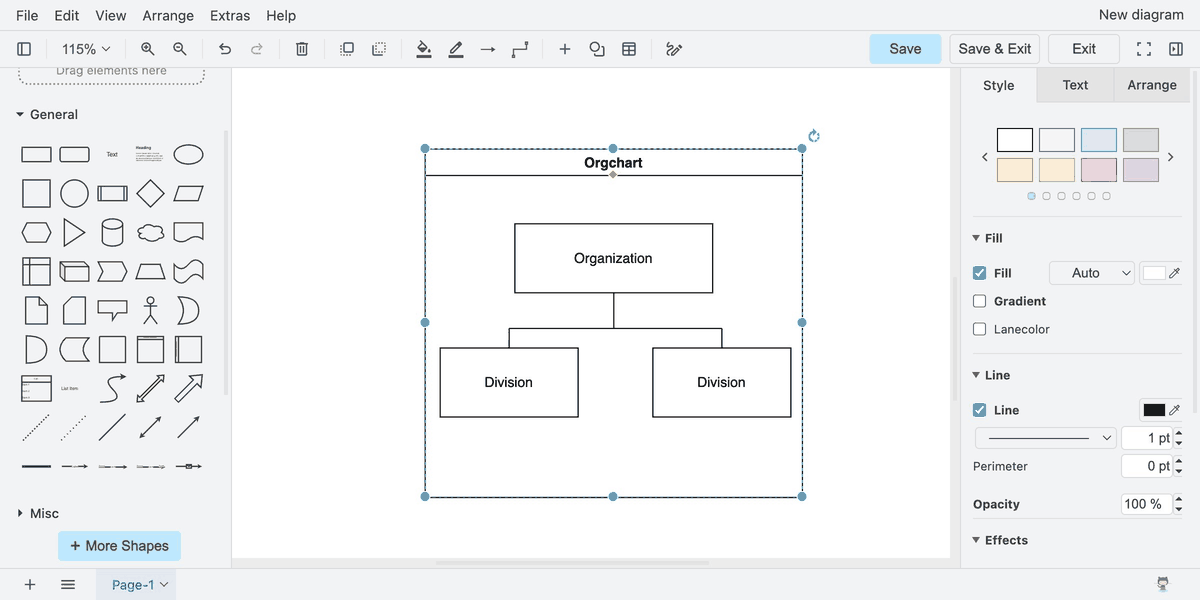
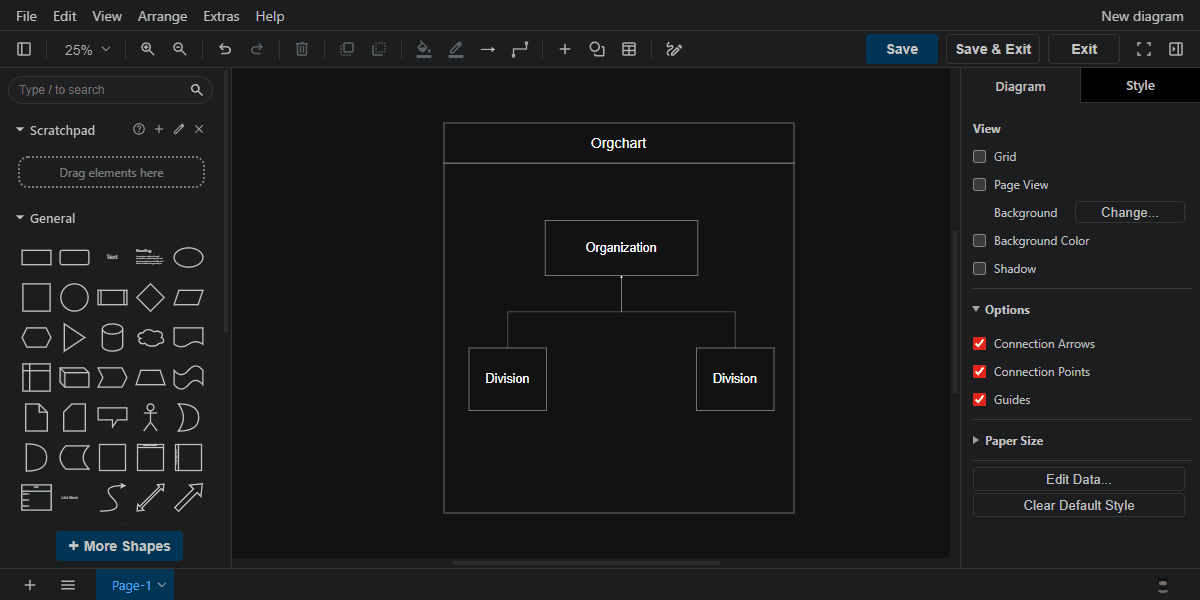
To open the created diagram, click the file name or do it via the file context menu: right-click → Edit diagram. The file will open in the same tab. To get back to the file list, click Save & Exit or Exit. If a diagram is opened by a user with the view rights, only the Exit button is available. Any changes made by this user will not be saved.

Editing an exported diagram​

.drawio diagrams can be exported as images. Such images can be re-opened and edited using the plugin.

Plugin structure​

Repository on GitHub: draw.io.

All the required files are described here.

Interfaces​

The following plugin interfaces are used:

  • IPlugin. Required for each plugin. It contains the plugin status (PluginStatus) variable, used to embed the plugin into the DocSpace.
  • IApiPlugin. Required as we implement a third-party service (Draw.io).
  • ISettingsPlugin and ISettings. Used to add settings block for plugin's configuration. The users will access this block from Settings → Integration → Plugins to adjust the plugin's parameters.
  • IContextMenuPlugin and IContextMenuItem. Used to implement a context menu action.
  • IMainButtonPlugin and IMainButtonItem. Used to implement the main button action. In the Draw.io plugin, we use the Action button → More menu elements in the Documents section or in the selected room to create .drawio diagrams.
  • IFilePlugin and IFileItem. Used to interact with the specified file types. In this case, with the .drawio files.

Support​

If you want to request a feature or report a bug regarding this plugin, use the issues section on GitHub.