AI Chat
Works only inside an ONLYOFFICE Apps portal: it needs the portal's API client, stores and translations, and is not part of the public API.
A conversation with the portal's AI models, about the files and rooms the user is working in. Every section of ONLYOFFICE Apps mounts the same chat; what changes between them is a handful of props — which chips it suggests, whether the model can be changed, whether the user may write at all.
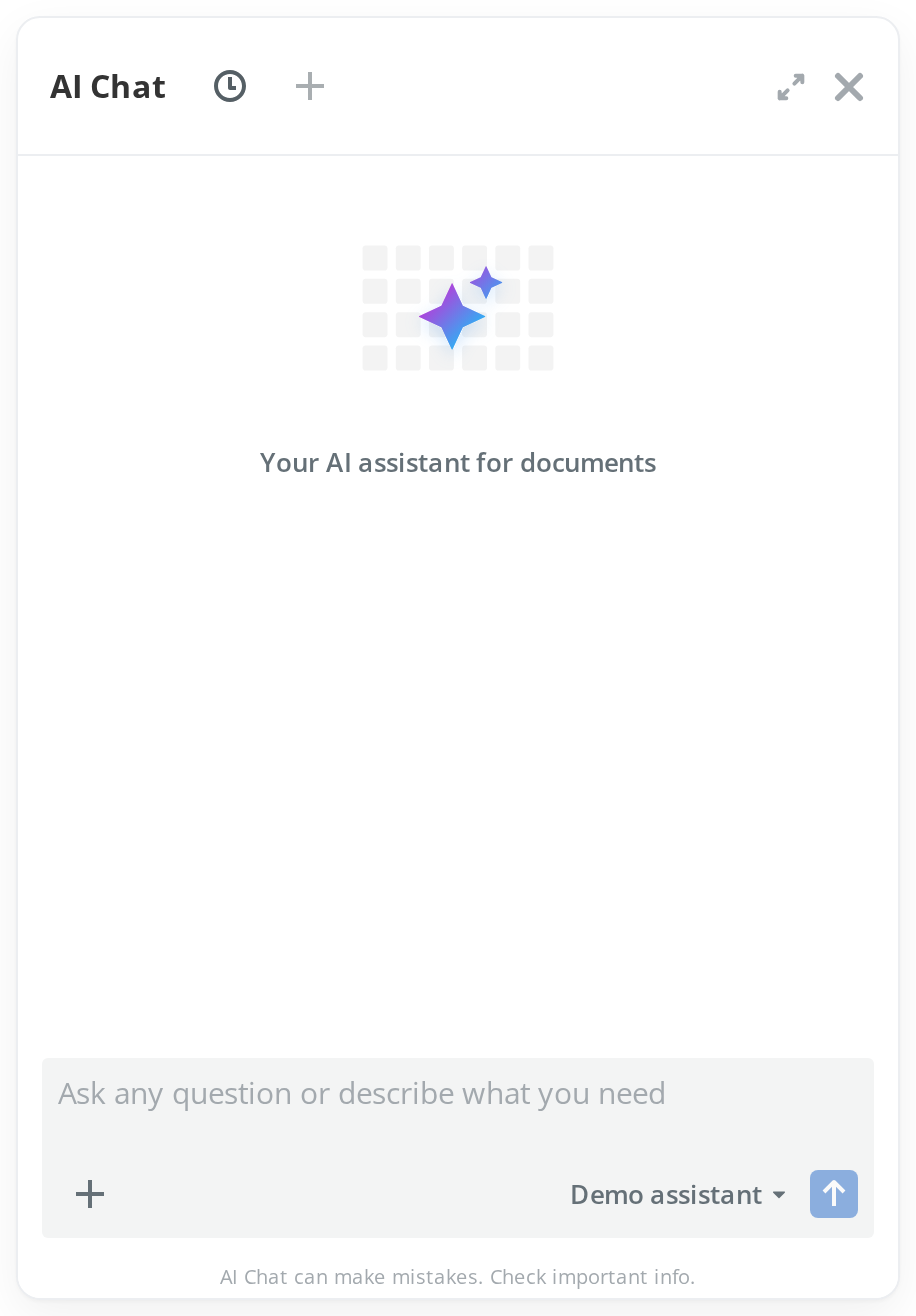
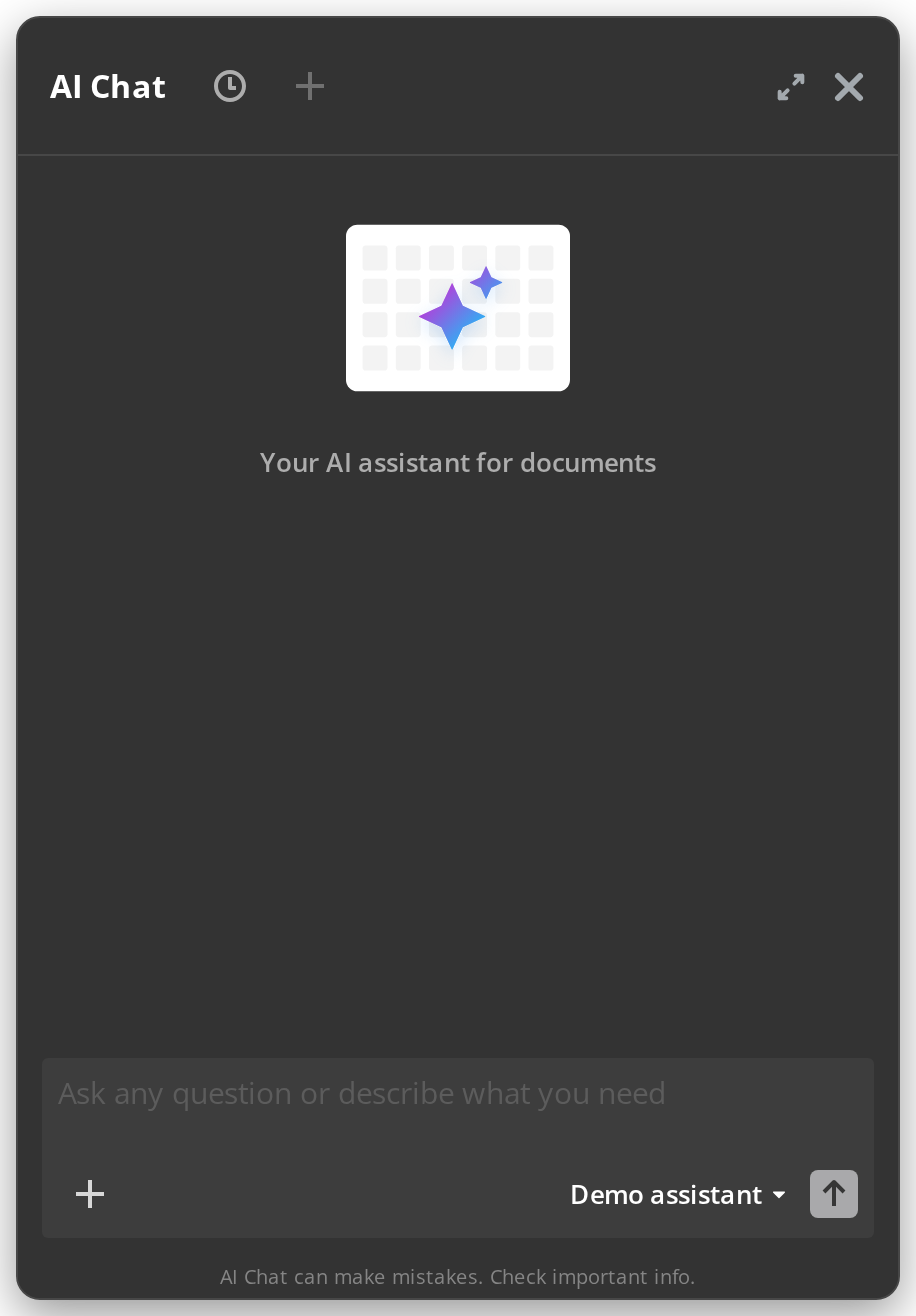
Putting it on a screen
There is no AiChatPanel component to render. useAiChatPanel() returns the panel content
and the state to place it by, and the host decides where it goes — in the ONLYOFFICE Apps client, the
info panel beside a section.
import { observer } from "mobx-react";

import AiAgentProviders from "@onlyoffice/apps-ui-kit/ai-agent/providers";
import {
  useAiChatPanel,
  useOpenAiChat,
} from "@onlyoffice/apps-ui-kit/ai-agent/ai-chat-panel";

const ChatPanel = observer(() => {
  const { chatPanelContent, isChatPanelVisible, isChatPanelFullscreen, chatPanelWidth } =
    useAiChatPanel();

  if (!isChatPanelVisible) return null;
  return (
    <aside style={{ width: isChatPanelFullscreen ? "100%" : chatPanelWidth }}>
      {chatPanelContent}
    </aside>
  );
});

// Anywhere below the providers: an "Ask AI" action, a deep link.
const AskAiButton = () => <button onClick={useOpenAiChat()}>Ask AI</button>;

<AiAgentProviders locale="en" isAvailable>
  <AskAiButton />
  <ChatPanel />
</AiAgentProviders>;
Three things a host has to get right:
- Everything sits inside
AiAgentProviders, which mounts the store the hook reads; without it the hook throws. Consumers areobservers, or the visibility flags stop updating. - Offering AI is the host's decision.
useIsAiChatAvailable()iscanUseAi && isAvailable: whether the session may reach AI at all, and whether this view offers it. Check it before showing a way into the chat. - The surface is the host's. The panel content has no background or edge of its own; the frame on this page draws both from
--info-panel-backgroundand--info-panel-border-color, as the client's info panel does.
@onlyoffice/ai-chat is an optional peer dependency: importing anything under ai-agent/
without it fails at build time, naming the missing package.
Scenarios
Suggestions for the section
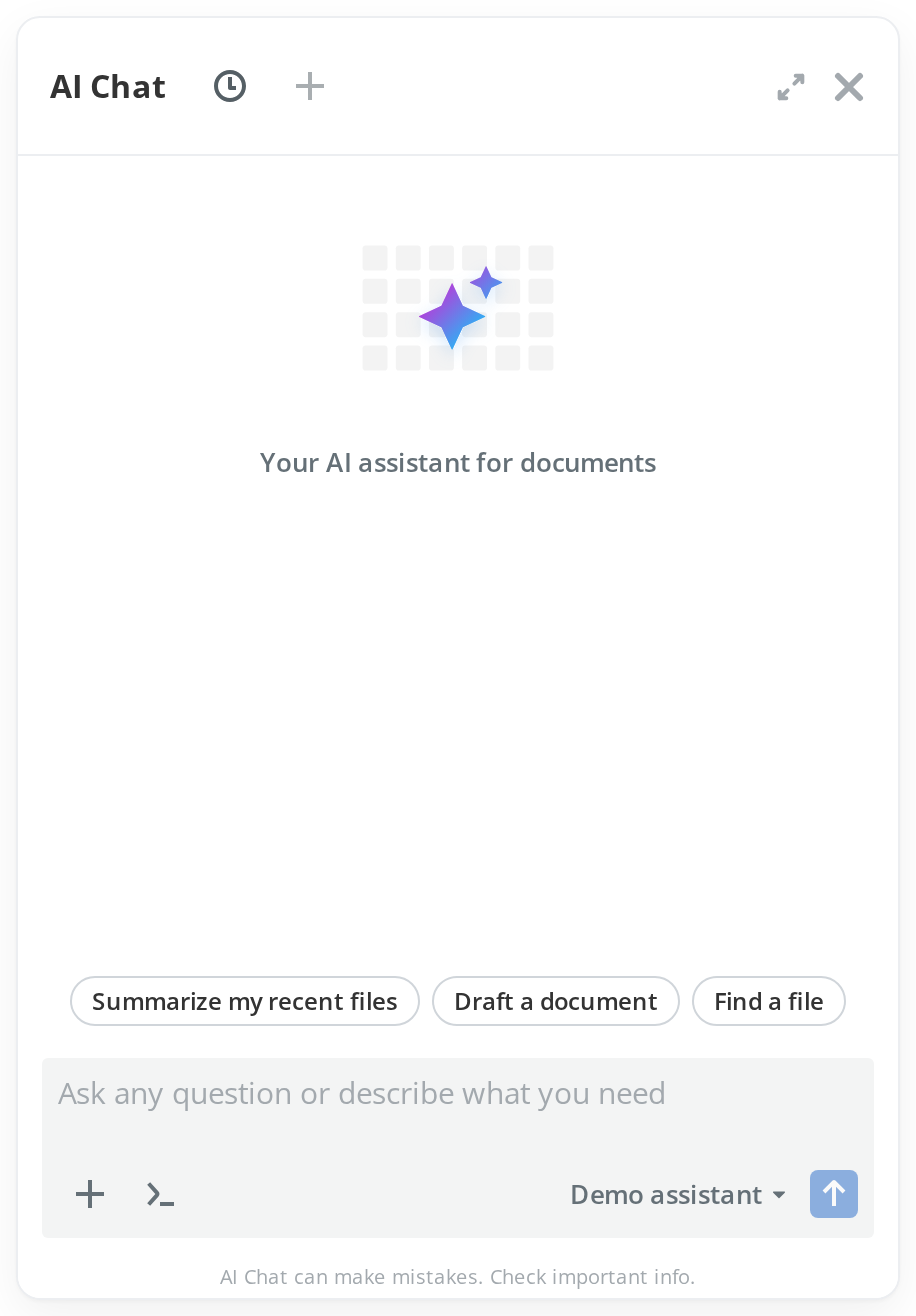
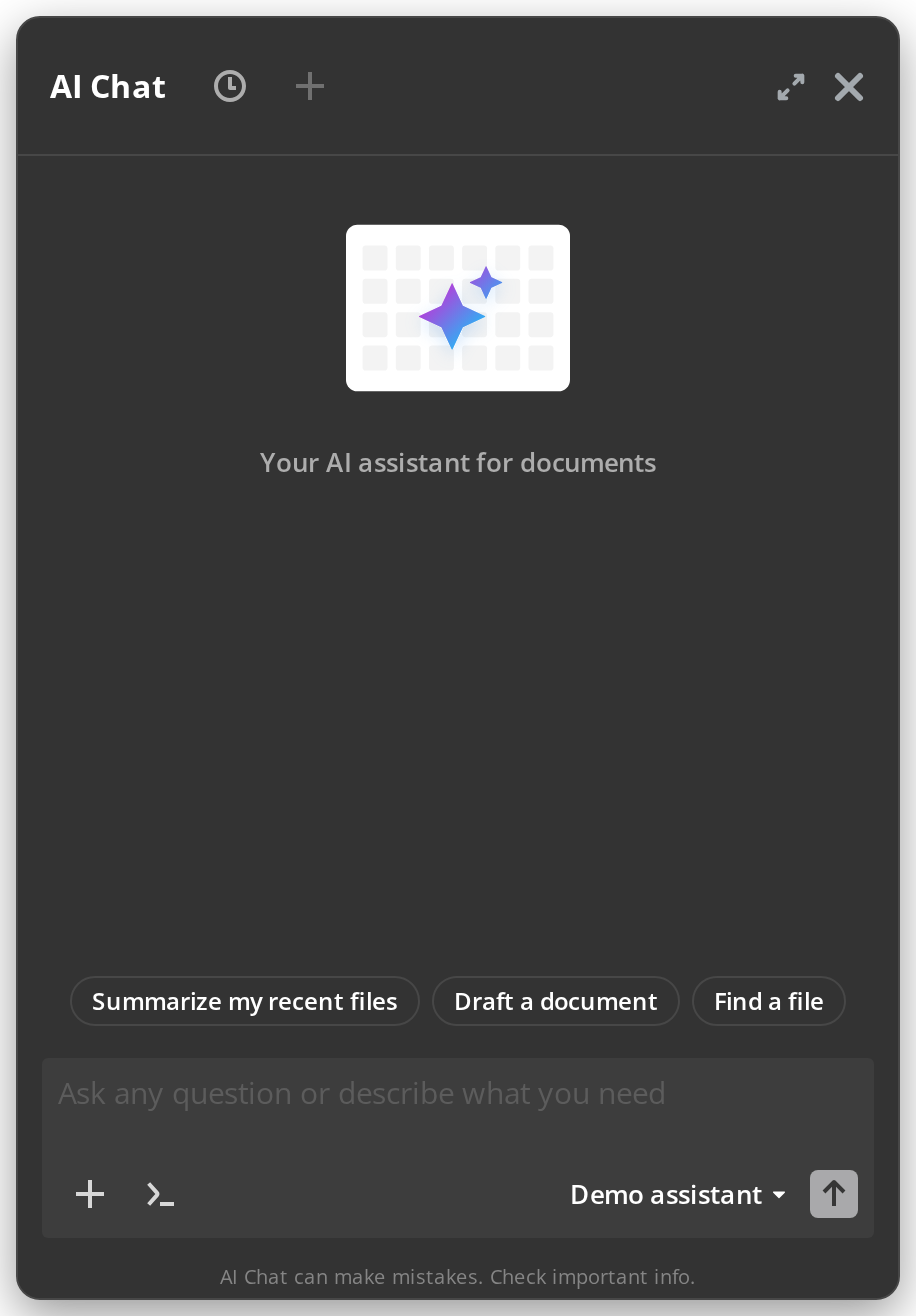
Chips on the empty chat put a ready prompt into the composer. The host passes a
SuggestionSet — default for an empty composer, singleFile once a file is attached,
multipleFiles for more — and the provider switches between them itself, since only it sees
what is attached.
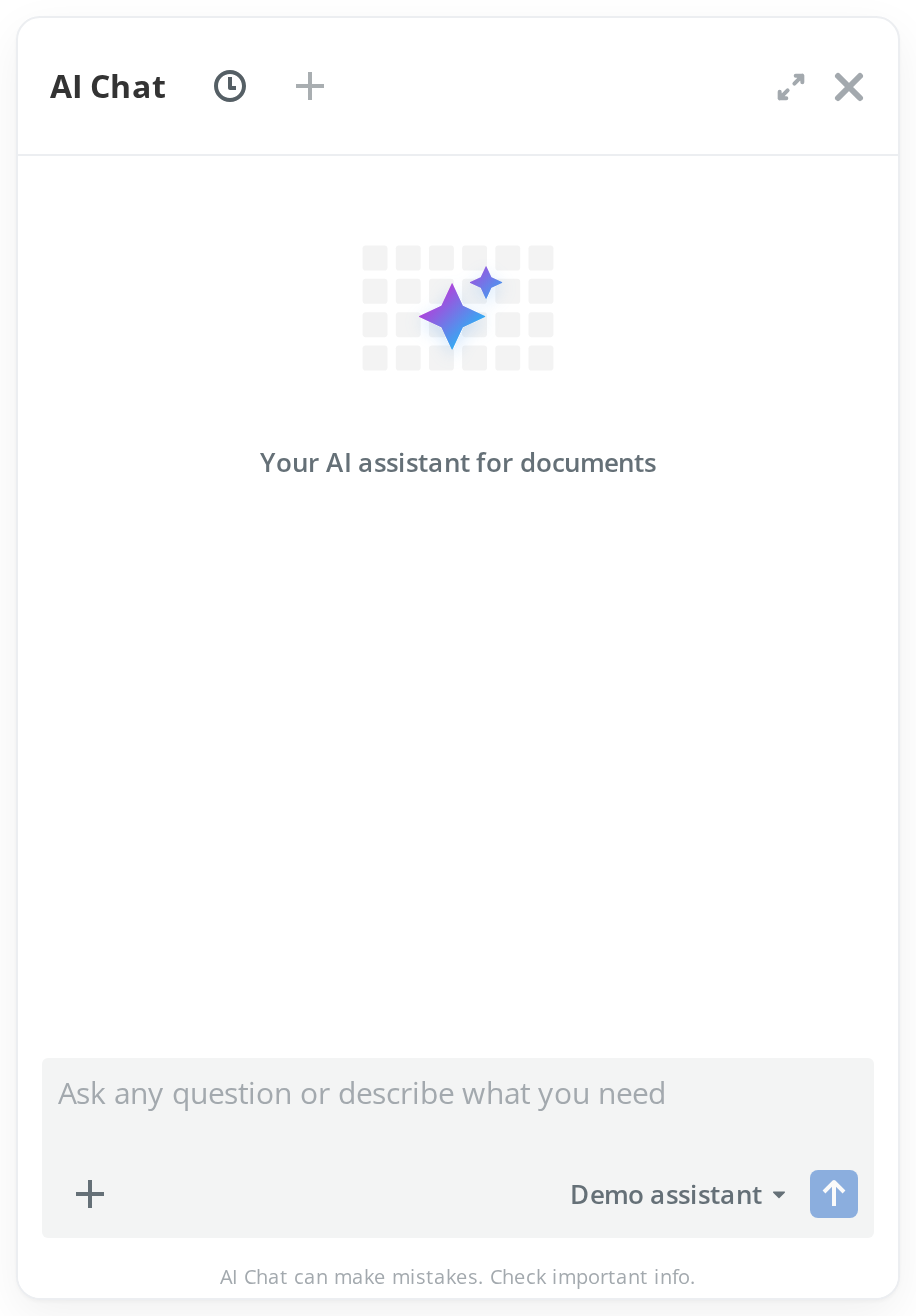
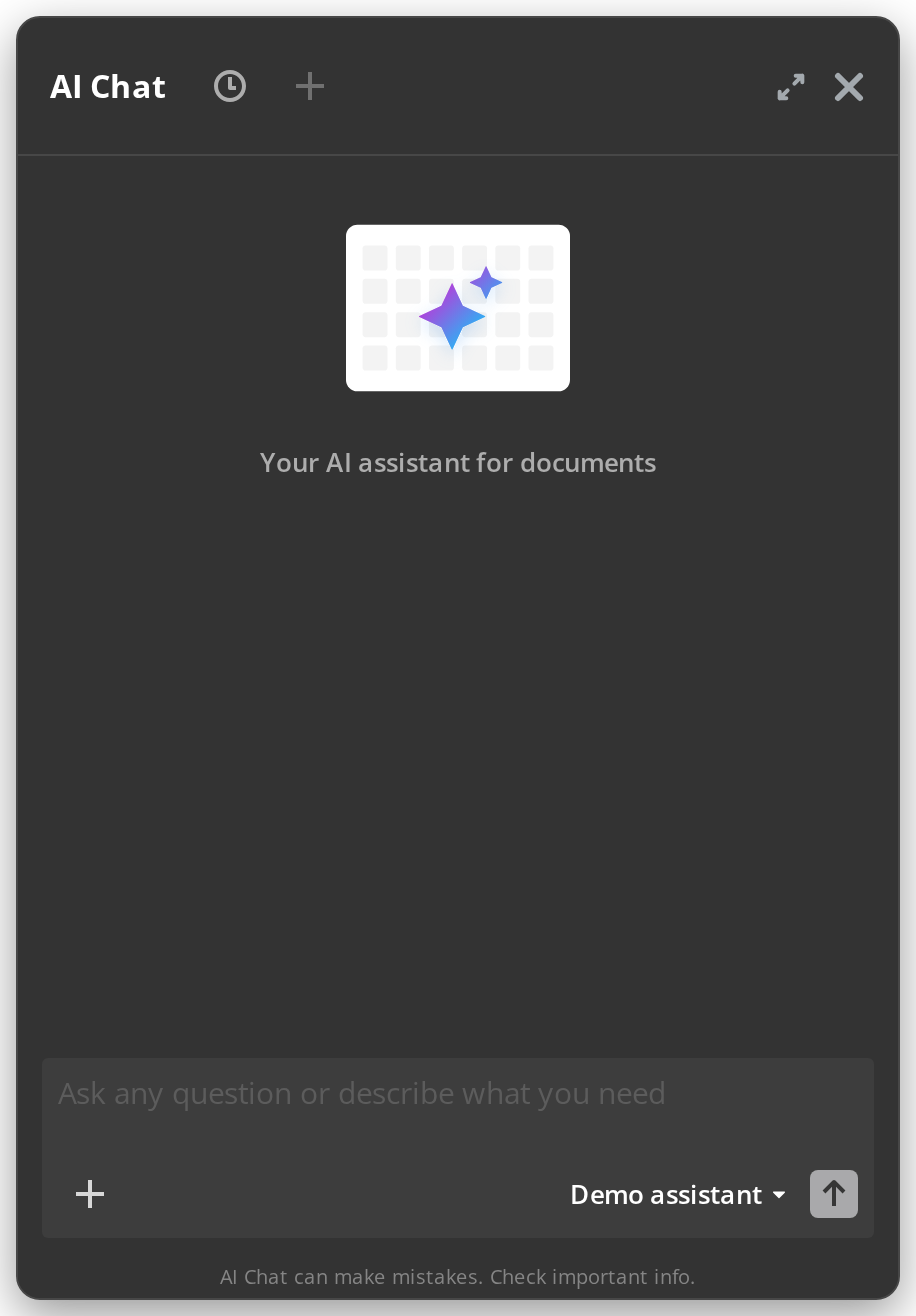
A fixed model, not shown
hideProfilePicker removes the picker and its label altogether, for a chat that always talks
to one assistant.
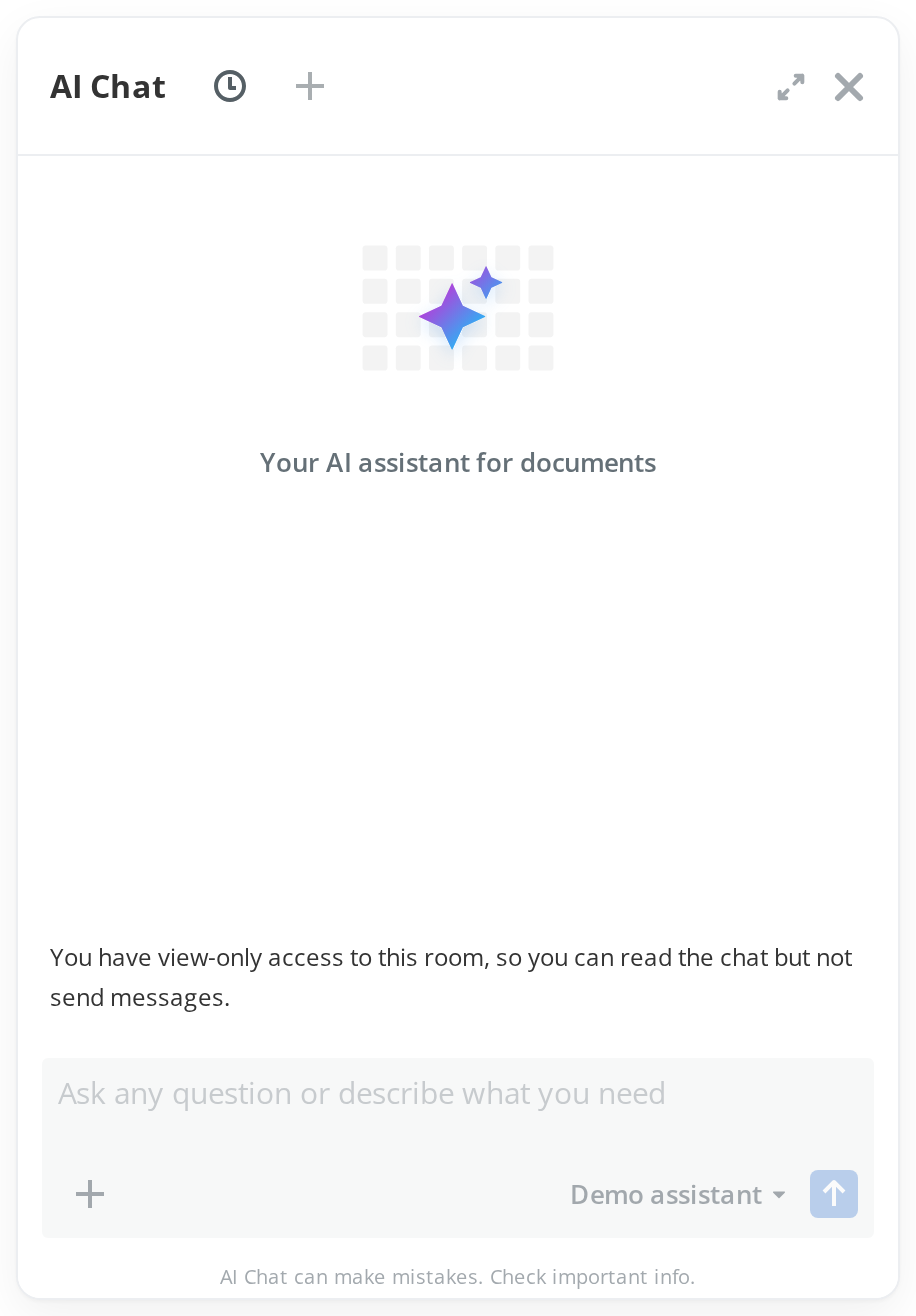
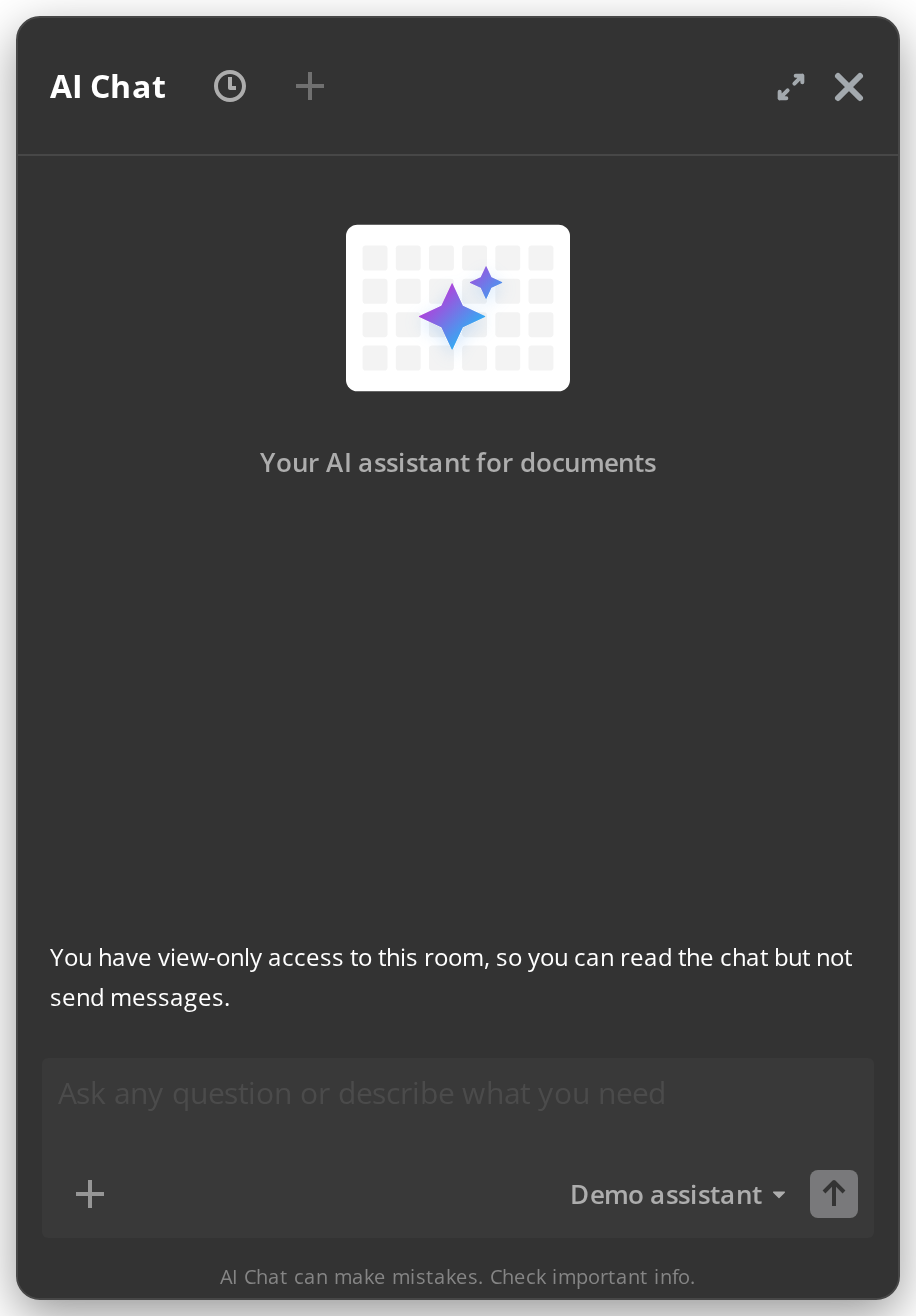
Read-only access
composerDisabled locks the composer while the history stays readable, and composerHeader
says why, above it.
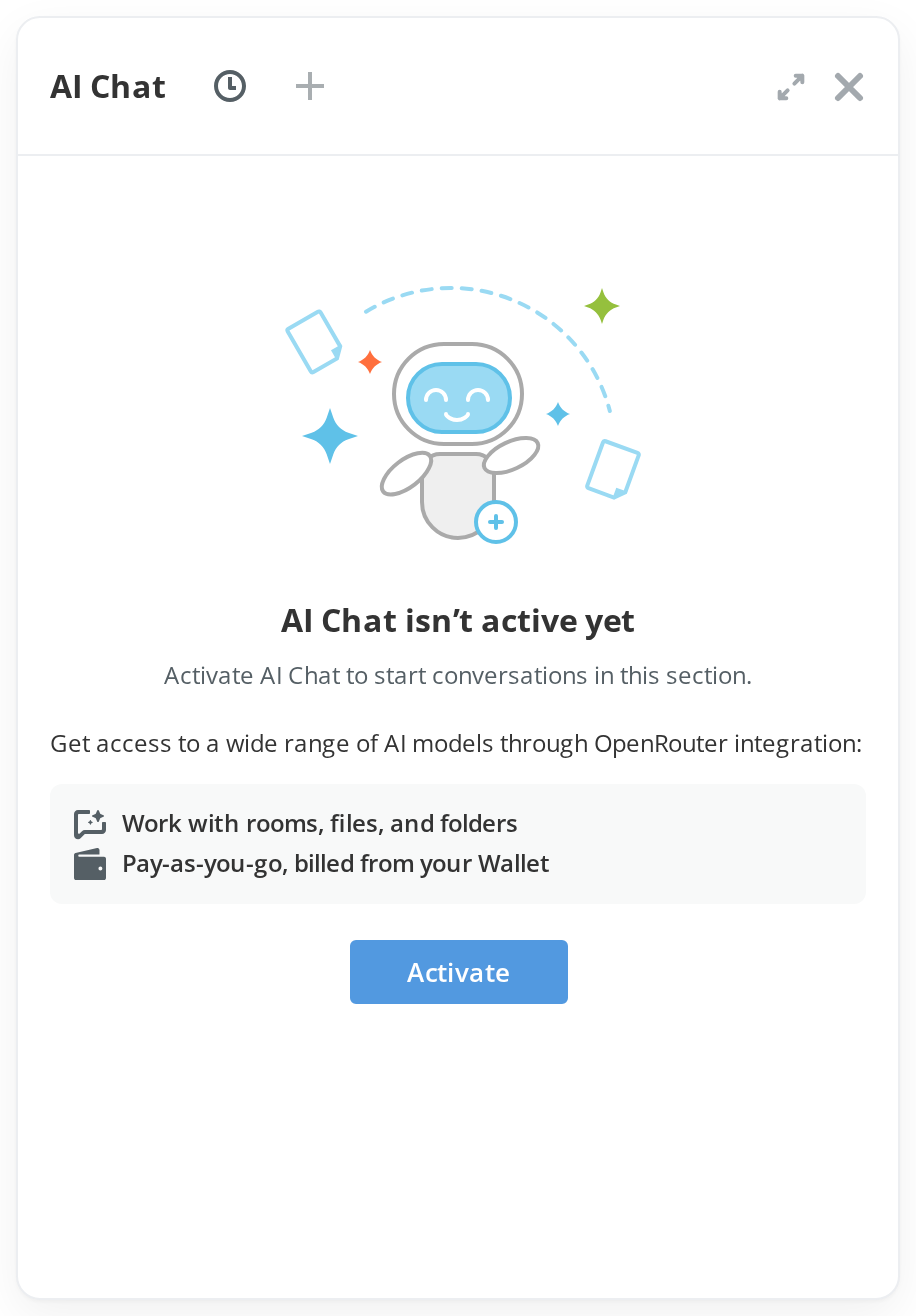
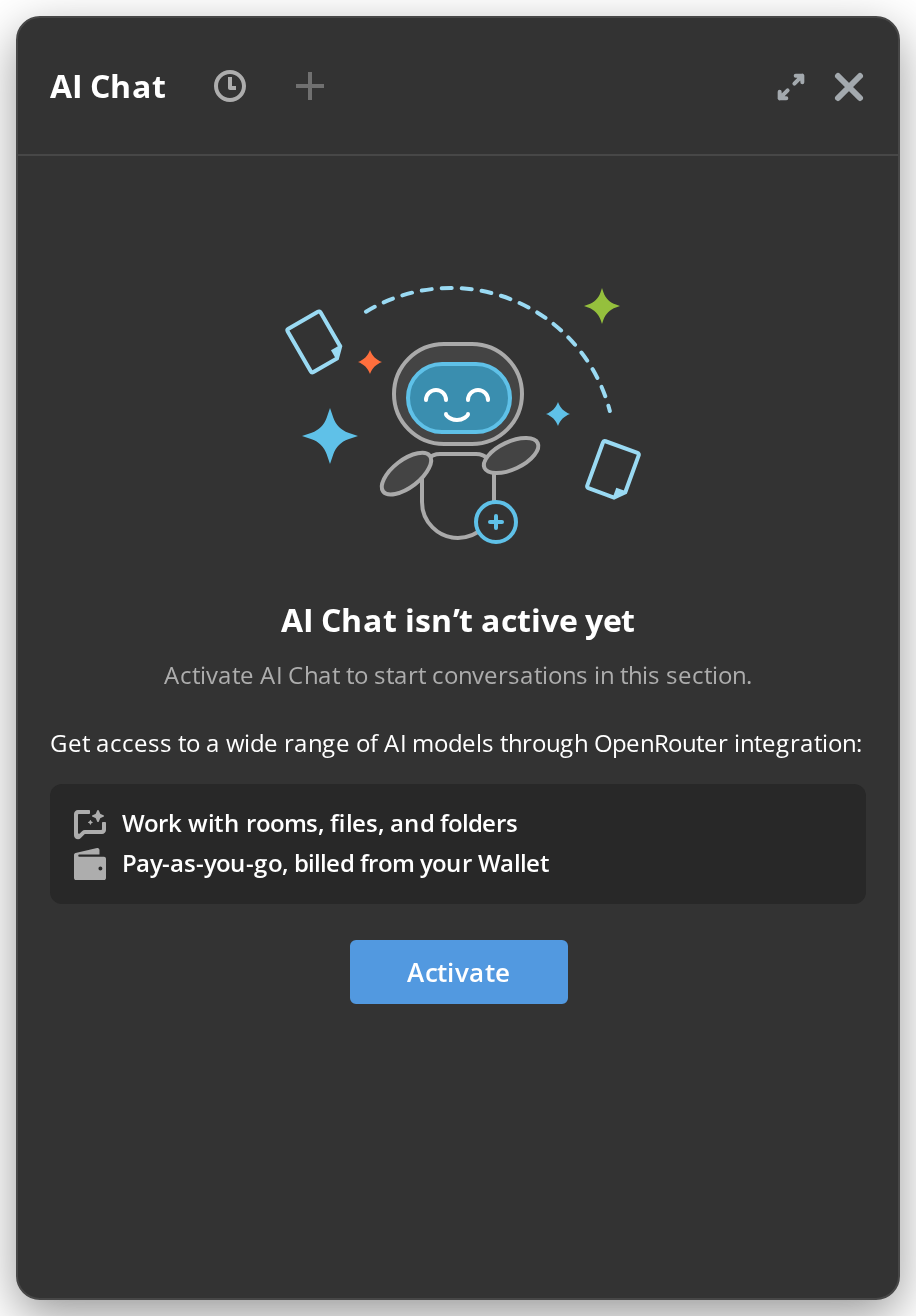
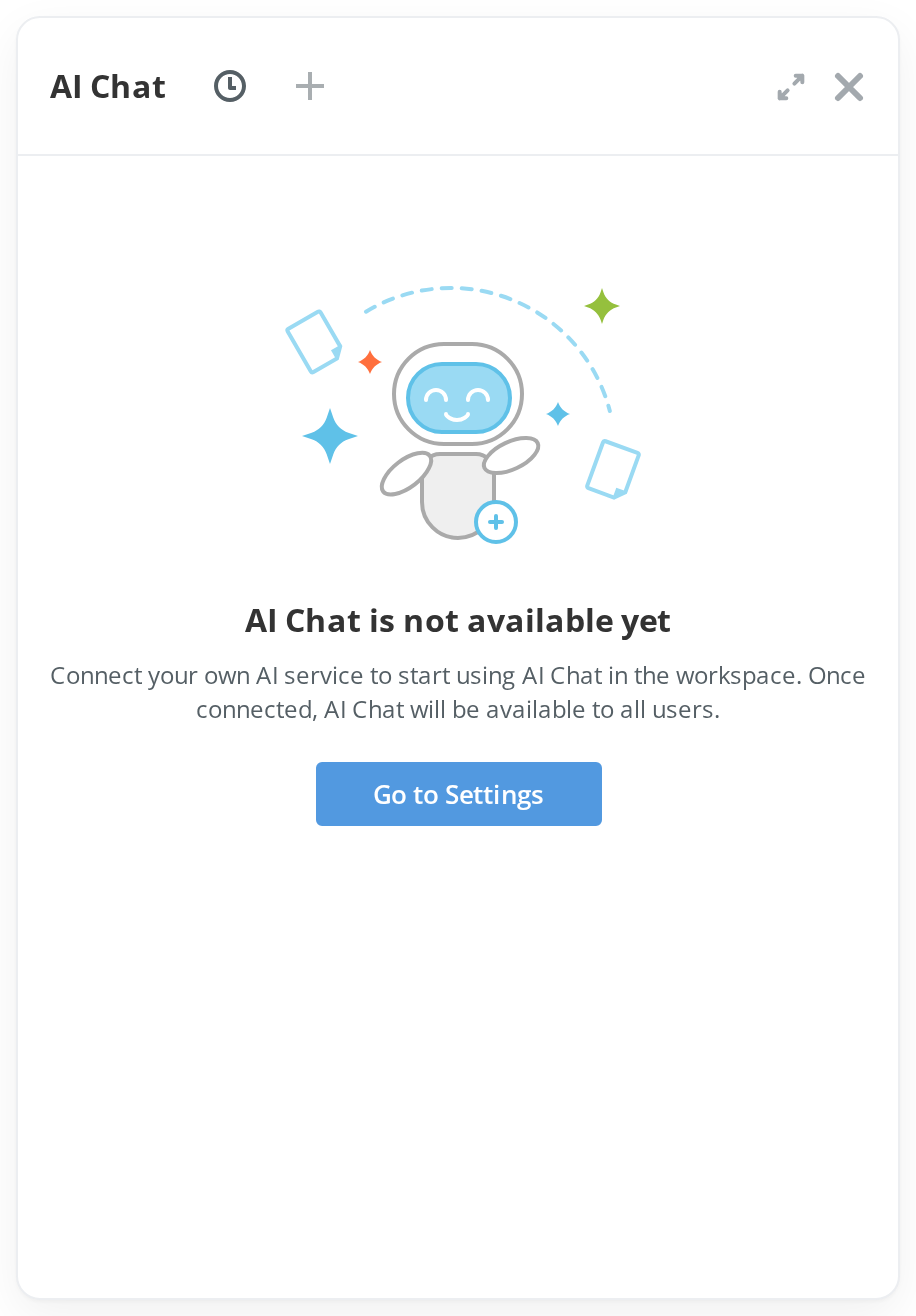
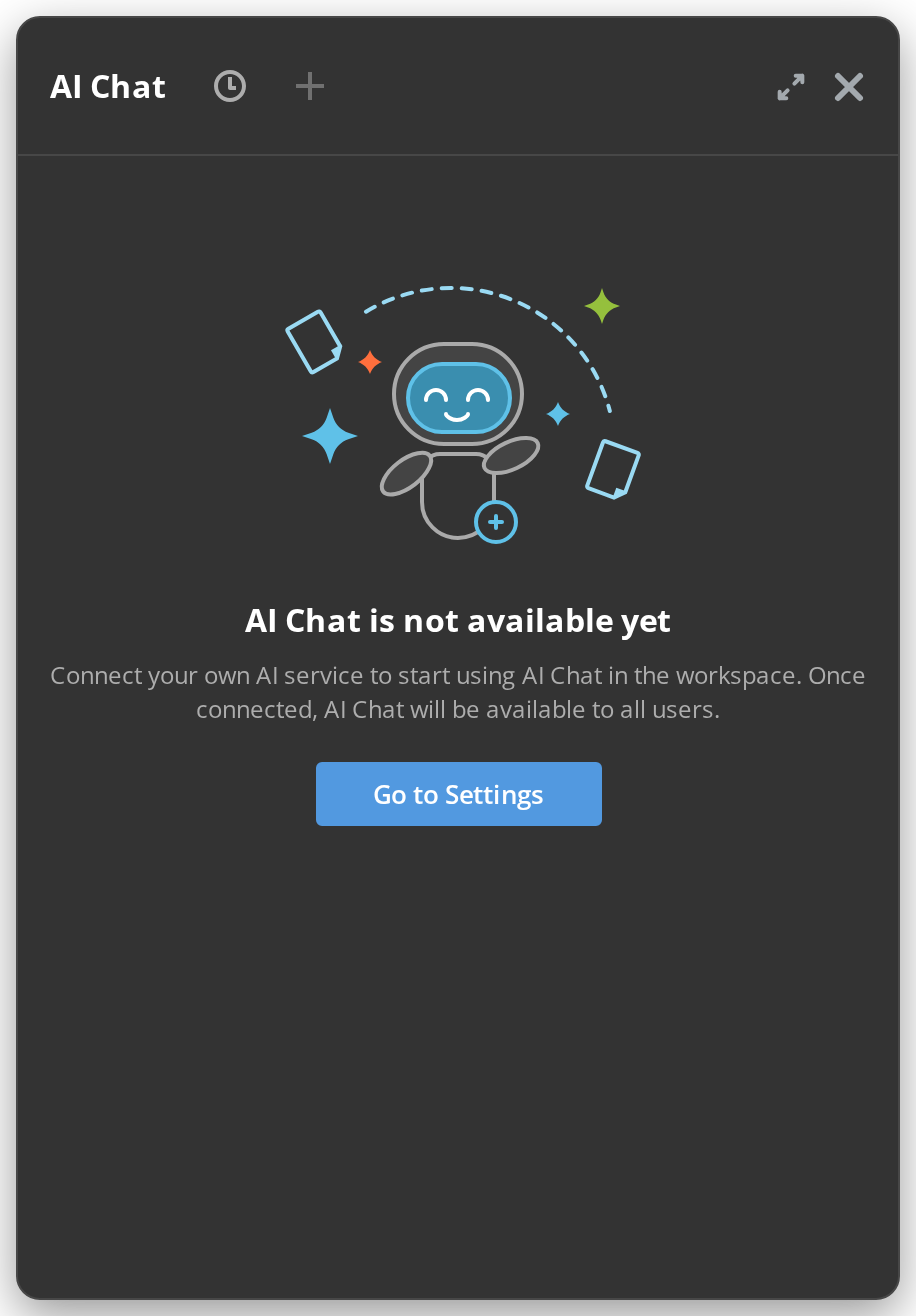
No AI model configured yet
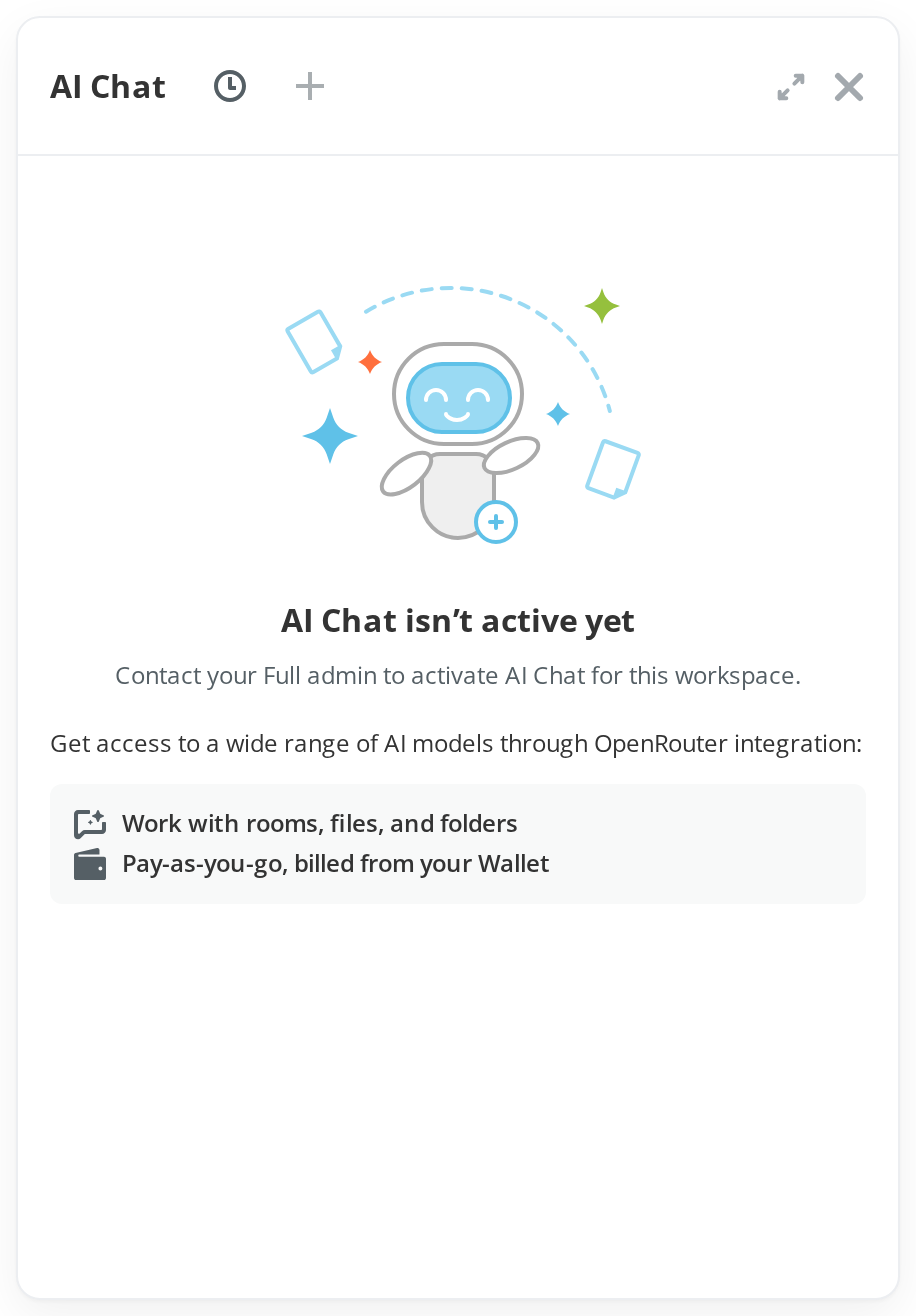
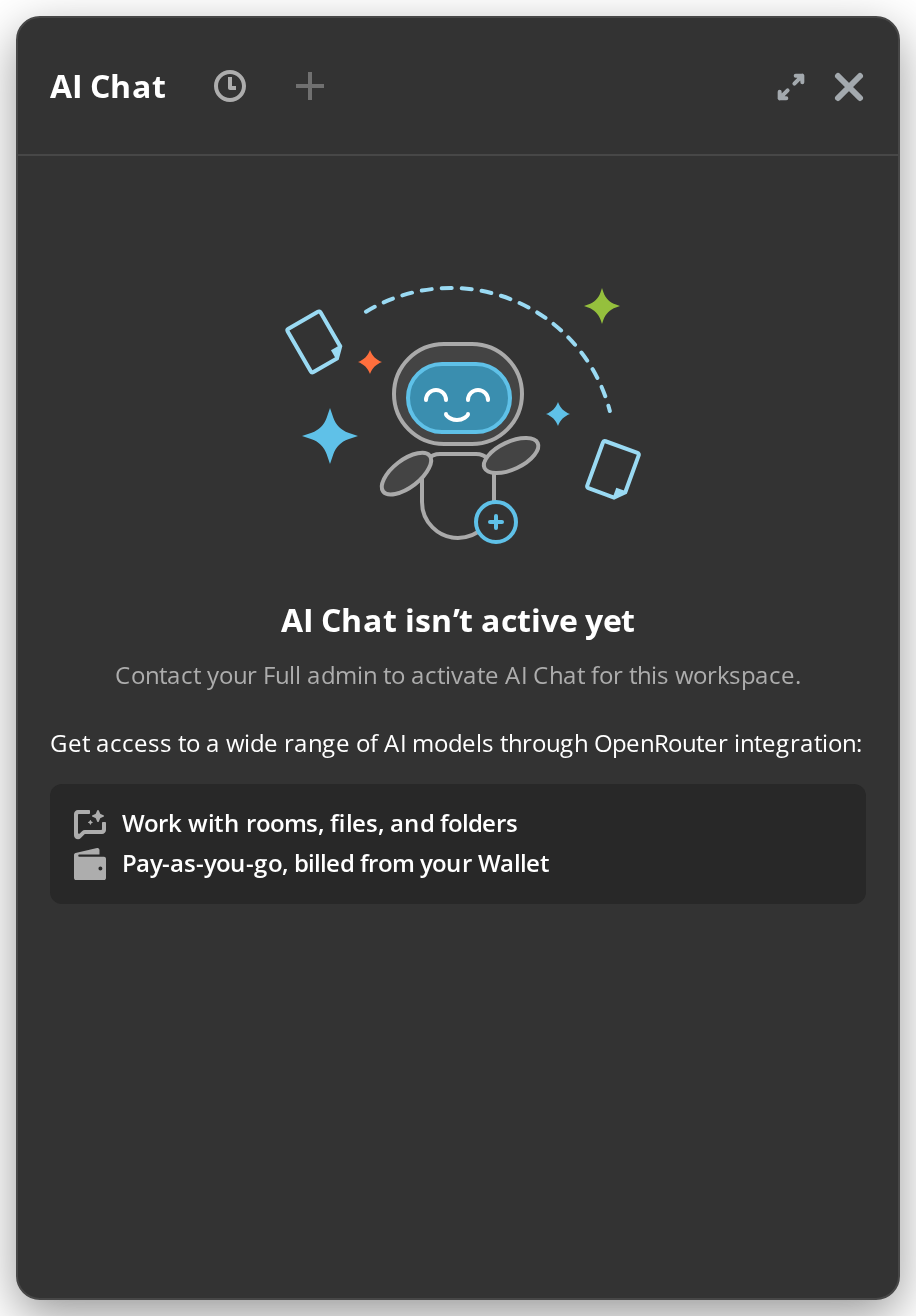
When the portal has no usable model, the chat opens on a screen that says so. It takes both
aiReady: false and noAccessProps — who the user is, and the handlers behind the screen's
buttons; a button is drawn only when its handler is passed.
On a cloud portal an admin can activate AI on the spot — onActivateAI with a linked card,
onTopUpAndActivateAI without one:
On a server installation (standalone) an admin is sent to connect a provider, through
goToAISettings:
Anyone else is told to ask their administrator:
A host with no settings page to send the user to — the embedded sdk layouts — leaves both out and gets the chat widget's own setup screen, which configures a model in place.
Right to left
locale sets the widget's own strings, and the page's direction mirrors the layout. The texts
the kit passes in — the welcome line, the placeholder — come from the host's translations; this
Storybook loads English only, so those stay in English.
The example is on its own page rather than here: the kit sets the direction on the whole document, so a right-to-left block on this page would turn every other block with it.
What renders in Storybook
The chat follows the API Config toolbar, like billing and the selectors. With a portal
picked there (or .env filled in), every /api/2.0/ai request goes to that portal with
Authorization: Bearer <key>, through the serverApi prop of AiAgentProviders, and the chat
runs as the key's owner — their threads, their models. The portal's AI service has to accept
the Storybook origin, which it does once core:cors allows it.
With nothing configured, the chat talks to the demo portal instead, under a Demo data
banner: a mock service worker answers it from .storybook/mocks/, in pnpm storybook and the
static build alike. It has three made-up models, two past threads, and a streamed reply that
echoes the prompt; everything is kept in memory until the page reloads, and nothing reaches a
model. Connect a portal on the banner opens the API Config form.