Files
Works only inside an ONLYOFFICE Apps portal: it needs the portal's API client, stores and translations, and is not part of the public API.
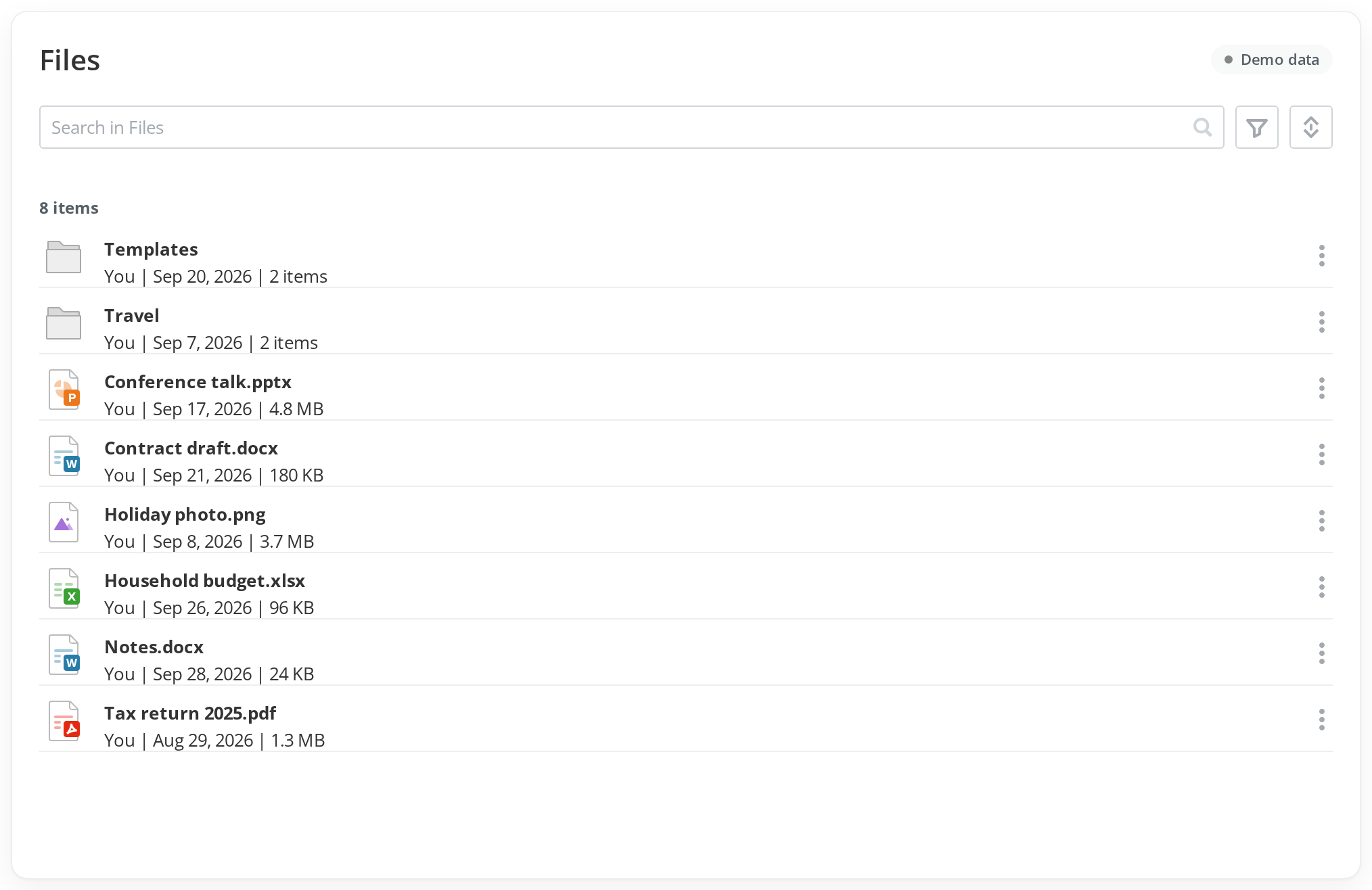
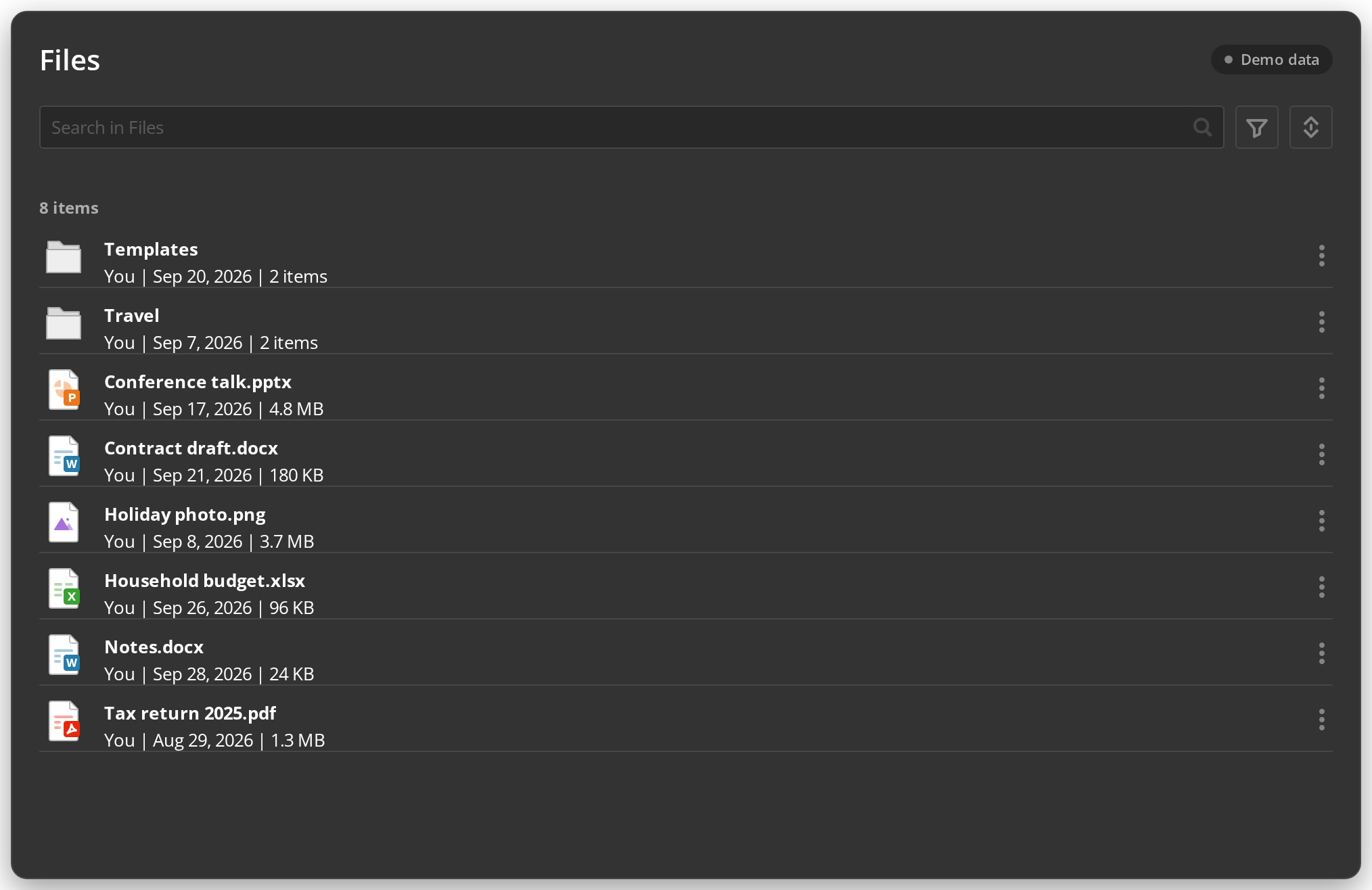
The Files section as the portal draws it: a header, the filter bar and the rows of the caller's personal folder. Search, a sort order and a type filter narrow the list, and a folder opens in place. There is nothing to create — the filter bar has no main button, and a row's context menu only opens it or copies its link, so this screen never writes to a portal.
Features
- Type filter — Folders, Documents, Spreadsheets, Presentations, PDF. One type at a time, as in the portal
- Search — debounced by 300 ms, because each keystroke is a request to the portal
- Sort — by name or last modified, either direction. Folders always come before files
- Folders open in place — see below
- Demo or portal — the same screen on in-memory data or on a real portal, with nothing to switch in the code
Opening folders, and the context menu
A click on a folder's name, or Open in its context menu, lists that folder. The header
becomes the kit's Navigation: the folder's title, a breadcrumb back to Files, and a
back arrow to the parent. Search and filters start empty at every level — a filter belongs to
the list it was set on.
Each row has a context menu with the minimum a read-only list needs:
Inside a folder the list is foldersApi.getFolderByFolderId({ folderId, ... }), with the same
search, sort and type parameters; its pathParts become the breadcrumb.
Choosing a folder in a picker
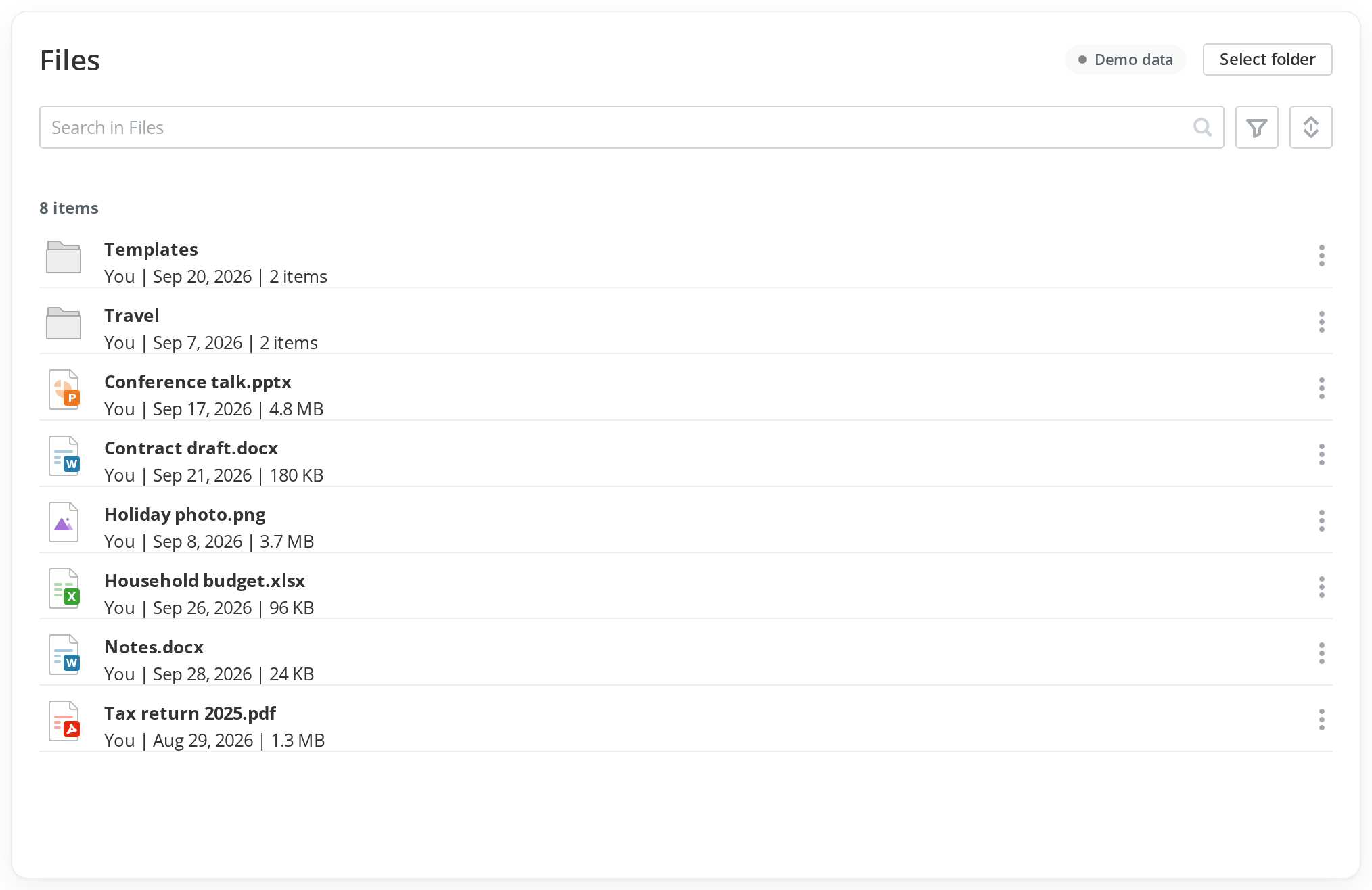
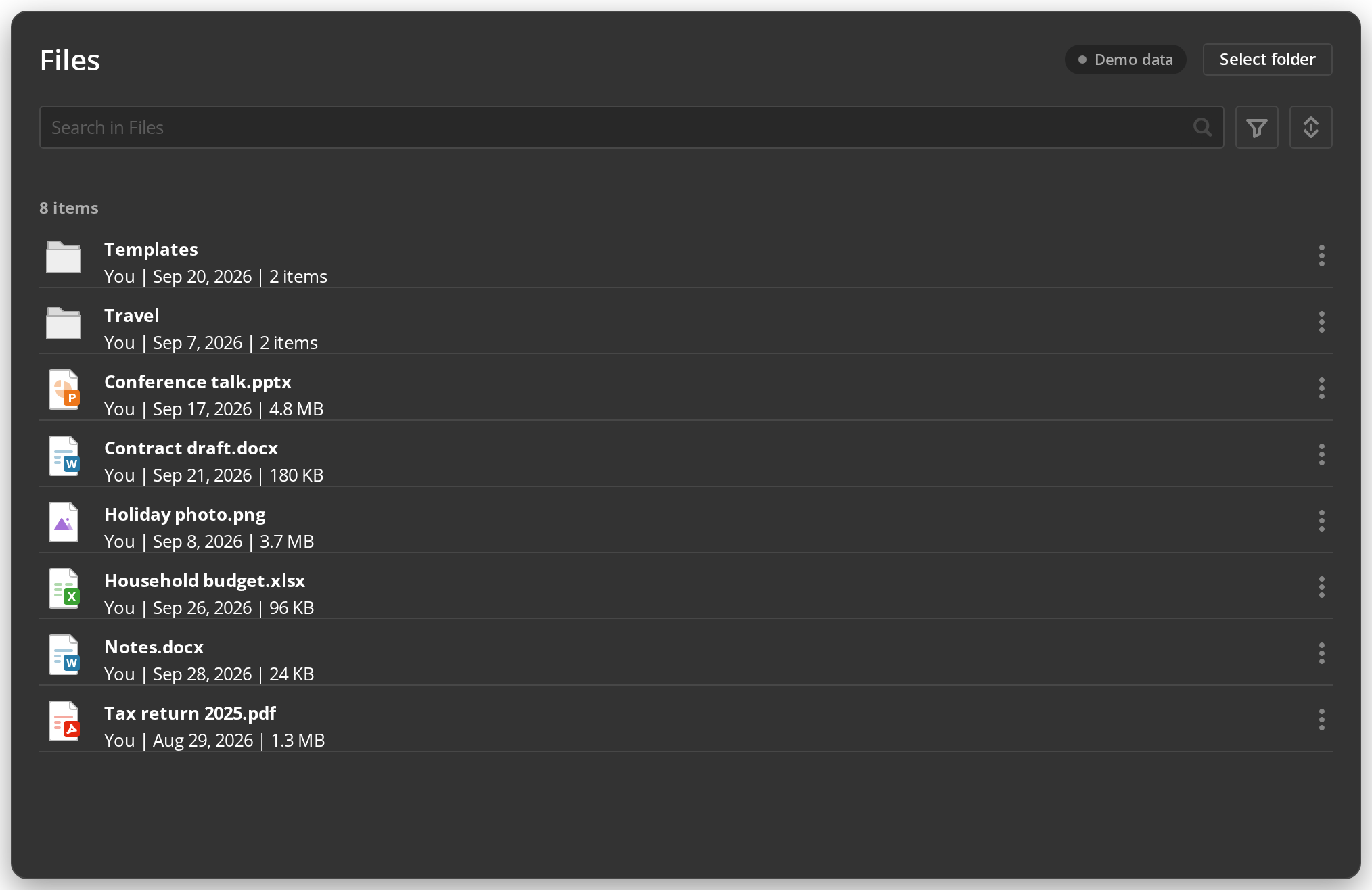
With withFolderPicker, the header carries Select folder, which opens a picker over the
same source the list reads. Its root holds Files and nothing else — no Rooms, no Forms. Go
into Files and press Open to show Files itself, or go further into a folder first; the list
then opens there, with its breadcrumb. Files are left out of the picker, since a file is not
somewhere to go, and Open stays disabled at the root, where there is nothing chosen yet.
The picker is the kit's Selector (@onlyoffice/apps-ui-kit/components/selector), not
FilesSelector: that one cannot narrow its root to a single section — My documents is always
kept beside Rooms — and it has no demo data, so with no portal it would open empty. The source
is docs/sections/FolderPicker.tsx.
Where the rows come from
The header says which source answered: Demo data, or the host of the connected portal.
- No portal. Until one is picked in the API Config toolbar (or
.envis filled in),useApi().baseUrlis empty and the list runs ondemoSource("files")fromdemo.ts: eight entries — two folders and a file of every type — so each filter has something to show. This is what CI and the published Storybook render. - A portal. Pick one in the toolbar and the story reads that portal's My documents, as whoever the key belongs to — their folder, not the reader's.
Every filter is sent to the portal rather than applied to a page it already returned:
| Control | Request parameter |
|---|---|
| Search | filterValue |
| Type | filterType — FoldersOnly, DocumentsOnly, SpreadsheetsOnly, PresentationsOnly, Pdf |
| Sort | sortBy ("AZ", "DateAndTime") and sortOrder |
The first 100 entries are shown; when there are more, the count above the rows says
First 100 of N.
Usage
import { FilterType, SortOrder } from "@onlyoffice/docspace-api-sdk";
import { useApi } from "@onlyoffice/apps-ui-kit/providers/api";

const { foldersApi } = useApi();

const response = await foldersApi.getMyFolder({
  filterType: FilterType.DocumentsOnly,
  filterValue: "report",
  sortBy: "AZ",
  sortOrder: SortOrder.Ascending,
  count: 100,
});

// The portal's envelope: the payload is two levels down.
const { folders, files, total } = response.data.response;
The filter bar is FilterInput from @onlyoffice/apps-ui-kit/components/filter, left without
showMainButton — that prop is the only thing that puts a create button beside the search box.
The source of the whole screen is docs/sections/SectionList.tsx; the requests are in
docs/sections/source.ts.